

Google Chrome hat es vorgemacht, Firefox zieht bald nach. Browser mit eingebauten Modus zum „Privaten Surfen“ – böse Zungen sagen dazu Porn-Mode… – sind derzeit sexy. Fans des Firefox müssen dazu jedoch nicht warten bis Mozilla den Firefox 3.5 herausbringt, der Browser kann das schon jetzt. Allerdings muss man ein bisschen selber Hand anlegen. (Wer die schlüpfrigen Anspielungen findet, darf sie behalten 😉 )
Was ist zu tun? Firefox kann mehrere Profile benutzen und bringt von Haus aus einen Profilmanager mit, den man jedoch selten zu Gesicht bekommt. Man kann ihn beispielsweise über ein Terminal und den Befehl firefox -P starten. Im Manager sieht man jetzt das von Haus aus angelegte Profil „default“. Hier legt man jetzt ein neues Profil an, ich nenne meines „anonymous“.
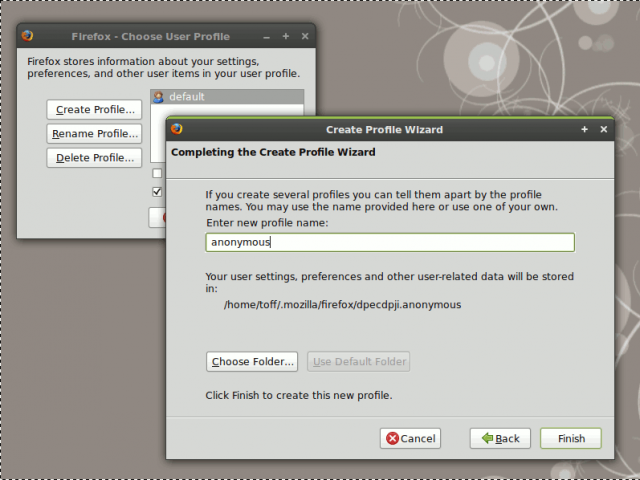
Der Name ist egal, man sollte ihn sich jedoch merken (und in den genannten Befehle auch bitte austauschen), da er später noch einmal benötigt wird. Nun sollte man alle bereits geöffneten Fenster von Firefox schließen – sonst kann das neue Profil nicht geladen werden – und entweder direkt über den Profil-Manager oder über
$ firefox -P anonymous
das neue Firefox-Profil starten. Hier kann man sich das zweite Profil nach seinen Wünschen einrichten. Bzgl. der Privatsphäre würde ich zumindest folgende Einstellungen vornehmen…
- Java und JavaScript unter Bearbeiten | Einstellungen | Inhalt deaktivieren.
- Das Speichern der Chronik und von Cookies unter Bearbeiten | Einstellungen | Datenschutz“abstellen bzw. Cookies nach Beenden des Browsers löschen lassen.
- Auf addons.mozilla.org gibt für das Schlagwort „Privacy“ noch zig Erweiterungen. Wer will kann ja noch etwas in dieser Richtung installieren.
Als kleinen Tipp am Randa möchte ich noch die Erweiterung Personas erwähnen, die Onli neulich vorgestellt hat. Mit ihr kann man dem zweiten Profil noch ein individuelles Aussehen verpassen, so dass man sofort erkennen kann „mit was“ man surft… Von nun an kann man bei Bedarf die zweite Instanz des Browser über den Befehl
$ firefox -P anonymous -no-remote
starten. Beide Browserfenster existieren dann friedlich nebeneinander und beide Profile sind sauber voneinander getrennt. Schließt man den Anonymen-Firefox, so werden die dort gesammelten Daten gelöscht ohne dass man die History und Cookies aus seinem „richtigen“ Firefox verliert.
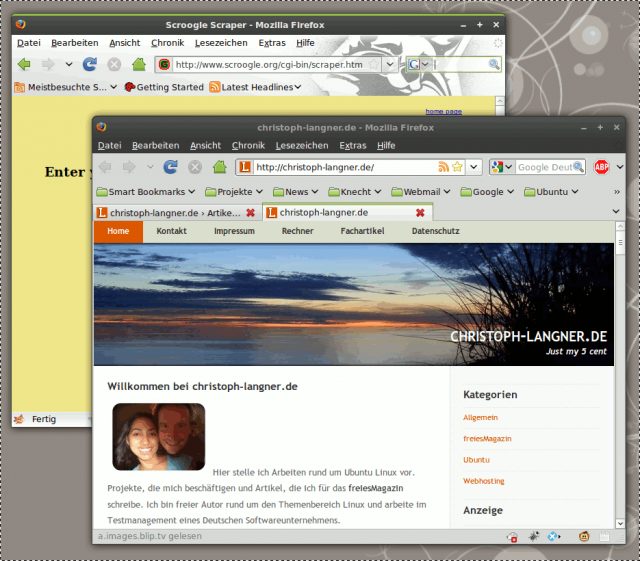
Letztendlich gilt es das Starten des Browsers etwas einfacher zu gestalten. Man will ja nicht andauernd das Terminal dazu bemühen. Natürlich kann man sich in GNOME einen eigenen Eintrag in die Menüs für den „anonymen Firefox“ anlegen.
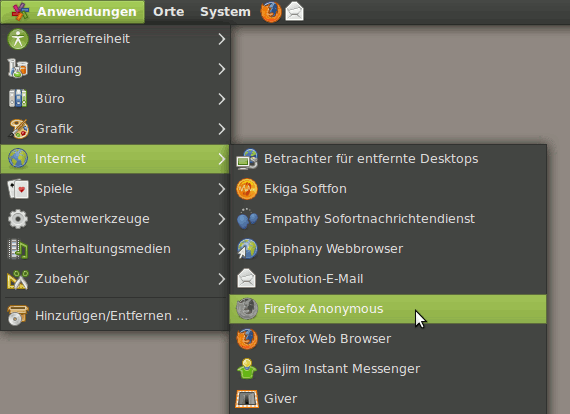
Dazu öffnet man den Menüeditor über einen Rechtsklick auf das Menü Anwendungen | Orte | System im Panel und klickt auf Menüs bearbeiten. Im Abschnitt Internet legt man nun dann einen neuen Eintrag an. Als Befehl benutzt man wieder $ firefox -P anonymous -no-remote und als Icon bspw diese abgedunkelte Version des Firefox-Logos. So, viel Spaß mit dem anonymen Firefox.
Noch einen Hinweis: Man müsste den Starteintrag von Firefox auch noch ändern. Startet man bspw. den anonymen Firefox und dann erst die „richtige“ Version so öffnet man nur ein zweites Fenster des anonymen Firefox. Wir das also perfektionieren will, der muss noch ein bisschen mehr an den Menüs basteln. Mir „reicht“ diese Integration, da ich meinen AnonFox eher selten starte.






An easier way is to just install the Distrust firefox extension…
Moin, super Tipp.
Habe ich bei mir verlinkt, aber Trackback geht wohl nicht.
Schade was.
Hi Shakal. Grummel, du hast Recht. Trackbacks gehen schon wieder nicht. Hatte die doch gerade erst gefixed. Muss wohl an was anderem liegen als das letzte mal. Da muss ich mal wieder suchen…
Ist übrigens auch nützlich, wenn man 2 Versionen parallel betreiben will (z.B. 3.0 und 3.1b)
Das Profil kann man auch mit einer FF-Erweiterung wechseln:
ProfileSwitcher
Gruß
Hi,
diese Methode benutze ich, um meine zwei „Internet-Identitäten“ auseinander zu halten, sodass nach Möglichkeit nichts auf die jeweils andere im Browser hindeutet (stichwort Cookietracking).
Grüße,
Haze
@Christoph Langner, ich erinnere mich ja, dass wir das gleiche Problem schon mal hatten. Aber ein Link ist ja auch was wert 😉
Schönes Wochenende.
@Jonas
I don’t think Distrust realy offers privacy. Or does it block access to existing cookies?
>Java und JavaScript unter “Bearbeiten -> Einstellungen -> Inhalt” deaktivieren.
besser wäre die NoScript Erweiterung, da man auf JavaScript heutzutage kaum dauerhaft verzichten kann. Wenn man nicht komplett ohne Kekse leben will, kann man außerdem die Erweiterung CookieCuller verwenden.
Ich verwende beide Erweiterungen „sogar“ bei meinem normalen Fuchs, da sich mit NoScript so manche Werbung, Google-„Spionage“ usw. verhindern lässt, und CookieCuller das Einnisten und Anhäufen von (ungewollten) Cookies verhindert.
Hallo!
Ich habe das auch schon seit einiger Zeit am laufen. Allerdings kämpfe ich noch mit einen Bug unter Debian Lenny und Iceweasel.
Wenn ich eine Iceweasel-Sitzung am laufen habe, kann ich keine weiteren Iceweasel-Fenster über das Iceweasel-Icon (der Gnome-Panelleiste) öffnen. Es erscheint nur folgender Hinweis:
Iceweasel is already running, but is not responding. To open a new window, you must first close the existing Iceweasel process, or restart your system.(Ich öffne neue Browser-Fenster dann mithilfe STRG+N.)
Vielleicht weiß jemand die Lösung des Problems 😉
mfg pluvo
@Mike1
Es geht gar nicht mal so viel darum, dass man gegenüber Webseiten Anonym ist, sondern eher dass sich im eigenen Profil weder in der History noch in den Cookies etwas ansammelt.
@pluvo
Was passiert denn wenn du über
ein zweites Fenster öffnest? Beachte, das startet KEINE zweite Instanz, sondern eigentlich nur ein neues Fenster, letztendlich ist das also das selbe wie Strg+N…
Mit der FF-Addon Stealther ist das auch mal temporär kein Problem: https://addons.mozilla.org/de/firefox/addon/1306
Der Befehl „iceweasel -P default“ führt zu meiner Fehlermeldung von oben.
Wenn ich nur „iceweasel“ aufrufe, dann öffnet sich ein neues Iceweasel-Fenster. Allerdings kann ich so nicht bestimmen, von welchem Iceweasel-Profil ich ein neues Fenster haben möchte. (Zum Beispiel: Wenn ich die beiden Iceweasel-Profile im Gebrauch habe, dann öffnet sich ein neues Fenster von dem Profil, welches als erstes geöffnet habe.)
Zudem ist es nicht so toll, dass ich nicht kontrollieren kann welches Iceweasel-Profil gestartet wird, wenn ich noch keinen Iceweasel geöffnet habe. Wenn ich nur „iceweasel“ aufrufe, wird automatisch das Iceweasel-Profil gestartet, welches ich als letztes benutzt habe.
Kann man den Befehl „iceweasel -P default“, denn irgendwie korrigieren, damit er funktioniert?
mfg pluvo
Oder einfach das PPA für Firefox 3.1/3.5 nutzen und den installieren. Läuft absolut crashfrei, bei mir stabiler als die 3.0.x und mit den Nightly Tester Tools laufen auch alle noch nicht aktualisierten Erweiterungen weiter.
Ich verwende dieselbe Idee um neben dem normalen Profil eine Entwicklungsumgebung zu betreiben. Darin sind dann sämtliche Webdeveloper Add-Ons, welche im Normalfall nicht benötigt werden oder gar stören.
Toller Blog, vielen Dank!
Philipp
Not much to say here, but excellent post. Thank you!
That will not protect your against Flash cookies…..
Only solution: Delete all /home/~/.Macromedia folders at shutdown.
Hallo und Moin!
Prima Sache – habe ich mir eingerichtet!
Leider habe ich es nicht geschafft, dem „Anonymus“ ein abgedunkeltes Icon zuzuordnen [fand die Idee sehr gut](gibt es da einen speziellen Trick??)!
Gruß aus Ostfriesland
@amd-linux
Yep, i deactivated Flash inside the second profile.
@Henric
Wie beschrieben, es gibt einen Menüeditor mit dem du das sehr einfach machen kannst. Schau mal ins Wiki von uu.de, siehe GNOME_Menu.
danke für den Bericht.