

Neulich erreichte mich folgende Nachricht, wenn ich mit vpnc eine VPN-Verbindung zur Uni Karlsruhe aufbaute.
Ab Monatg den 29.09.2008 ist der VPN Verbindungsaufbau (aus dem WLANoder unterwegs) zum Campus Sued nur noch mit dem neuen Root Zertifikat der dt. Telekom moeglich. Dieses Zertifikat ist in dem Installationspaketdes RZ bereits enhalten, kann aber auch nachtraeglich heruntergeladen und importiert werden.
siehe: http://www.rz.uni-karlsruhe.de/rd/vpn.php
Juhu! 🙁 Es ist also mal wieder Bastelarbeit angesagt. Meine alten Lösungen bzgl. vpnc und Uni-Karlsruhe sind wohl (zumindest teilweise) obsolet. Zeit das Thema wieder mal komplett neu aufzurollen…
vpnc selber compilieren
Nach wie vor gilt es vpnc selber zu compilieren, da vpnc mit Unterstützung für openssl (Zertifikate) gebraucht wird. Aufgrund von Problemen mit den Lizenzen bauen das die Distributoren üblicherweise jedoch nicht ein. Zuerst gilt es sich daher den Quellcode von vpnc herunterzuladen und das Archiv zu entpacken.
$ wget http://www.unix-ag.uni-kl.de/~massar/vpnc/vpnc-0.5.3.tar.gz
$ tar -xzf vpnc-0.5.3.tar.gz
Damit die Paketverwaltung das selbst compilierte vpnc später nicht mit der Version aus den Paketquellen ersetzt, fügt man an das Ende des Verzeichnisnamens, noch ein Kürzel an. Später beim Compilieren wird dieses Kürzel mit in die Versionsnummer übernommen. So ist das eigene vpnc-Paket vor der Paketverwaltung “sicher”.
$ mv vpnc-0.5.3 vpnc-0.5.3-christoph1
$ cd vpnc-0.5.3-christoph1
Anschließend muss der besagte, gegen die GPL verstoßende Teil, einkommentiert werden. Dazu öffnet man das Makefile in einem Editor. Also beispielsweise
$ gedit Makefile
und entfernt die Raute “#” vor den Zeilen 49 und 50, so dass dieser Abschnitt am Ende wie unten stehend aussieht.
OPENSSL_GPL_VIOLATION = -DOPENSSL_GPL_VIOLATION
OPENSSLLIBS = -lcrypto
aus. Nun muss man die zum Compilieren nötigen Pakete installieren. Dieses kann man bei Ubuntu über die Paketverwaltung machen. Dazu einfach
$ sudo apt-get install libssl-dev build-essential dh-make fakeroot
$ sudo apt-get build-dep vpnc
ausführen. Alle benötigten Pakete werden automatisch installiert. Nun geht es an das Compilieren. Der Reihe nach führt man diese Befehle aus.
$ make
$ dh_make -f ../vpnc-0.5.3.tar.gz
$ fakeroot debian/rules binary
$ sudo dpkg -i ../vpnc*.deb
Dies erstellt ein .deb Paket das sich über die Paketverwaltung installieren, und somit auch wieder einfach deinstallieren lässt. Die Frage bei dh_make, nach der Art des Binaries kann man mit s für eine single binary beantworten. Ob die Installation nun erfolgreich war, kann man mittels
$ vpnc --version
[...]
Built with openssl (certificate) support. Be aware of the
license implications.

Supported DH-Groups: nopfs dh1 dh2 dh5
Supported Hash-Methods: md5 sha1
Supported Encryptions: null des 3des aes128 aes192 aes256
Supported Auth-Methods: psk psk+xauth hybrid(rsa)
überprüfen. Hier muss von vpnc die Meldung „Built with openssl (certificate) support“ ausgeben werden. Erst dann wurde vpnc korrekt mit Unterstützung für openssl gebaut.
Das Zertifikat
Seit Anfang Oktober 2008 benutzt die Universität Karlsruhe ein neues Root-Zertifikat der deutschen Telekom. Dieses Root-Zertifikat kann man sich wieder von der Uni herunterladen. Der Einfachheit halber hier der Weg über ein Terminal.
$ sudo wget --no-check-certificate https://pki.pca.dfn.de/uni-karlsruhe-ca/pub/cacert/rootcert.crt -O /etc/ssl/certs/rootcert.crt
Dies lädt das Zertifikat herunter und kopiert es gleich an die richtige Stelle im Dateisystem. [UPDATE 27.04.09: Der nun folgende Abschnitt dieses Beitrages richtet sich an Anwender, die die Verbindung zum VPN der Uni Karlsruhe automatisieren wollen. Will man die Verbindung nur bei Bedarf aufbauen, so kann man dazu ein angepasstes Modul für den NetworkManager benutzen. Für viele Anwender ist dies sicherlich ausreichen. Weitere Informationen dazu findet man hier in meinem Blog unter NetworkManager, vpnc und HybridAuth.]
Konfiguration
Schließlich muss noch vpnc konfiguriert werden. Dies geschieht über die Datei /etc/vpnc/default.conf. Über einen Editor sudo gedit /etc/vpnc/default.conf fügt man den Inhalt…
IPSec gateway vpn.uni-karlsruhe.de
IPSec ID vpn
IPSec secret vpnvpn
IKE Authmode hybrid
Xauth username u...
Xauth password xxx
CA-File /etc/ssl/certs/rootcert.crt
…ein. Natürlich müssen der Benutzername und das Passwort noch angepasst werden. Damit diese Daten vor dem Einblick Dritter geschützt sind, sollte man mit sudo chmod 600 /etc/vpnc/default.conf die Dateirechte entsprechend setzen.
Verbindungsaufbau
Von nun an kann man die Verbindung zum VPN über einen einfachen Befehl
$ sudo vpnc
$ sudo vpnc-disconnect
auf bzw. wieder abbauen. Da es sich in letzter Zeit gezeigt hat, dass die VPN Verbindung sehr instabil sein kann, sollte man den so genannten „DPD idle timeout“ deaktivieren. Die Verbindung sollte man daher so…
$ sudo vpnc --dpd-idle 0
…aufbauen.
Skripte zum automatischen Aufbau des VPNs
Die VPN Verbindung via vpnc auf- und abzubauen ist nun alles andere als komfortabel. Ich habe mir ein kleines Skript für den Network-Manager geschrieben. Diese so genannten „Dispatcher“-Skript für den Network-Manager werden beim Auf- bzw. Abbau einer Netzwerkverbindung automatisch ausgeführt.
Das Skript wird also beim Aufbau der Netzwerkverbindung automatisch aus ausgeführt und überprüft, ob man sich im Netzwerk der Uni-Karlsruhe befindet. Sollte dies der Fall sein, so wird automatisch die VPN-Verbindung gestartet. Dies klappt wunderbar innerhalb der Bibliothek und auch beim WLAN-Zugang über die ESSID „VPN/WEB“.
$ sudo wget http://www.linuxundich.de/static/02uni-ka-vpn-1.4.sh -O /etc/NetworkManager/dispatcher.d/02uni-ka-vpnc
$ chmod +x /etc/NetworkManager/dispatcher.d/02uni-ka-vpnc
Eventuell muss in den Skript noch die Zeile…
[...]
WLANINTERFACE="eth1"
[...]
…an die eigenen Bedürfnisse angepasst werden. Hier muss das WLAN-Interface eingetragen werden, also eventuell wlan0, ra0, ath0 usw. Wer möchte, kann sich dabei auch Benachrichtigungen ausgeben lassen. So bekommt man im Fehlerfall Informationen ausgegeben, warum die VPN-Verbindung nicht aufgebaut werden konnte.
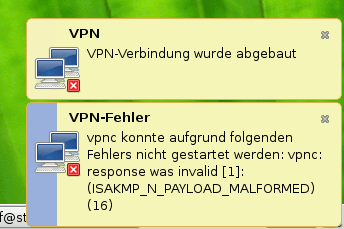
Voraussetzung dafür ist, dass das Paket libnotify-bin installiert wurde. Meines Wissens nach funktioniert die Ausgabe von dieser kleinen Popups leider nur mit der GNOME Desktopumgebung. Das Skript an sich funktioniert auf allen Systemen, die den Network Manager benutzen. Also auf jeden Fall bei allen Ubuntu Derivaten [UPDATE 25.04.09: Auf vpnc 0.5.3 aktualisiert[/UPDATE].
$ sudo apt-get install libnotify-bin








Hallo Chrissss!
Vielen Dank erstmal für dein früheres Post zum vpnc und der Uni Karlsruhe. Ich bin zwar in Ulm, aber da funktioniert das genau so, wie Du es früher beschrieben hast, also vielen Dank nochmal!!
Nun zu meiner Frage: Hast du mittlerweile herausgefunden, wie man den Network-manager-vpnc zum laufen bekommt? Das funktioniert bei mir nämlich ebenso wie in einem Post von Dir beschrieben auch nicht. Die Skripte sind glaube ich auch nicht der richtige Weg für mich, da ich vpn zum Einloggen von außerhalb der Uni nutze (um Services zu nutzen, bei denn man eine Uni-IP braucht, z.B. Zeitschriftendatenbanken, etc.). Wenn Du was rausgefunden hast wäre ich Dir für eine Antwort sehr dankbar. Mein System ist Ubuntu 8.04 amd64 (falls das wichtig ist).
Danke und viele Grüße
Paul
Vielen Dank!
Endlich kann ich auch mit meinem Linux-Notebook ins UNI-Netz 😉 Genau das hab ich schon immer gesucht.
@Paul:
Den network-manager-vpnc habe ich bewusst draussen gelassen, weil für diesen ebenfalls Patche eingespielt werden müssten.
Es gibt ein PPA von Steffen Röcker (-> https://launchpad.net/~sroecker/+archive), in dem eine Version von network-manager-vpnc findest, die mit „unserem“ vpnc zurecht kommen sollte.
Ich hatte das mal getestet, doch nie benutzt, weil es eben über die Dispatcher-Skripte viel bequemer ist (zumindest für mich 🙂 ) Schau dir das PPA mal an, du benutzt Hardy, also sollte das Paket bei dir passen.
@Alexander:
Gerne geschehen 🙂
Chrisss,
herzlichen Dank zum zweiten! Die debs von Steffen funktionieren bei mir einwandfrei! Ein Klick und die VPN-Verbindung steht. Vielen Dank für die super Tipps!
Grüße
Paul
Hey,
vielen Dank.
Musste schon die neue Version von Ubuntu 8.10 unstable installieren, da sonst meine WLAN wie auch LAN Karte nicht unterstützt wurden.
Nach langer Suche bin ich endlich auf deiner Seite gelandet und konnte endlich mit Ubuntu ins Netz. 🙂
Kannst du bitte noch hinzufügen, dass nicht bei allen die WLAN-Schnittstelle „eth1“ ist und es man gegebenenfalls bei deinem „Automatischen Verbindugsskript“ durch „wlanX“ ersetzen muss, dann muss man sich nicht so den Kopf zermartern:-)
Grüße,
Felix
Danke dir, hab das noch eingebaut.
Hi Christoph.
Ich bin froh dass jemand so eine genaue detailierte seite zu diesem Thema betreut. Erstmal danke dafür 🙂
Ich habe einen Asus EEE 701 4G mit ubuntu eee 8.04 drauf. Wenn ich mich im Bauingenieurgebäude aufhalte (woanders habe ich es nochnicht probiert) und will vpnc mit sudo vpnc starten, kommt:vpnc: unknown host `vpn.uni-karlsruhe.de‘ . mit einem windows laptop, der genau neben meinem eee steht kommt man aber ins dukath. mein eee findet auch das dukath-dt netzwerk und noch ein netzwerk namens VPN/WEB. an was könnte es liegen?
Mike, logg dich mal in das WLAN „VPN/WEB“, dies ist für den VPN-Zugang gedacht. Überprüfe auch bitte deine /etc/vpnc/default.conf, nicht dass du dich da vertippt hast.
Ansonsten kann das auch an eine zu schlechtem WLAN Empfang liegen. Ich kenne das aus der Bibliothek, dort ist das WLAN an vielen Stellen zu schwach, dann bekomme ich auch die von dir genannte Meldung.
Bei mir gibt Vpnc immer „no response from target“ zurück. Ich habe verschiedene „NAT Traversal Mode“- und „Local Port“-Einstellungen ausprobiert (das sind die Lösungsvorschläge, die ich bei Google gefunden habe).
Mit traceroute -U -p500 vpn.uni-karlsruhe.de komme ich auf jeden fall aus dem lokalen Netz (zu Hause) raus.
Habt ihr irgendne Idee?
$ sudo vpnc –debug 3
vpnc version 0.5.1
[…]
PARSING PAYLOAD type: 0d (ISAKMP_PAYLOAD_VID)
next_type: 00 (ISAKMP_PAYLOAD_NONE)
length: 0014
ke.data: afcad713 68a1f1c9 6b8696fc 77570100
(DPD)
DONE PARSING PAYLOAD type: 0d (ISAKMP_PAYLOAD_VID)
PARSING PAYLOAD type: 00 (ISAKMP_PAYLOAD_NONE)
PARSE_OK
vpnc: no response from target
(Ubuntu 8.04.1 hardy)
Hi,
ich habe dasselbe Problem wie Martin. Bin langsam am verzweifeln.
NAT Traversal Mode und Local Port habe ich auch schon ausprobiert…
MfG Eduard
Martin scheint das von zu Hause aus zu probieren, Eduard wo sitzt du?
Ich versuche auch mich von zuhause per vpn-split zu connecten.
Jetzt habe ich gemerkt, dass es, wenn ich meinen Router (Netgear WGR614v4) umgehe, keine Probleme gibt. Ich habe schon versucht die Firewall des Routers auszuschalten, was aber nicht geholfen hat. Alles ziemlich seltsam, scheint aber am Router zu liegen…
habs mittlerweile auch von nem andern PC (und anderem lokalen Lan) versucht, da gehts einwandfrei. ich nehm an, es liegt am router.
welche ports/protokolle werden für das vpn benutzt?
vpnc ist eine reine Client-Anwendung, d.h. Ports müssen eigentlich weder freigegeben oder weitergeleitet werden. Hast du bei deinem Router irgendwelche Pseudo-Firewalls aktiviert? Schalte die doch mal ab.
hab ein firmwareupdate durchgeführt, jetzt gehts…
So wie ich das verstehe, ist das Problem auf VPN-Passthrough zurückzuführen. Dummerweise gibts für meinen Router kein Firmware-Update mit dem das behoben werden könnte. Der original Cisco-VPNClient hat aber keine Probleme am Router vorbei zu kommen. Wenn vielleicht demnächst „cisco-tcp“ als NAT-Traversal-Mode von vpnc implementiert wird, sollte das dann auch bei mir gehen.
MfG Eduard
ich hab einfach das zertifikat in /etc/cert oder /etc/certs (weiss das grad nimma) und dann gings wie gehabt als root mit
#vpnc
// dann dort dukath-ipsec.rz.uni-karlsruhe.de
// dukath
// dukath
// u-account
// u-account passwort
Das wundert mich. Anfang Dezember 2007 habe ich eine Anfrage an das RZ zu den „alten“ Gateways dukath-ipsec.rz.uni-karlsruhe.de sowie rz-ipsec.rz.uni-karlsruhe.de gestellt. Die Antwort war
Faszinierend, dass die „nächsten Wochen“ fast ein Jahr überdauert haben. Ich frag lieber nicht nochmal beim RZ an, nicht dass die das mit nem „Ahhhhh, stimmt, die wollten wir abschalten, holen wir gleich nach“ beantworten… 😉
Ich benutze Gentoo, das ebuild funktioniert. Ich brauchte nur noch den Tipp, daß ich ein anderes Zertifikat einstellen muß.
Vielen Dank!
Moin,
statt –dpd-idle 0 kannst du auch „DPD idle timeout (our side) 0“ (sic) in deiner .conf verwenden.
Hallo!
Das „no response from target“-Problem mit Ubuntu 8.04 hinter NAT kenne ich auch, und bin daher auf diese Seite gestossen.
Ich vermute, dass mein DSL-Router (netgear rp614v2) der Boesewicht ist und „fragmentation needed“ pakete verschluckt.
Loesen ließ sich das Problem bei mir, indem ich die MTU auf dem entsprechenden Interface auf 540 reduziert habe (war einer dieser „magischen“ Tipps eines Freunds), z.B.:
Danach klappte der Verbindungsaufbau spontan. Ein gewisses Indiz waren auch Meldungen in tcpdump über zu spät eintreffende fragmentierte Pakete des VPN-Servers.
Da es natürlich haesslich ist, alle ausgehenden Pakete mit so einer kleinen MTU zu versenden, gibt es einen netten Trick:
also z.B.
Hallo,
Danke für diesen Guide, hat mir sehr geholfen.
Funktioniert soweit auch gut, nur einen kleinen Schönheitsfehler hat das ganze noch: wenn ich per Kabel in der Bib ans Netz angeschlossen bin, kommt es trotz dpd-idle 0 vor, dass ich vpnc reconnecten muss (Nutze auch dein Script). Idee?
gruß, Benni
@Benni, leider nein. Ich habe auch mit vpnc immer wieder Verbindungsabbrüche. Obs nun an vpnc selber oder an der Kombination VPN-Zugang der Uni-KA <-> vpnc liegt kann ich nicht sagen. Hab auch schonmal den letzten Snapshot von vpnc via svn geholt und compiliert, hatte leider auch nichts gebracht…
Hi,
vielen, vielen Dank für dieses How-To! Endlich von zuhause aus im RZ drucken. Ein Kommilitone ist auch schon damit beglückt 😉
Gruß, Sergej
Hallo,
auch von mir erstmal vielen Dank für das tolle Skript! Allerdings habe ich auch noch ein kleines Problemchen damit. Vielleicht hilft es ja jemandem dabei seinem Problem ein bißchen näher zu kommen.
Nachdem ich das Skript an meine Uni (Würzburg) angepasst habe (ESSID und Anfang von IP-Adresse) klappt es prinzipiell mit dem automatischen VPN-Verbindungsaufbau. Nach ca. 10min bricht allerdings die Verbindung ab (mit und ohne dpd-idle), was sich auch beim erneuten Verbinden reproduziert. Wenn die Verbindung erstmal abgebrochen ist muss ich mit ‚kill -9 ….‘ den vpnc-Prozess beenden (‚vpnc-disconnect‘ geht nicht) und kann erst dann mit ‚vpnc‘ wieder connecten. Wenn ich ‚vpnc‘ per Hand ausführe steht die Verbindung stundenlang.
Ich kenne mich leider nicht so gut aus, habe keine Ahnung woran es liegen könnte, aber vielleicht hilft es ja jemandem…
Grüße aus Würzburg
@Emanuel
> Wenn ich ‘vpnc’ per Hand ausführe steht die Verbindung stundenlang.
Hmmmm, das ist komisch. Eigentlich macht das Dispatcher-Skript des NetworkManagers nichts anderes. Es startet ja nur vpnc und lässt dann den Task alleine. Mir fällt leider nichts ein, was das Problem sein könnte.
Gibt es eine Möglichkeit wie im Cisco Client ein Split Profil zu verwenden?
Das wäre wirklich praktisch…
Irgendwie scheint es zu gehen. Jedenfalls in /usr/share/doc/vpnc/README steht was von. Wie es aber genau geht und ob es an unserer Eliteuni geht steht in den Sternen…
Hallo!
Bin leider icht ganz so bewandert in sachen linux …habe ubuntu. Habe mich genau an die Anleitung gehalten…doch wenn ich dh_make -f ../vpnc-0.5.3.tar.gz eingebe kommt folgendes:
822-date: warning: This program is deprecated. Please use ‚date -R‘ instead.
The directory name must be – for dh_make to work!
I cannot understand the directory name or you have an invalid directory name!
Your current directory is /home/christ/vpnc-0.5.3_own_version, perhaps you could try going to
directory where the sources are?
Please note that this change is necessary ONLY during the initial
Debianization with dh_make. When building the package, dpkg-source
will gracefully handle almost any upstream tarball.
und wenn ich den nächten befehl eingebe….dann kommt
/usr/bin/fakeroot: 166: debian/rules: not found
liegt das daran dass ich ubuntu habe??
ich würde mich sehr freuen wenn mir jemand weiterhelfen könnte… ich schaff es einfach nicht mit linux mich via vpnc einzuwählen…
Danke schon einmal!!!
Hallo cratchgisi, das Verzeichnis in dem der Quellcode liegt, also das Verzeichnis das du entpackt und umbenannt haben solltest MUSS in der Art PROGRAMMNANE-VERSIONSNUMMER-ZUSATZ benannt sein, in diesem Beispiel eben vpnc-0.5.3-christoph1. Ich bin mir sicher, dass der Name bei dir nicht korrekt ist, denn dann bekommt man die genannten Fehlermeldungen. Halte dich am besten exakt an meine Angabe und übernehme sie am besten per Copy&Paste. Viel Glück!
Hallo Christoph, ich bin an der TU Dresden, wo ich nach Deiner und dieser Anleitung hier versucht habe, vpnc zum Laufen zu bringen. Leider habe ich nach Installation & Start diese Fehlermeldung bekommen:
Jetzt habe ich festgestellt, dass das TU Dresden-VPN offenbar nicht ein (wie es in der TU-eigenen Anleitung steht), sondern drei (!) Zertifikate benötigt. Frage: Wie schreibe ich das in die .conf Datei rein? Ist vpnc für mehr als ein Zertifikat überhaupt ausgelegt?
Hallo Rich, da bin ich leider vollständig überfragt. Reicht es nicht aus alle Zertifikate nach /etc/ssl/certs zu kopieren, so dass sich die Zertifikate von alleine „aufrufen“?
Ich habe alle drei Zertifikate in /etc/ssl/certs kopiert und in der .conf Datei mit
CA-Dir /etc/ssl/certsdarauf verwiesen. Geholfen hats nichts, ich bekomme immer noch den „Error verifying certificate-chain“.
Die Option „–dpd-idle 0“ hat bei mir endlich zum Erfolg gefuehrt. Tausend Dank, du hast mir eben den Tag gerettet!
@RICH
Ich hoffe das wird dir weiterhelfen:
http://tu-dresden.de/die_tu_dresden/zentrale_einrichtungen/zih/dienste/datennetz_dienste/vpn/ipsec_vpn/howto_vpnc_linux/index_html
Wichtig ist, dass du VPNC mit der OpenSSL-Erweiterung kompilierst – wie hier und dort beschrieben – und der Verweis in der .conf-Datei auf die chain.txt auch korrekt ist.
Seitdem das mit vpnc funktioniert, versuche ich gerade den network-manager fit zu machen. Aber der scheint nun wirklich nicht mit der benötigten Zertifikat-Kette klar zu kommen.
hi.
erstmal danke für die anleitung,
bei mir war allerdings noch das packet libcrypt11 bzw. libcrypt-dev nötig. Ich denke mal du hattest das bereits installiert.
lg, keule
Hi …
ich finde gut dass sich mal jemand um den ehrlich gesagt vpn-mist kümmert …
ich bin nicht an der uni in karlsruhe aber an der HS in Mannheim wird auch der Cisco Vpn verwendet … nur leider habe ich eine Zertifikatskette welche die Dateiendung .p7b hat … kann ich das auch mit dem selbst komplierten vpnc einbauen ?
ich hab auch schon unter windows … die p7b datei angeschaut und in 3 einzelne .crt Dateien exportiert … ging … aber iwie klappt das nicht mit der verbindung …
wenn ich im terminal arbeite und die erstellte .conf mit sudo vpnc hsm ausführe kommt „no response from target“
habt ihr da ne idee an was das liegen kann
wenn ich den network-manager benutze dann importiere ich erst die .pcf welche ich habe und dann unten bei CA file die .p7b rein aber das funktioniert auch nicht … da kommt der fehler „es liegen keine gültigen VPN Geheimnisse vor“
eig wird bei uns im rechenzentrum gesagt wir müssen unter linux den original cisco vpn client benutzen
aber der verursacht bei mir einen kernel stillstand nach 2 min im wlan netz … ich krieg noch die kriese mit dem mist
wäre sehr dankbar wenn du mir helfen könntest
ich hab jetzt den vpnc unter ubuntu 9.10 laufen von der ppa source
Gruß
Pascal
Vom Cisco VPN Client kann man nur abraten, der nervt, auch unter Windows 😉 Hmmmm, hast du mal nach hs mannheim vpnc gegoogelt? Ein paar Treffer gibts, eventuell hilft dir einer weiter.
Ja ich hatte schon geschaut … aber jetzt hab ich noch was gefunden in bezug auf die HS Mannheim …
allerdings wird da per vpnc ein .pem zertifikat eingebunden aber ich hab nur ein zertifikate mit pcf wo die daten drin stehn und noch eine Zertifikatskette mit der endung .p7b und die muss ich in das format .pem bringen
weis jemand von euch wie das geht ?
Hi!
@Pascal:
Ich hatte bis Sonntag ein funktionierenden vpnc für die HS Mannheim auf dem Notebook. Dann hab ich Ubuntu neu installiert und es bisher nicht wieder hinbekommen. Falls ich es wieder habe, wie das geht, werde ich einfach mal hier herschreiben…
@Christoph Langner: Danke für deine Seite! bin immer wieder hier, wenn was mit dem VPN-Client nicht funktioniert!
LG Sally
Hi,
bin mal wieder n Stückchen weiter: über die Konsole kann ich mich mit dem RZ der Hochschule Mannheim verbinden 🙂
Dafür habe ich folgendes gemacht:
1. vpnc nach der obigen Anleitung kompiliert und installiert
2. Zertifikat im .pem-Format von hier downgeloadet (direkter Download)
3. Zertifikat kopieren
4. /etc/vpnc/default.conf bearbeiten
Dabei ist zu beachten: beim von der HS angegebenen Gatewayadresse vpn.hs-mannheim.de habe ich immer einen TimeOut bekommen.
5. voila:
Ich hoffe, dass es damit auch bei anderen funktioniert. Das Ganze ist jetzt halt noch auf den Network-Manager zu übertragen, aber das sollte eigentlich auch kein Problem darstellen.
Das hier ist die Einstellung für den externen Zugang, den WLAN-Zugang und aus den Wohnheimen ist mit den Infos aus den entsprechenden pcf-Dateien zu machen.
das enc_GroupPwd kann Mensch z.B. hier decodieren. Hierfür gibt es auch noch ein Shell-Skript, habe es allerdings nicht mehr und weiß auch gerade nicht mehr woher das war. Bin mir nicht sicher, aber ich glaube von einem grafischen Frontend für vpnc und KDE.
Liebe Grüße
Sally
Hey danke Andy ..
ich schau mal ob ich das hinbekomme aber das hört sich ja mal sehr vielversprechend an ^^
werd mich gleich dran machen …
Danke schonmal 😀
Gruß
Pascal
Sooo ..
ich bin in der zwischenzeit auf ein IBM X40 umgestiegen und da hab ich ubuntu 9.10 nicht drauf bekommen weil die live CD nicht funktioniert … hängt iwo ..
dann hab ich 8.04 drauf gemacht … das ging … dann da die einstellungen gemacht mit dem vpnc was ich selbst gebaut habe aber es funktioniert nicht … kommt immer der fehler Username oder Passwort falsch dabei hab ich alles eingetragen …
dann hab ich den cisco vpn client kompliert und der läuft überaschend stabil bei dem notebook … ich glaube echt dass es an dem iwlagn treiber lag bei meinem anderen laptop
aber wäre schon ne super sache wenn vpn über das network-manager-vpnc gehen würde … welches ich über die ppa sourcen oben runtergeladen hab für 8.04 und installiert … aber es geht nicht … ich weis auch nicht was ich falsch mache …
beim networkmanager hab ich ne neue verbindung erstellt da meine sachen eingetragen und das .pem file unter „Use hybrid authentification“ mit /etc/ssl/certs/hsma.pem angegeben
vll haste ja noch ne idee
ich versuche das ganze auch noch bei nem kumpel der hat 9.10 drauf
gruß
Pascal
Hi…
ich wollt grad mitteilen dass es geht mit dem vpnc in verbindung mit dem network-manager ^^
nochmal vielen dank ..
wie ist denn das .pem file überhaupt erzeugt worden
Gruß
Pascal
Hm.. ich bekomme bei der HS Mannheim immer nur „Error verifying the certificate-chain“ 🙁
Hmm
versuchst du dich im WLAN eine vpn verbindung aufzubauen oder extern …
weil extern geht bei mir auch nicht
Sowohl Extern als auch aus dem WLAN.
Betriebssystem ist allerdings OpenSolaris. vpnc wurde selbst kompiliert nach http://wikis.sun.com/display/chosug/Accessing+a+Cisco+VPN+with+OpenSolaris (mit OpenSSL für Zertifikate).
Ich hab‘ heute eine Verbindung aufbauen müssen:
VPN KIT (former Uni Karlsruhe): use it with Ubuntu Linux
vpnc ist nicht mehr, der Cisco-Endpunkt scheint endgültig abgeschafft worden zu sein. Stattdessen sollte man jnc nutzen.
Hallo Andreas. Hab mich schon länger nicht mehr ins VPN eingewählt. Geht per vpnc rein gar nix mehr? Danke für die Anleitung, bei Gelegenheit übertrage ich sie mal ins Deutsche.
Per vpnc kann ich mich immer noch einwählen. =)
yo – juniper ssl-vpn rockt!
Volle IPSEC Verbindung mit Fallback auf ssl-vpn.
läuft mit linux, apple und mikrosaft.
auch 64 bit.
have fun.
Gruss vom Einführer der Juniper-Lösung im ex-FZK!
Ja, kann ich bestätigen. Habs bei einem Kollegen gesehen, endlich gibts auch mehr als 200kbit/s. Muss nur mal Zeit finden darüber zu bloggeb. Bzw. noch schöner wäre wieder eine Integration in den NM.