
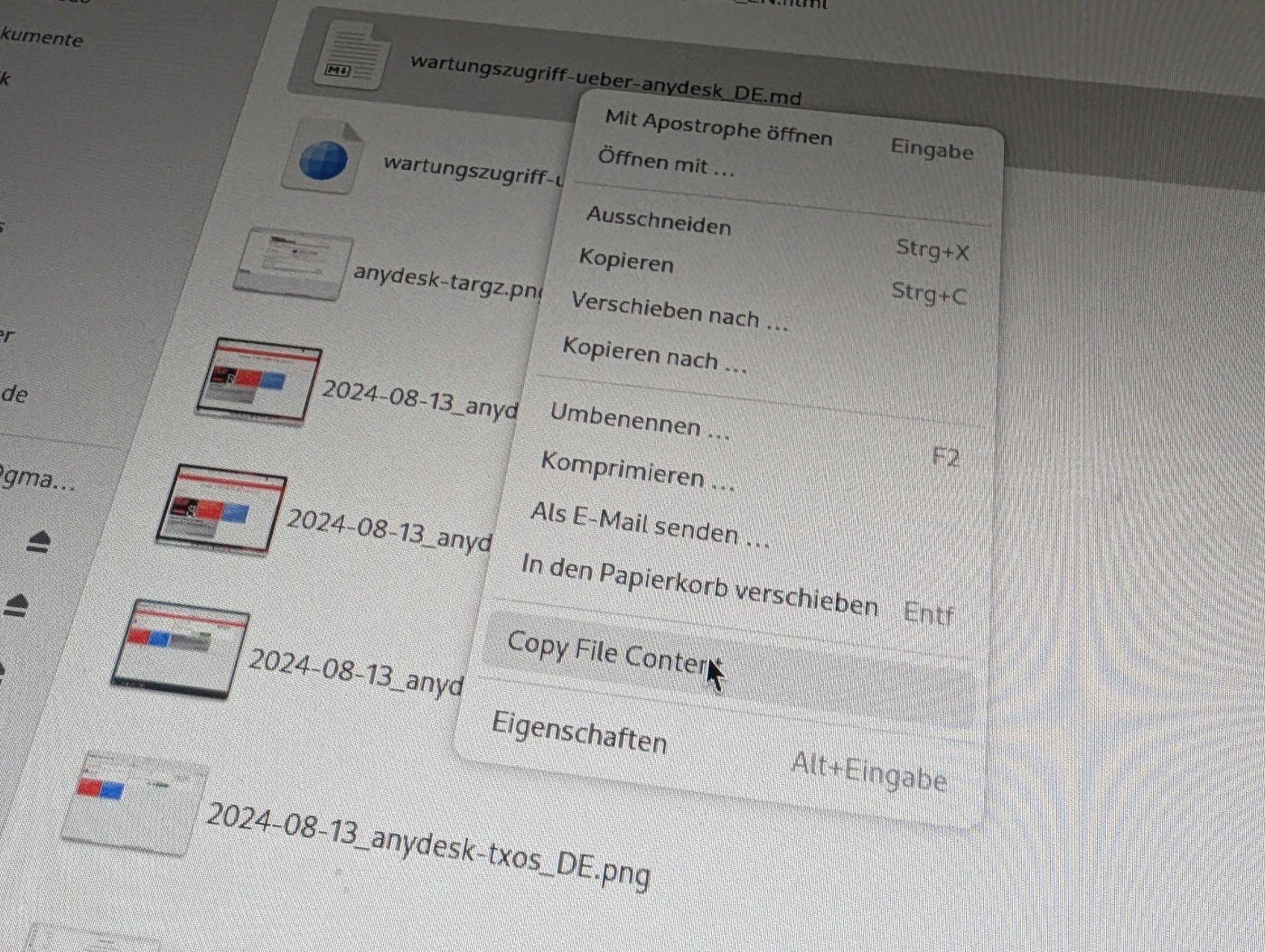
The file manager of the GNOME desktop environment, formerly known as Nautilus and now called “Files” (“Dateien” in German), isn’t exactly famous for its huge feature set. Some useful features, like opening a terminal window in the current folder, can be added with extensions. An alternative to the well-known nautilus-open-terminal extension is the newer nautilus-open-any-terminal, which lets you configure almost any Linux terminal.
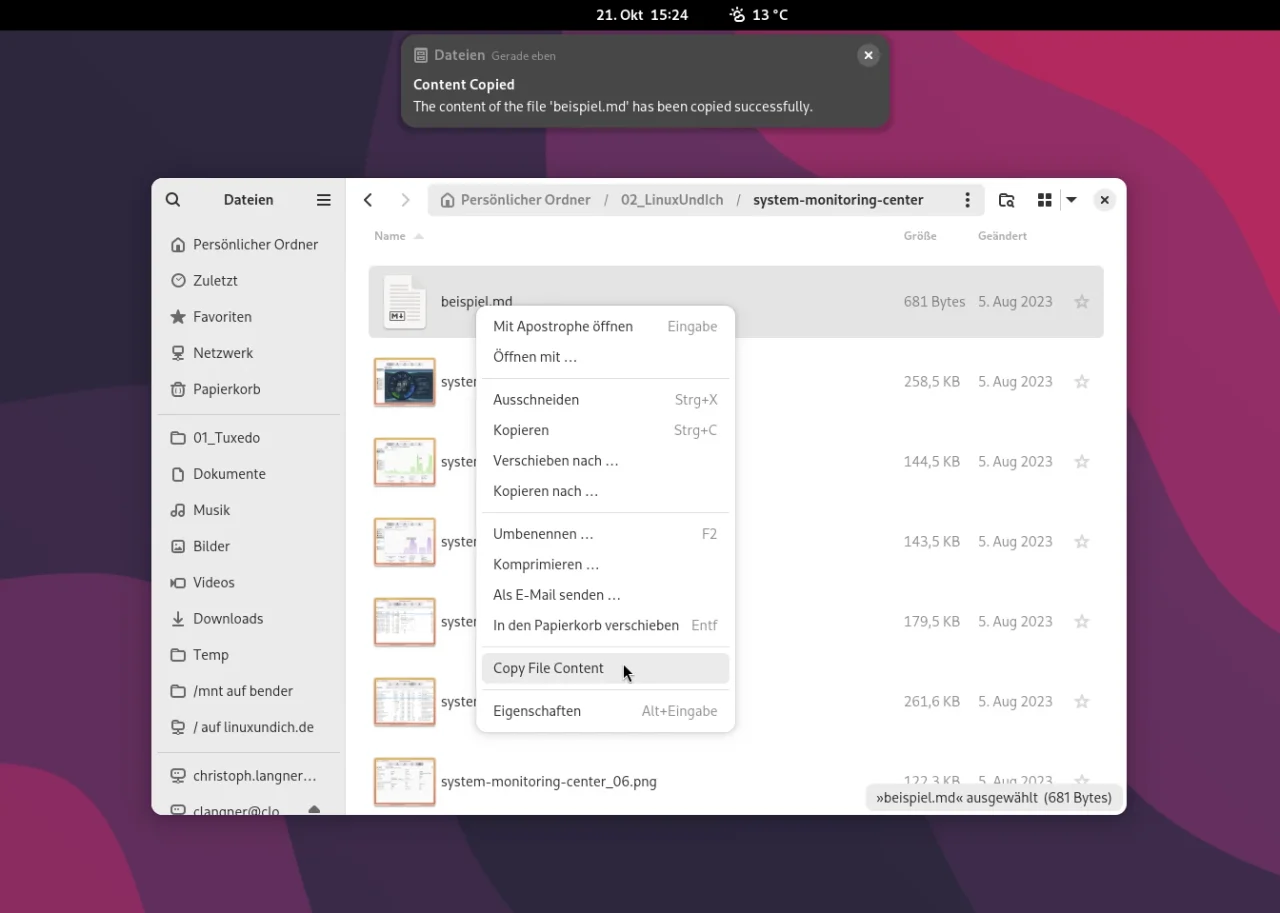
The extension Copy File Contents was just released. It lets you copy the contents of a file straight from the file manager to the system clipboard, without first having to open the file in an editor or in preview mode (via the space bar). Especially for users who work with text files regularly, this extension is a real relief.
Requirements
Before you can install the extension, make sure the nautilus-python package is present on your system. It is available in the repositories of most common distributions. Depending on the distribution you use, the installation looks like this:
$ <strong>sudo apt install nautilus-python</strong>   # Ubuntu, Debian und Co.
$ <strong>sudo dnf install nautilus-python</strong>   # Fedora
$ <strong>sudo pacman -S python-nautilus</strong>     # Arch Linux und Co.
Installing the extension
The extension itself isn’t in the repositories yet, but you can easily install it with a Makefile or manually. First, clone the repository and change into the directory:
$ <strong>git clone https://github.com/EuCaue/nautilus-extension-copy-file-contents.git</strong>
$ <strong>cd nautilus-extension-copy-file-contents</strong>
Installing with the Makefile
Use the following command to install the extension:
$ <strong>make install</strong>This installs the extension to ~/.local in your home directory, so you don’t need administrative privileges.
Manual installation
Alternatively, you can install the extension manually. Simply copy the Python script into the Nautilus extensions folder:
$ <strong>mkdir -p ~/.local/share/nautilus-python/extensions/</strong>
$ <strong>cp ./src/nautilus_copy_file_contents.py ~/.local/share/nautilus-python/extensions/</strong>
After the installation, you generally need to restart Nautilus. You can do that with the following command in the terminal. There is no “real” entry in the file manager’s menus.
$ <strong>nautilus -q</strong>Uninstalling the extension
If you want to uninstall the extension, you again have two options:
Uninstalling with the Makefile
$ <strong>make uninstall</strong>Manual uninstallation
Change into the Nautilus extensions directory and delete the file:
$ <strong>cd ~/.local/share/nautilus-python/extensions/</strong>
$ <strong>rm nautilus_copy_file_contents.py</strong>
Development and debugging
If you want to modify the extension or debug it, you can enable debug mode by setting an environment variable in the terminal. To update, just repeat the installation:
$ <strong>export NAUTILUS_PYTHON_DEBUG=misc</strong>
$ <strong>make install && nautilus -q</strong>
$ <strong>nautilus</strong>
Now the extension is ready and helps you copy the contents of files quickly and easily.
Leave a Reply