
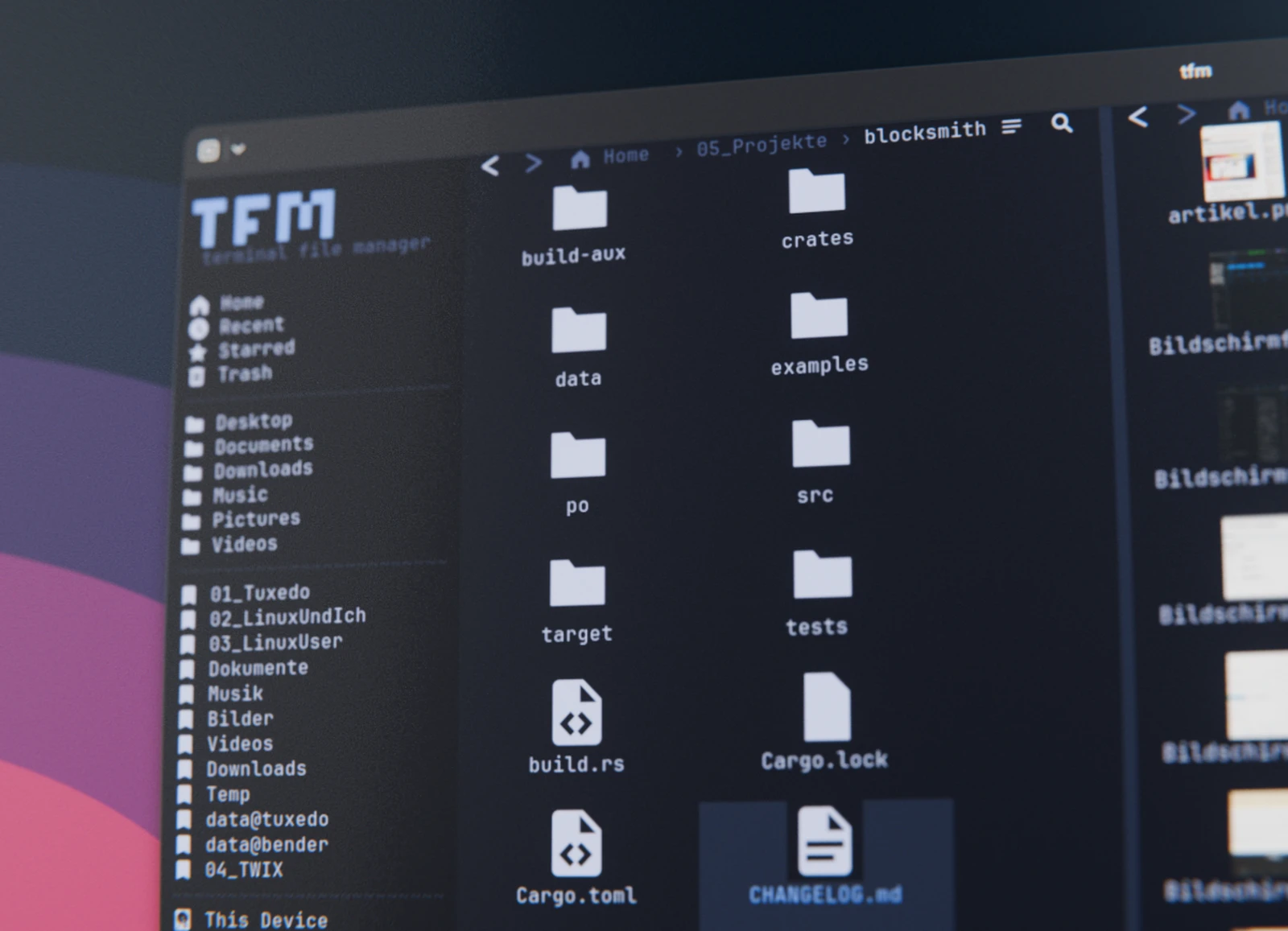
While browsing the web recently, I stumbled across tfm. This terminal file manager wants to take its cues for operation less from classic command-line tools and more from graphical file managers like Dolphin or Nautilus. If you like working directly in the terminal anyway, this is a really interesting find.
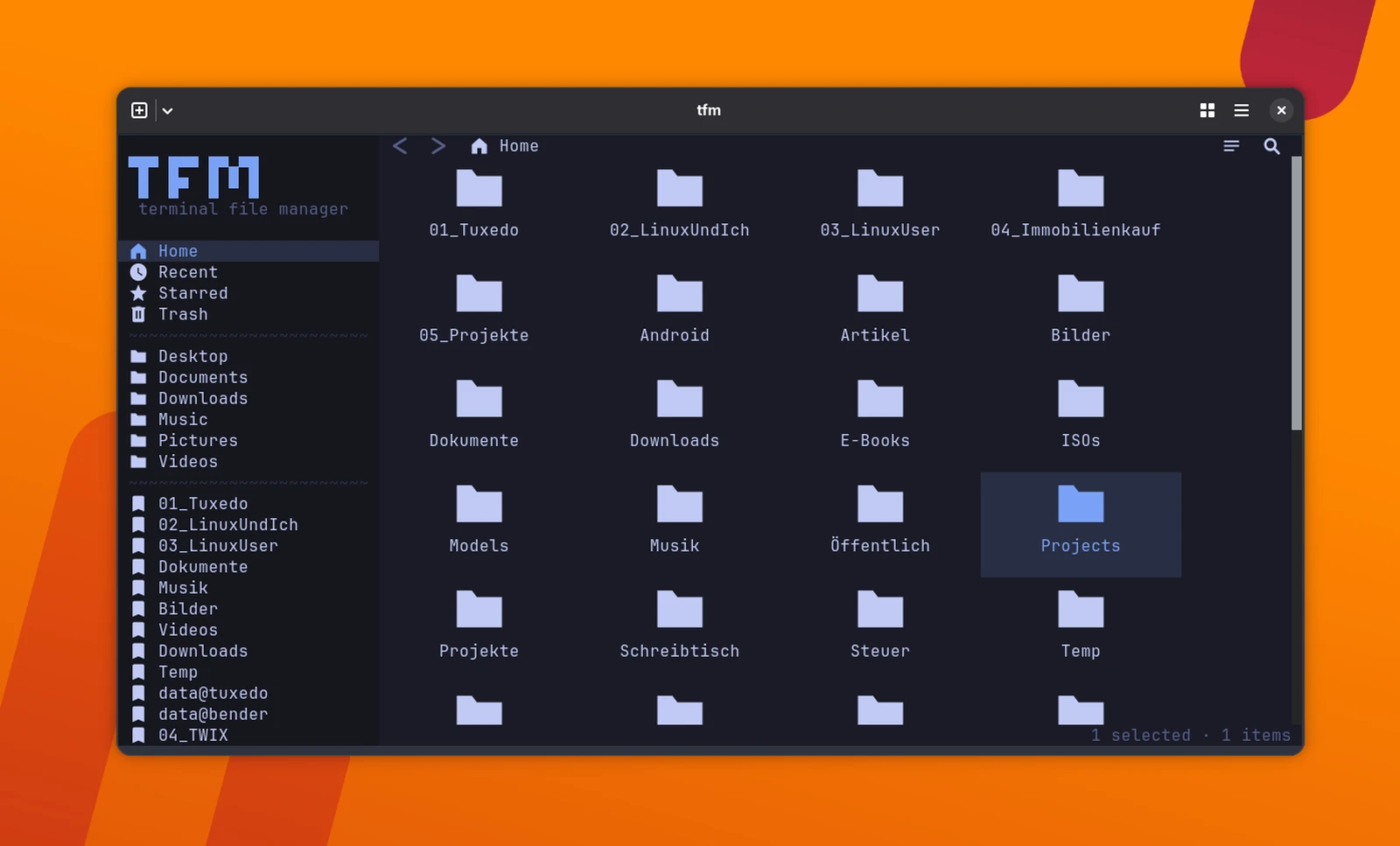
Among other things, tfm comes with a sidebar, tabs, a dual-pane view, and file previews. The usual file operations like copying, moving, renaming, and deleting are on board as well. What’s interesting: you don’t have to work exclusively with the keyboard. Tfm also supports the mouse, so you can select, move, and rename files by drag and drop, for example.
That way, tfm combines typical features of graphical file managers with the terminal environment. If you spend a lot of time there anyway, you can manage files and directories without opening a separate graphical app.
Installing from the AUR
You can find Tfm in the AUR (Arch User Repository). If you use an AUR helper like yay, you can install the binary version right away. On Arch Linux, this command is all you need:
$ yay -S tfm-tui-binAfter that, start the file manager with:
$ tfmIf you use a different distribution, the project page has instructions for the install script provided there. With it, you install the current version independently of your distribution’s packages.
Nerd Fonts for the icons
For tfm to show folders and files with the intended icons, you need a Nerd Font. These fonts come with additional characters and icons that terminal apps use to display folders, files, and other elements.
For this article, I’m using the Hack Nerd Font. On Arch Linux, the font is available directly in the official repositories and can be installed with pacman:
$ sudo pacman -S ttf-hack-nerdFor tfm to display the icons correctly, the Hack Nerd Font only has to be installed on your system. You don’t need to select the font in your terminal for that. You normally don’t need to refresh the font cache manually for a package from the Arch repositories either.
Beta with a few rough edges
Tfm is still in beta, and you’ll notice it most in how icons are displayed. In my tests, the Nerd Font symbols didn’t show up reliably on every start. Folders and other elements sometimes appear without the icons they’re supposed to have.
Restarting tfm or the terminal usually fixes it. What stands out: the icons come back on the next start even without any changes to the font cache, so the problems can’t be blamed solely on a broken installation of the font.
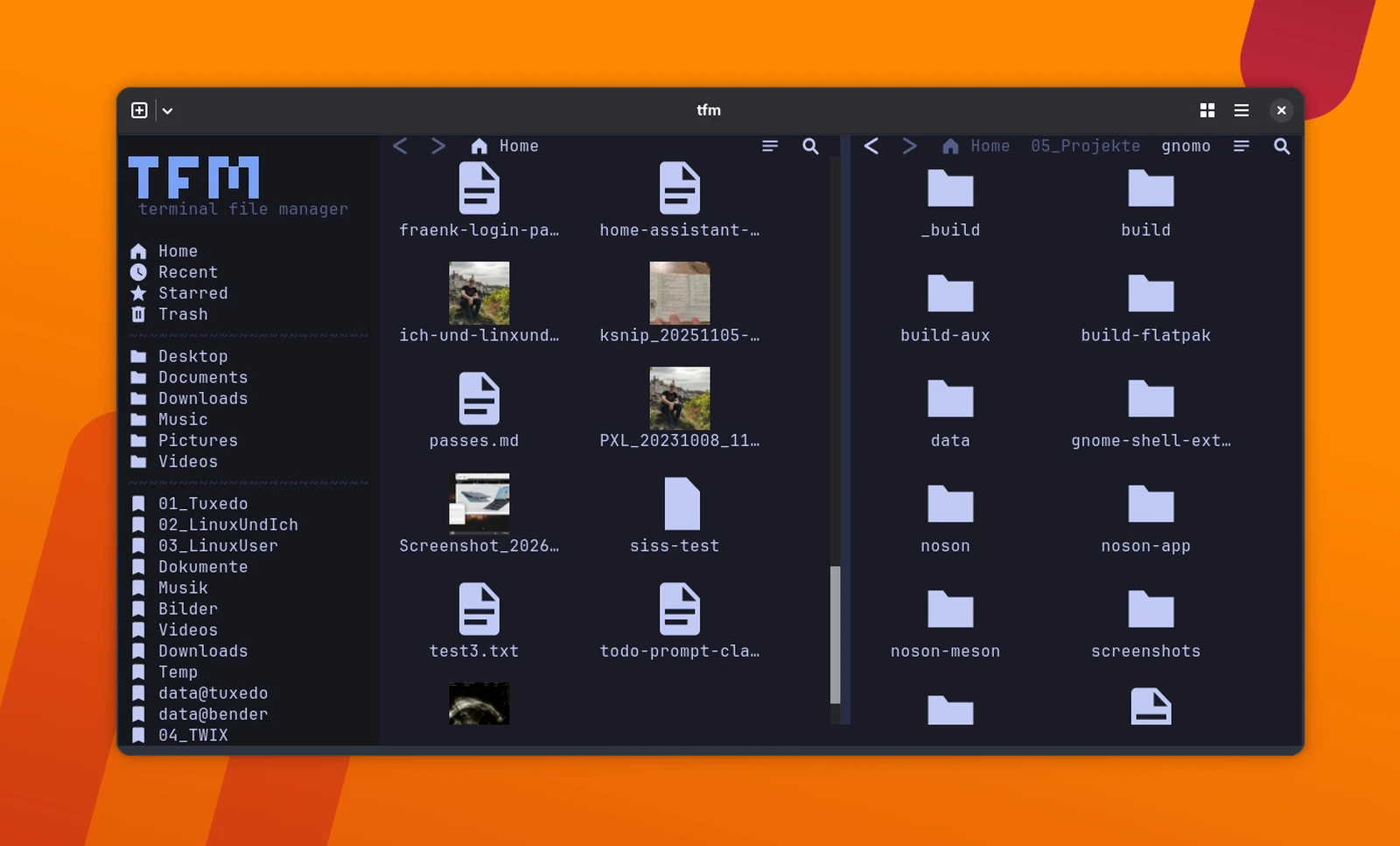
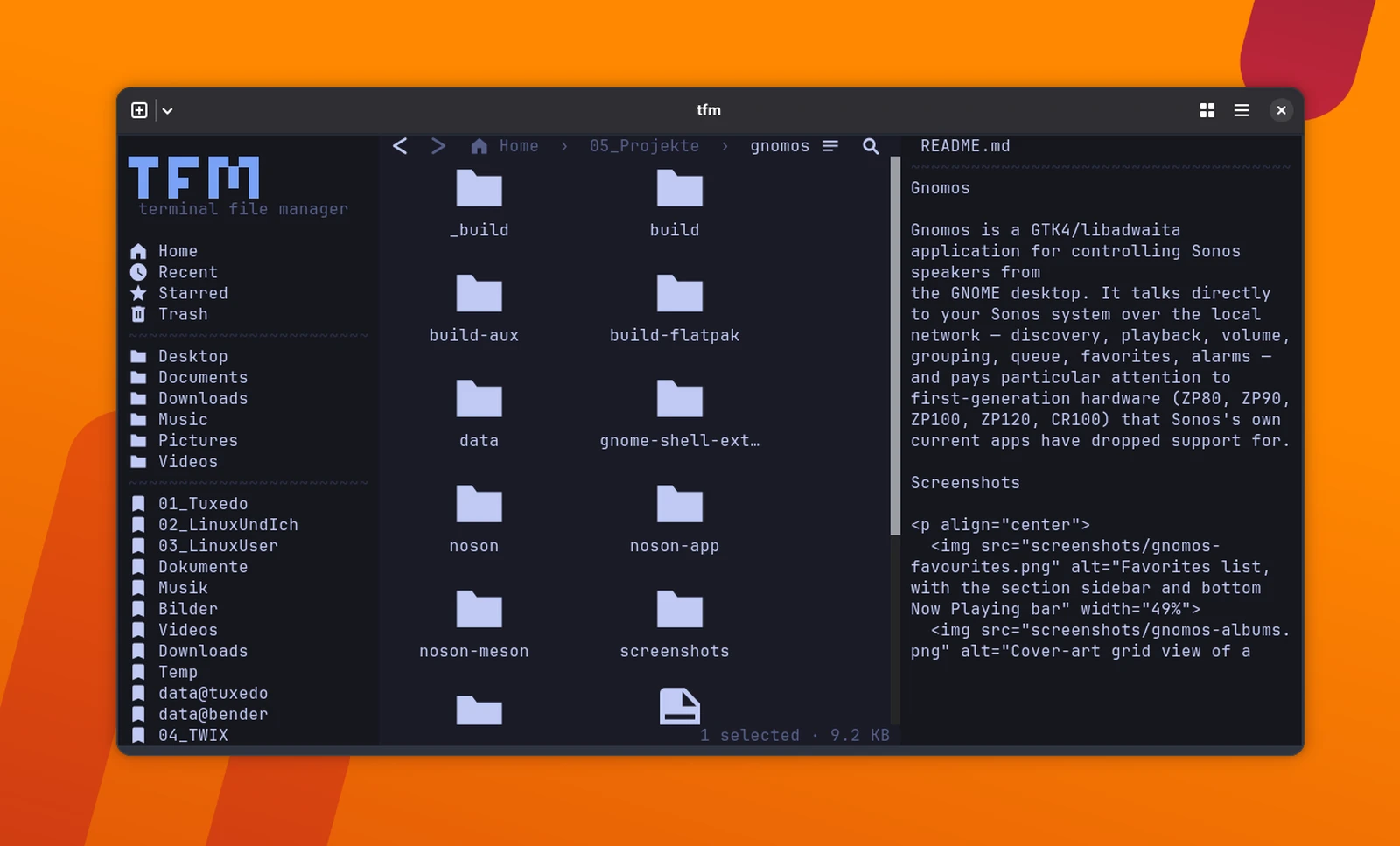
For graphical image previews, tfm needs a terminal that supports the Kitty Graphics Protocol. On Linux, Ghostty is a good choice, for example, and its Linux interface is built on GTK4. Gnome Terminal can’t offer this feature, because the underlying VTE library doesn’t support the Kitty Graphics Protocol.
The rest of the interface isn’t yet as stable or consistent as what you’re used to from established file managers, either. If you try tfm, start with files that don’t matter, and don’t trust important data to such young software on its own.
The most important keyboard shortcuts
Despite the mouse support, the keyboard plays an important role in tfm. You’ll find the most important commands in the following overview:
| Shortcut | Function |
|---|---|
Esc | Open menu |
Enter | Open file or folder |
Backspace | Go up one directory level |
F2 | Rename file or folder |
Tab | Switch between the two file panes |
F5 | Copy selection to the other pane |
F6 | Move selection to the other pane |
Strg+C / Strg+X / Strg+V | Copy / Cut / Paste |
Strg+D | Duplicate selection |
Entf | Move selection to the trash |
Strg+Z / Strg+Y | Undo / Redo |
Strg+T / Strg+W | Open / close tab |
Strg+Tab | Switch between tabs |
Alt+Enter | Show properties |
Strg+H | Show hidden files |
Strg+L | Open path bar |
Strg+G | Switch between list and grid view |
F9 | Show or hide preview |
F4 | Open terminal in the current directory |
Strg+Umschalt+S | Connect to a server |
Strg+Q | Quit tfm |
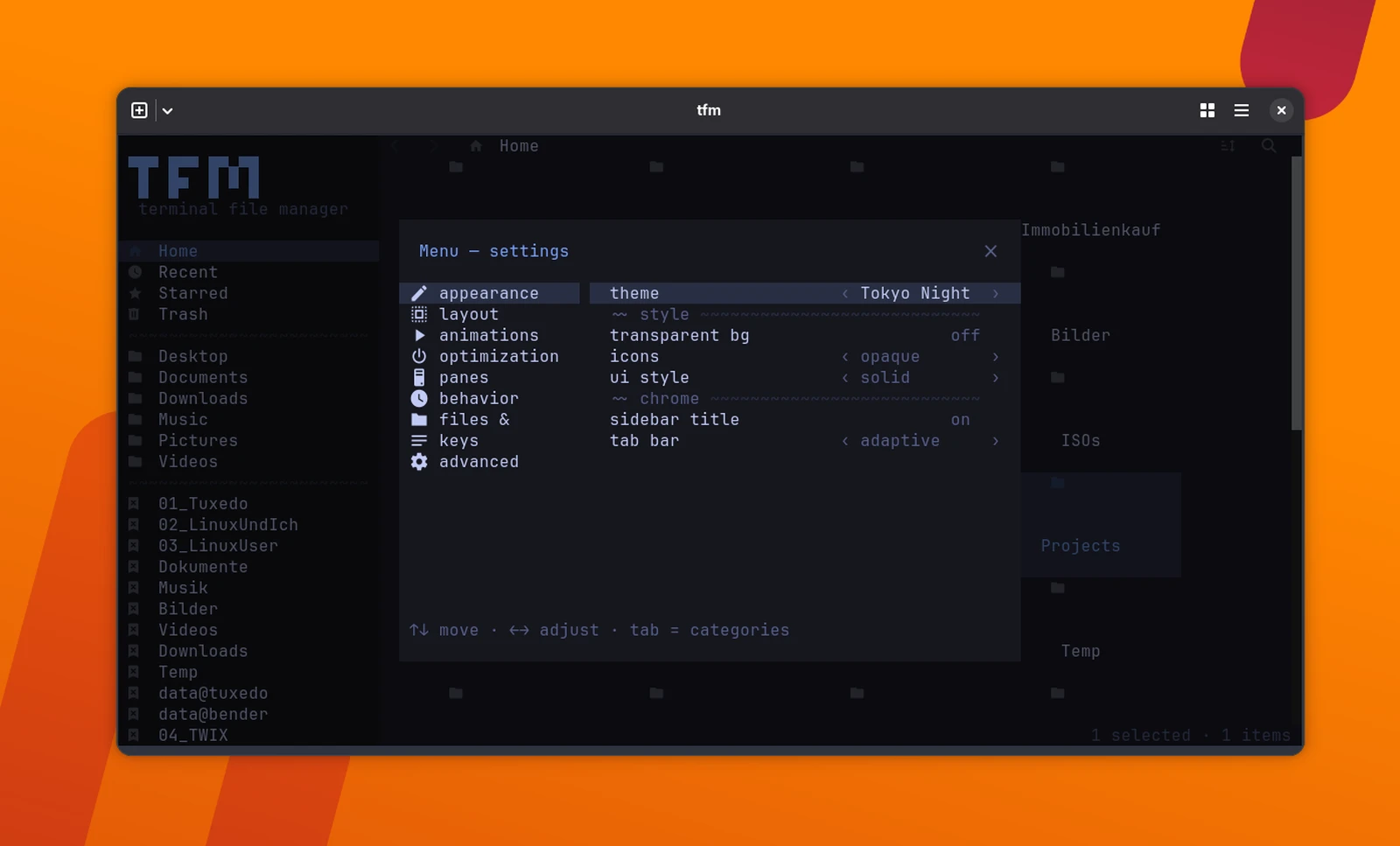
All in all, tfm is a likable find for me, especially for anyone who spends all day in the terminal anyway. The sidebar, tabs, dual-pane view, preview and mouse control add a level of comfort you normally don’t get on the command line. If you like, you can even switch on animations – a video on Reddit shows what that looks like.
Keep the quirks of the beta phase in mind, though, above all the icon rendering and the interface, which isn’t quite polished yet. I’ll keep following the development, and right now I’d mainly recommend tfm for trying it out – preferably with non-critical files until the software has matured a bit.
Leave a Reply