
I use the GNOME desktop every day and appreciate its minimalist design. Still, some features are missing that could make my workflow more efficient, like running certain tasks straight from the file manager with a single click. Nautilus scripts make that easy to fix.
In this post, I’ll show you how to create such a script. As an example, I want to demonstrate how to convert images to WebP without having to open an image editor. For that, I use cwebp, a powerful tool for converting images to the WebP format, and Zenity to provide a graphical dialog for entering image sizes.
Why WebP?
WebP is a modern image format that compresses better than JPG or PNG without noticeably hurting image quality. It is especially useful for web developers and bloggers, since it reduces page load times and improves performance.
Preparation: Installing the required packages
Before you start with the script, make sure the required programs are installed. If they aren’t, you can install them on Debian-based distributions like Ubuntu or TUXEDO OS with the following command:
### Unter Arch Linux, Manjaro und Co.
$ <strong>sudo pacman -S libwebp zenity</strong>
### Unter Ubuntu, Debian und Co.
$ <strong>sudo apt install webp zenity</strong>
Creating the WebP conversion script
Create a new script in the Nautilus scripts folder:
$ <strong>mkdir -p ~/.local/share/nautilus/scripts</strong>
$ <strong>gedit ~/.local/share/nautilus/scripts/ConvertToWebP</strong>
Now paste the following code into the file and save it:
#!/bin/bash

# Überprüfen, ob cwebp und zenity installiert sind
if ! command -v cwebp &> /dev/null; then
    zenity --error --text="cwebp ist nicht installiert."
    exit 1
fi

# Benutzer nach Breite und Höhe fragen
input=$(zenity --forms --title="Bildkonvertierung nach WebP"
    --text="Gebt die gewünschte Breite und Höhe ein (0 für Originalgröße):"
    --add-entry="Breite"
    --add-entry="Höhe")

# Falls der Benutzer abbricht, das Skript beenden
if [ -z "$input" ]; then
    exit 1
fi

width=$(echo "$input" | cut -d '|' -f1)
height=$(echo "$input" | cut -d '|' -f2)

# Falls keine Werte eingegeben wurden, Standardwerte setzen
width=${width:-0}
height=${height:-0}

# Alle ausgewählten Dateien verarbeiten
for file in "$@"; do
    if [ -f "$file" ]; then
        output="${file%.*}.webp"

        if [[ "$width" -eq 0 && "$height" -eq 0 ]]; then
            # Keine Skalierung, direkt konvertieren
            cwebp "$file" -o "${file%.*}.webp" >/dev/null 2>&1
        else
            cwebp -resize "$width" "$height" "$file" -o "${file%.*}.webp" >/dev/null 2>&1
        fi
    fi
done
Setting permissions
For the script to run, it has to be marked as executable. You do that with:
$ <strong>chmod +x ~/.local/share/nautilus/scripts/ConvertToWebP</strong>Using the script in Nautilus
Once the script is created, it is available right away in the Nautilus file manager. Select one or more images, right-click them, go to Scripts, and choose ConvertToWebP.
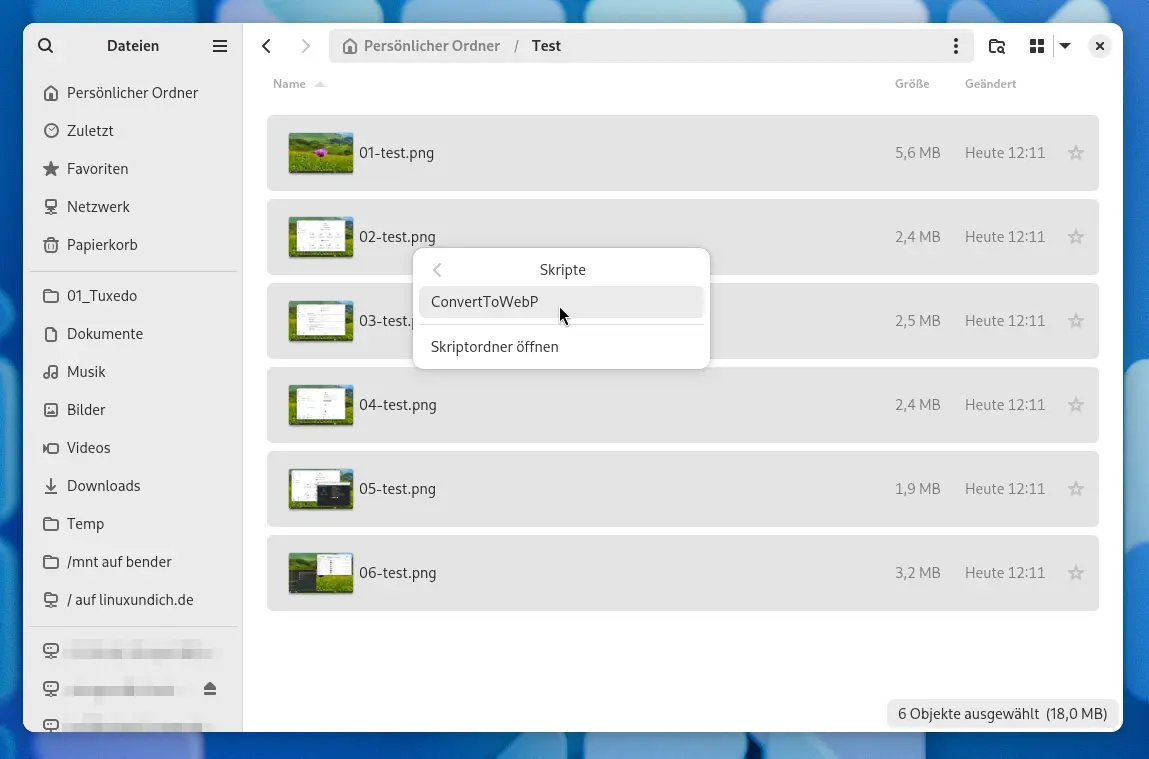
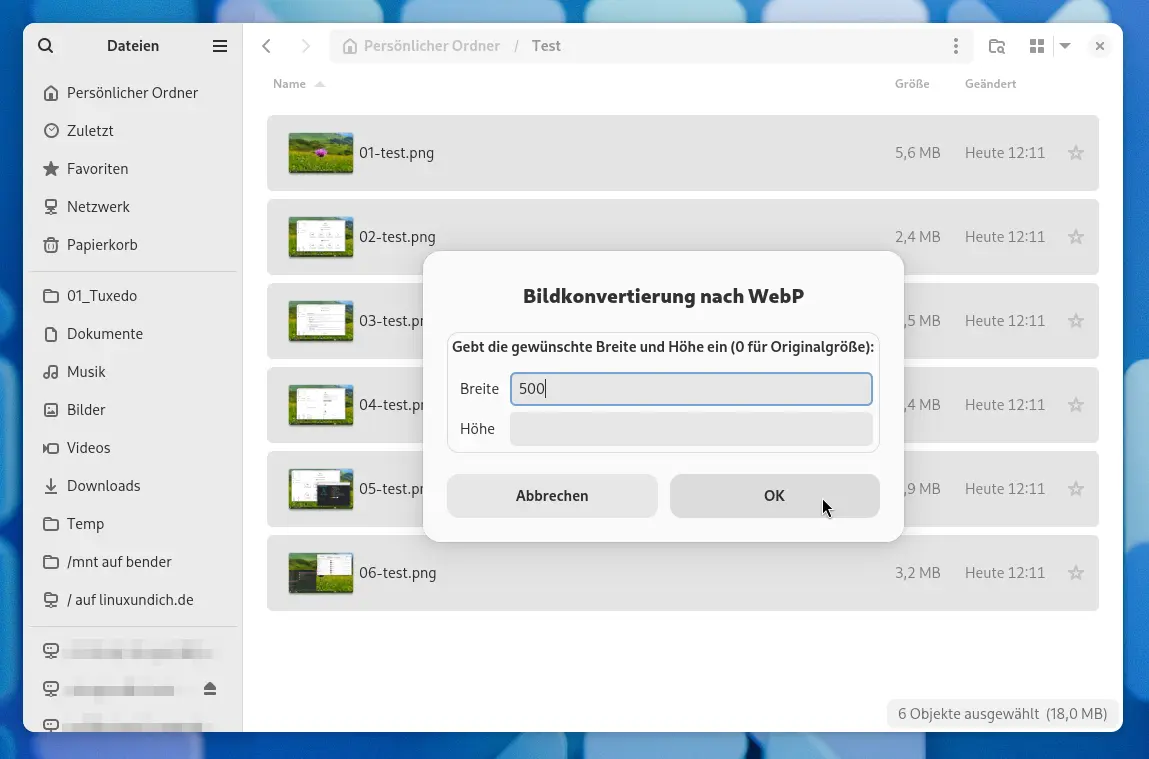
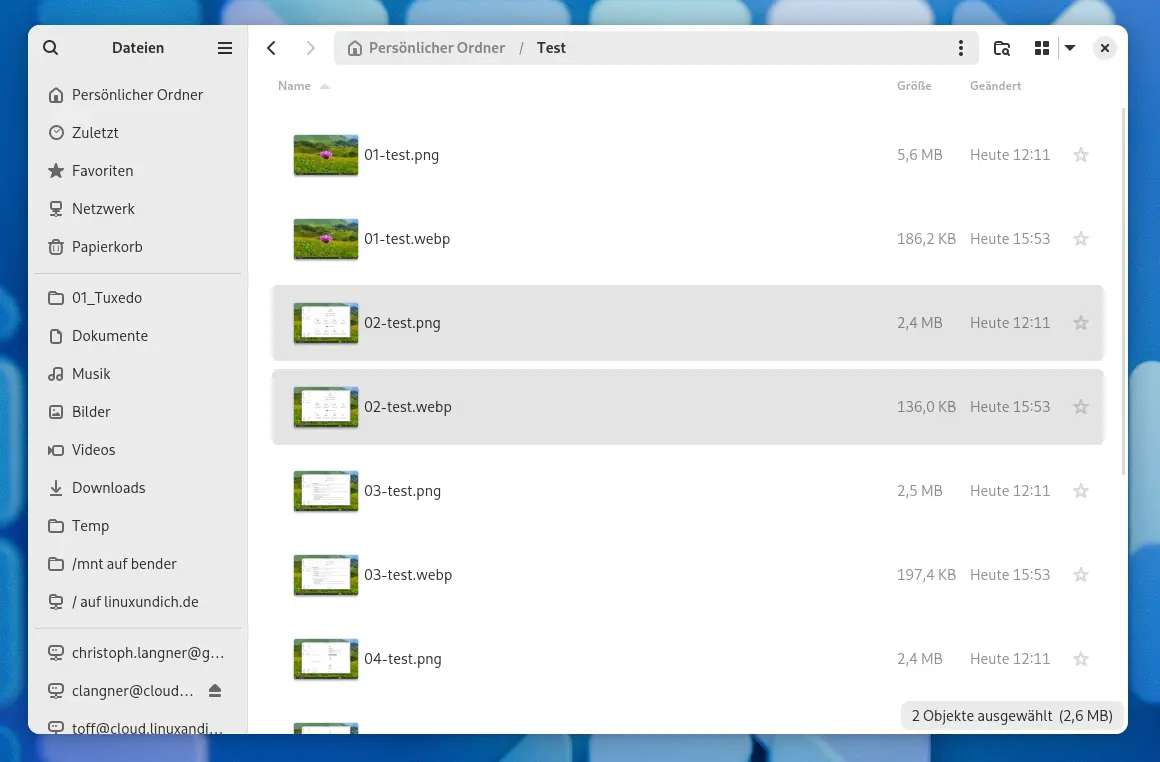
The script now converts all selected image files in common formats to WebP and reduces their size while keeping the aspect ratio. If cwebp is not installed, it shows an error message. Alternatively, you can enter the target width and height in pixels.
Leave a Reply