
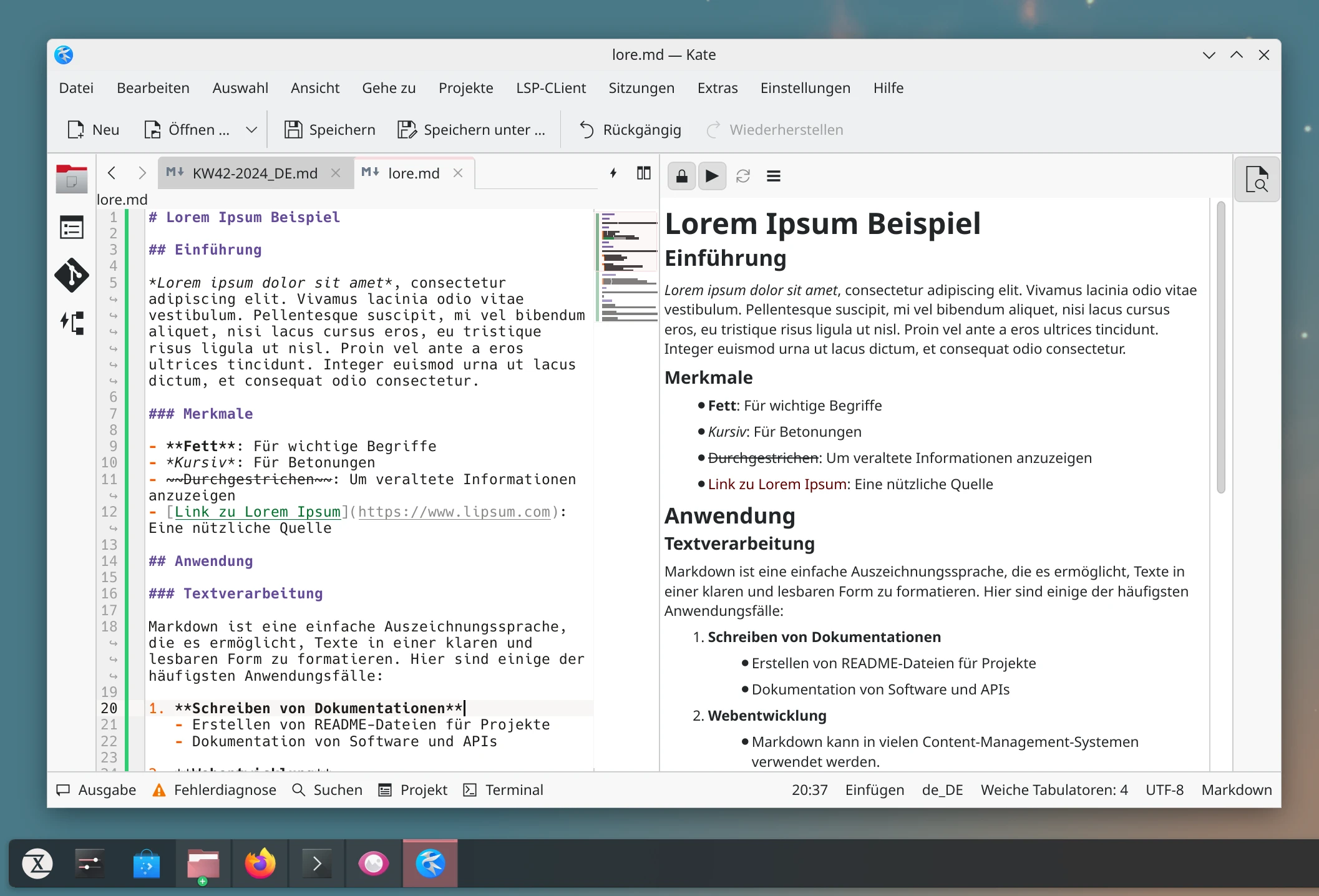
Over the years, I’ve come to know and love Markdown more and more. You can write documents in no time and then convert them into all kinds of formats with tools like Pandoc or MultiMarkdown. Sure, you can work on Markdown files with any editor you like, it’s all just text, but a live preview is pretty nice. You see right away where something is off, and in my opinion you also get a better overview.
On GNOME, I’m very happy with Apostrophe. The app is built on the current GNOME toolkits, fits into the desktop perfectly, and is still under active development. The revised version 3.2 was released just a few weeks ago. Only on KDE was I not particularly happy with the tools on offer. On my machine, for example, Ghostwriter crashes without a word and a memory error as soon as I type a single letter. Of course, nobody stops me from using Apostrophe on KDE too, but if I’m running KDE, I want to do it properly.
Enabling the Markdown live preview in Kate
A quick search for current, modern alternatives to Ghostwriter turned up nothing. But why search for long when KDE already ships with Kate, a very capable editor? In a default installation, Kate doesn’t offer the feature I wanted, but you can add it afterwards. As is unfortunately common with KDE, you don’t stumble across it by accident. The first thing you need is markdownpart, aka the Markdown Viewer KPart, which is the matching module for KParts, the component framework behind KDE’s editor. You can install it from the package manager on all the common Linux distributions.
### Arch Linux oder Manjaro:
$ sudo pacman -S markdownpart
### Debian, Ubuntu und Co.:
$ sudo apt install markdownpart
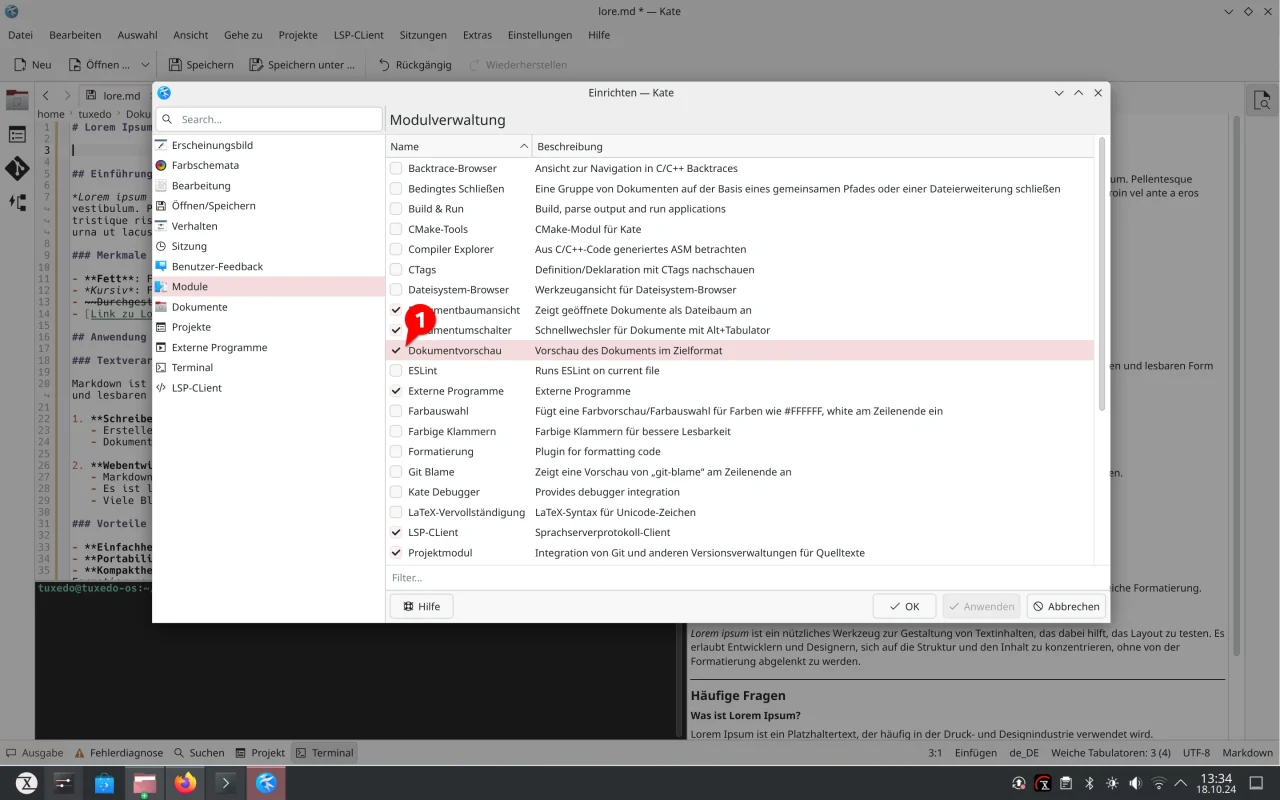
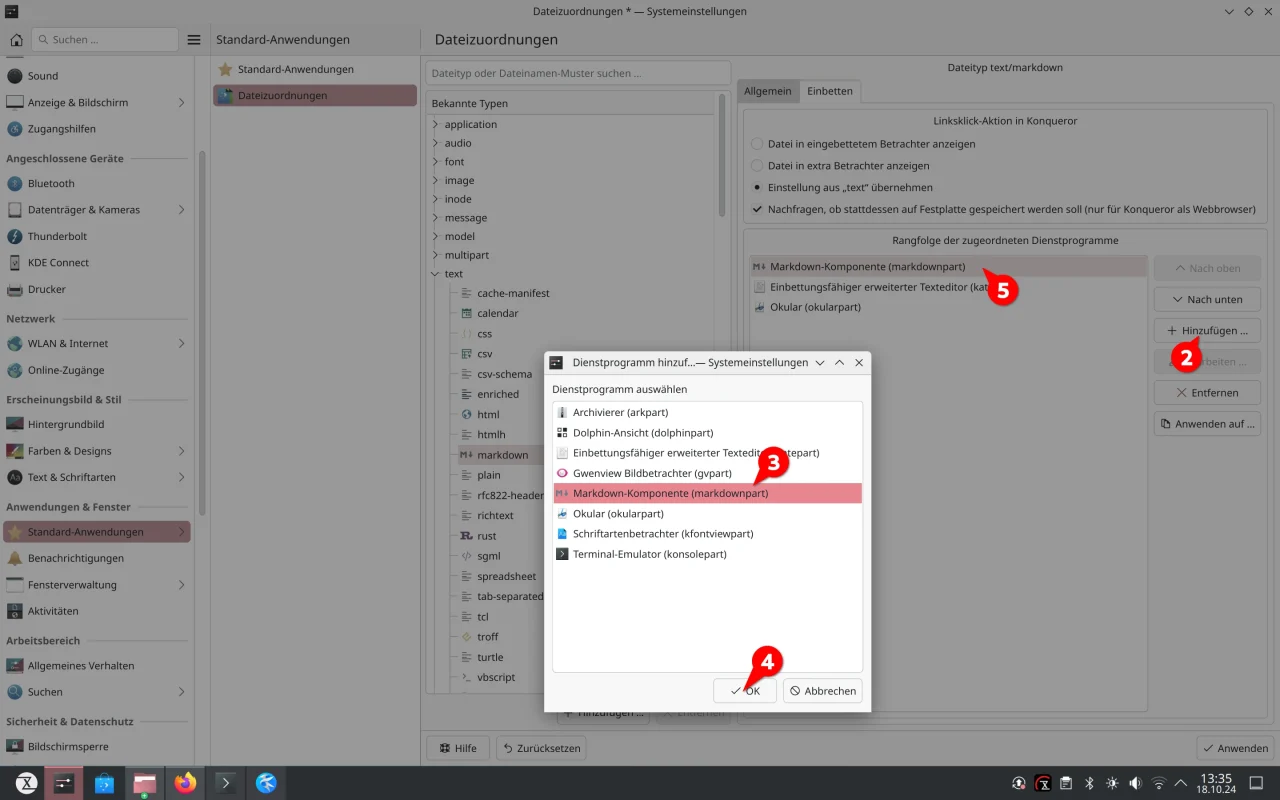
Then start Kate and enable Document Preview under Settings | Configure Kate | Plugins [CHECK: German UI says “Module”]. After that, open System Settings for the whole desktop from the application menu. Now you have to fight your way through the configuration jungle: Default Applications | File Associations | Known Types: text/markdown | Embedding. Click Add there and choose Markdown Part (markdownpart) [CHECK]. A click on OK activates the module. Finally, move it all the way to the top of the list.
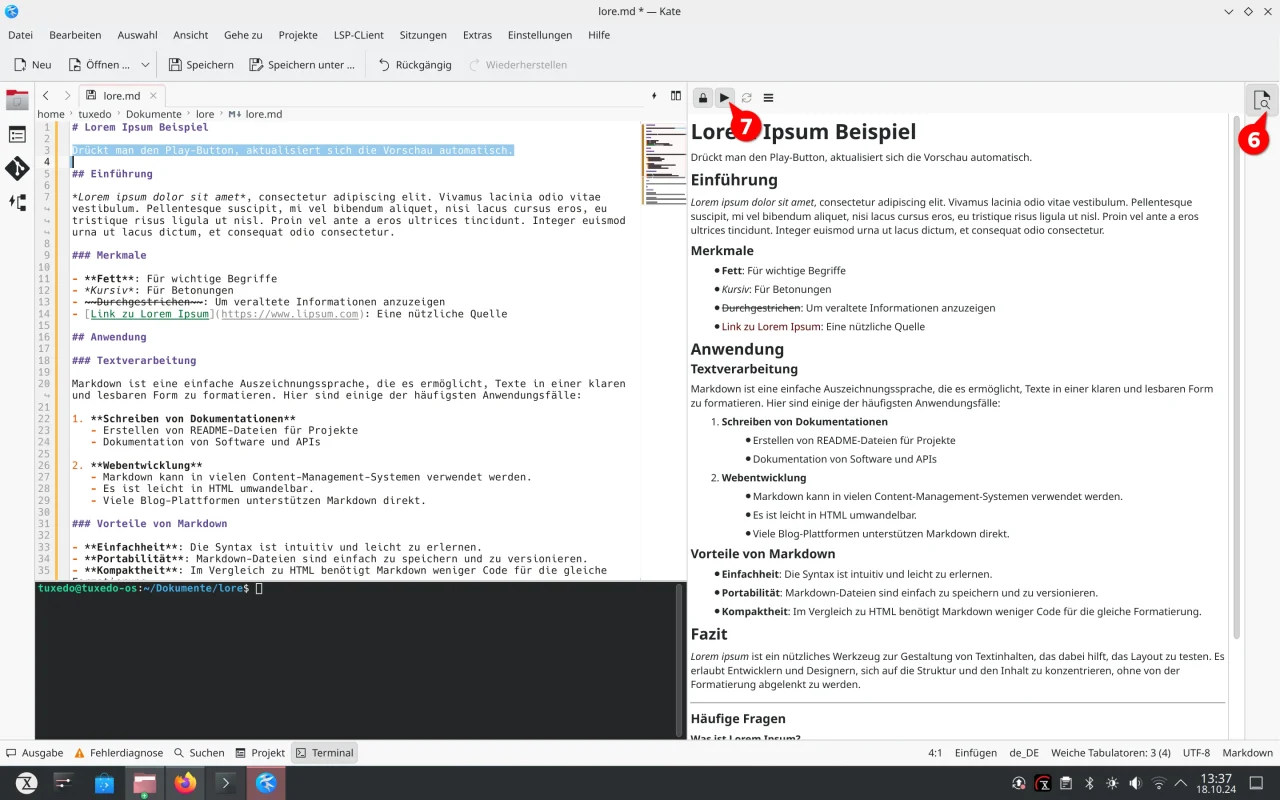
That’s the configuration done. Restart Kate once and create a Markdown text, or simply open a Markdown file. On the right edge of Kate you’ll now find an additional icon bar with a document and magnifying glass symbol. Click it to enable the preview. For Kate to update the preview automatically while you type, there’s one really, truly, absolutely final step: tap the play button.
Leave a Reply