
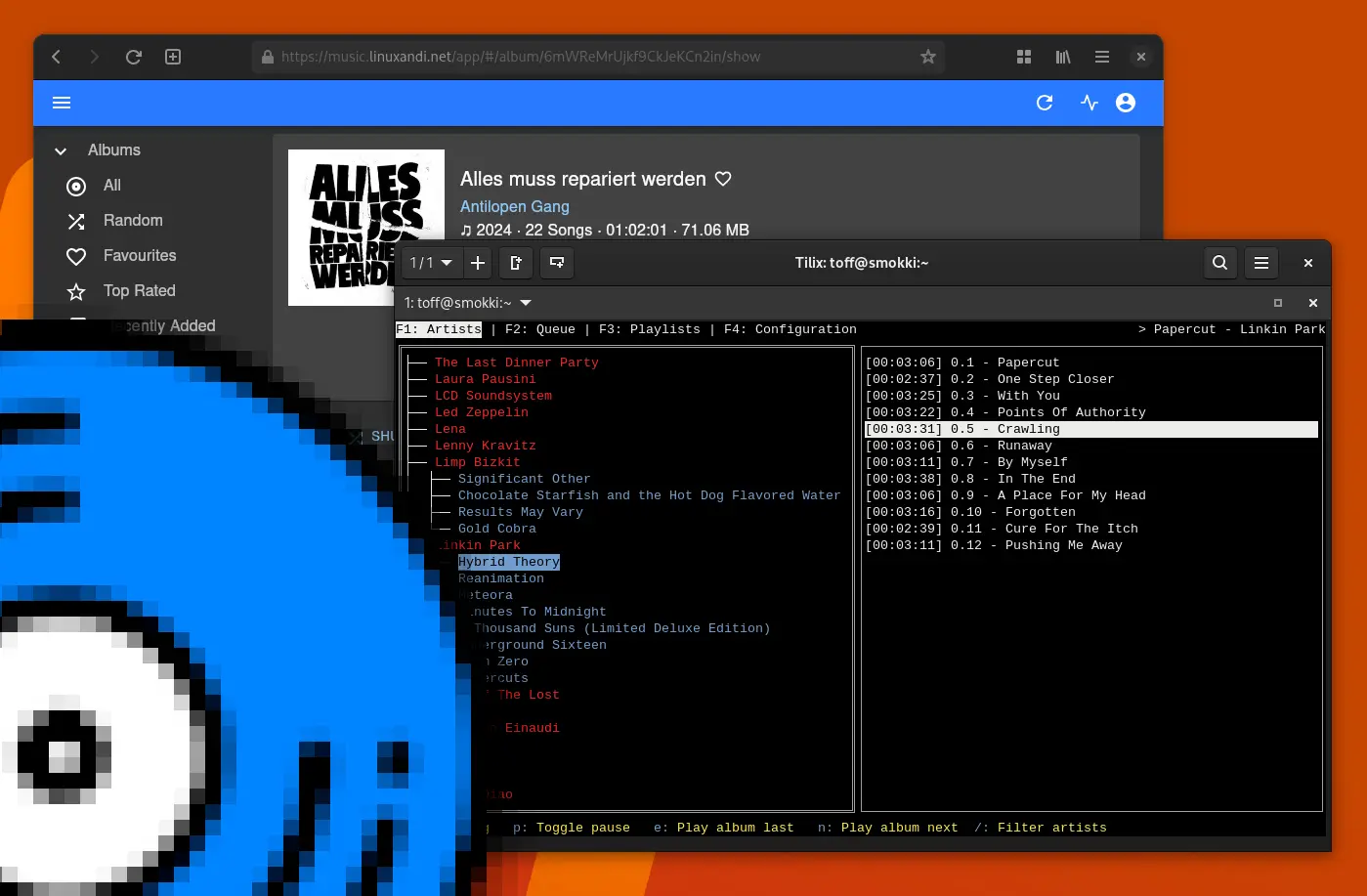
I run my own music streaming server with Navidrome and access it from everywhere. On Android, for example, I use Symfonium, and it works wonderfully on Android Auto, too. On Linux, though, things don’t look so rosy right now. Good clients for Subsonic servers have become rare: development of Sublime Music and Sonixd has been discontinued, and other alternatives are often outdated or half-baked. That leaves pretty much only Navidrome’s web frontend, but somehow I like having a “real” client. So why not move straight to the terminal? This is where Termsonic comes in.
What is Termsonic?
Termsonic is a Subsonic client for the terminal with a rather nice and easy-to-use terminal user interface (TUI). It runs on Linux, Windows and macOS and works with most Subsonic-compatible servers. Among others, it has been successfully tested with Navidrome.
The app plays FLAC, OGG and MP3 files. One big advantage: these formats are decoded natively in Go, so there are hardly any external dependencies. You don’t need to install ffmpeg or LAME.
Besides plain playback, Termsonic lets you browse your music library by artists, albums and playlists. A simple queue management lets you play your songs in a sensible order.
Installation on Arch Linux
On Arch Linux, you can conveniently install Termsonic from the Arch User Repository (AUR). If you use the AUR helper yay, the following command is all you need. After the installation, you can start the player with termsonic.
### Arch Linux, Manjaro und Co.
$ <strong>yay -S termsonic-git</strong>
On other distributions such as Ubuntu or Debian, Termsonic is rarely found in the repositories. Thanks to the few dependencies, though, it is very easy to build the program from source yourself.
<strong>$ git clone https://git.sixfoisneuf.fr/termsonic</strong>
$ <strong>cd termsonic</strong>
$ <strong>go build ./cmd/termsonic/</strong>
$ <strong>sudo cp termsonic /usr/local/bin</strong>
Configuring Navidrome
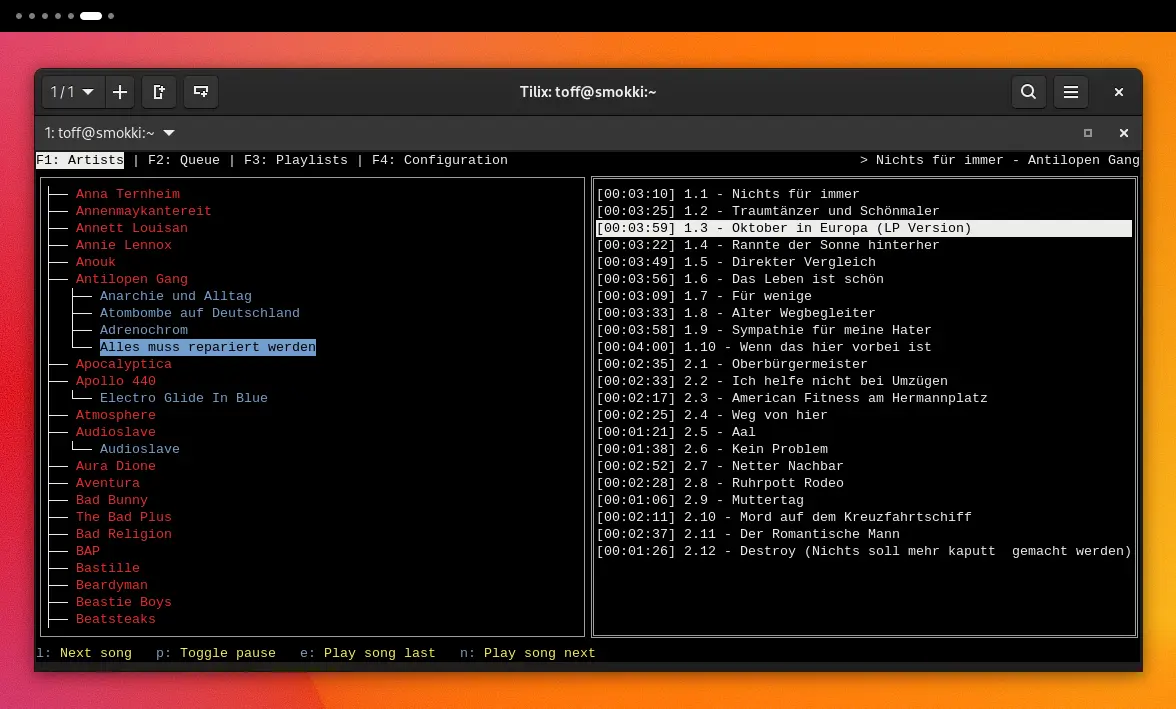
On the first start, you enter the URL and the credentials for your Subsonic server (Navidrome in my case). Right after that, you see your music collection. With [F1] you get a tree view of the collection. [F2] shows the current queue. [F3] shows the playlists created on the server. Under [F4] you can change the settings again.
Tip: If you use a “proper” terminal app such as the one from the GNOME desktop environment or, as here, Tilix, you can also operate Termsonic with the mouse.
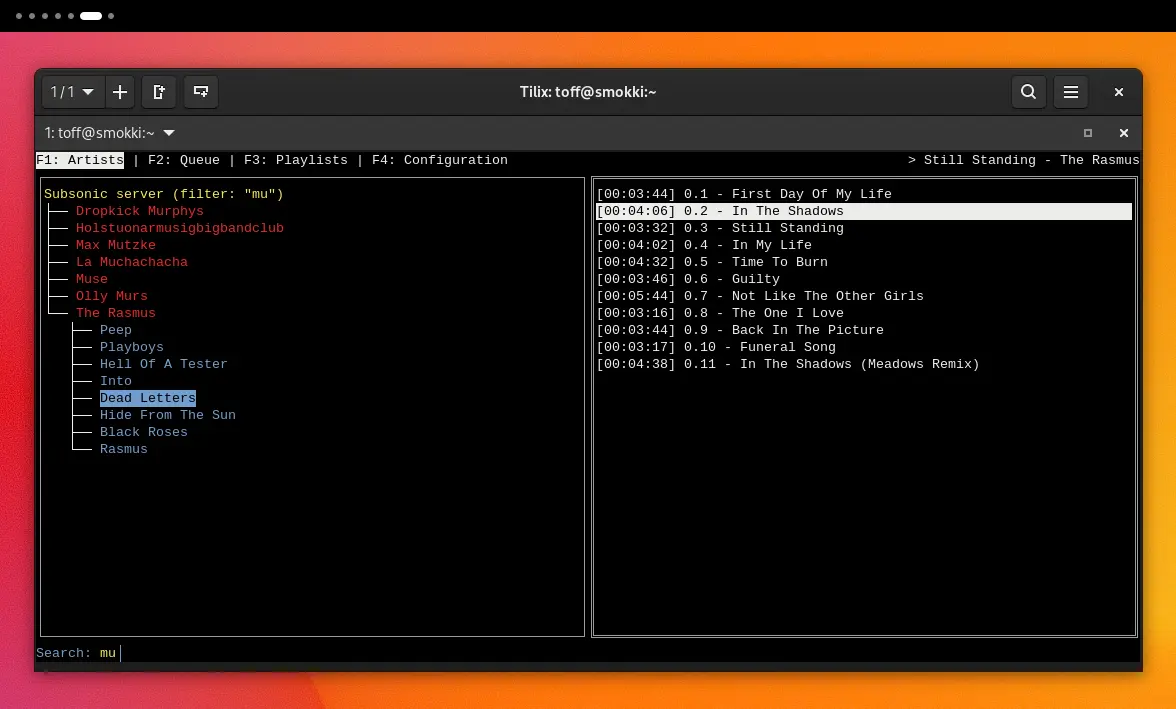
With [L] you jump to the next song. [P] pauses or resumes playback. With [/] you open a search field that filters the list of artists. At the top right, Termsonic shows the song that is currently playing plus the matching artist. Frills like the album cover are not something Termsonic offers, though.
Termsonic is an interesting alternative for everyone who wants to manage and play their music right in the terminal. The minimalist approach with few dependencies makes for a lean, resource-friendly app, perfect for lightweight systems or underpowered laptops.
Leave a Reply