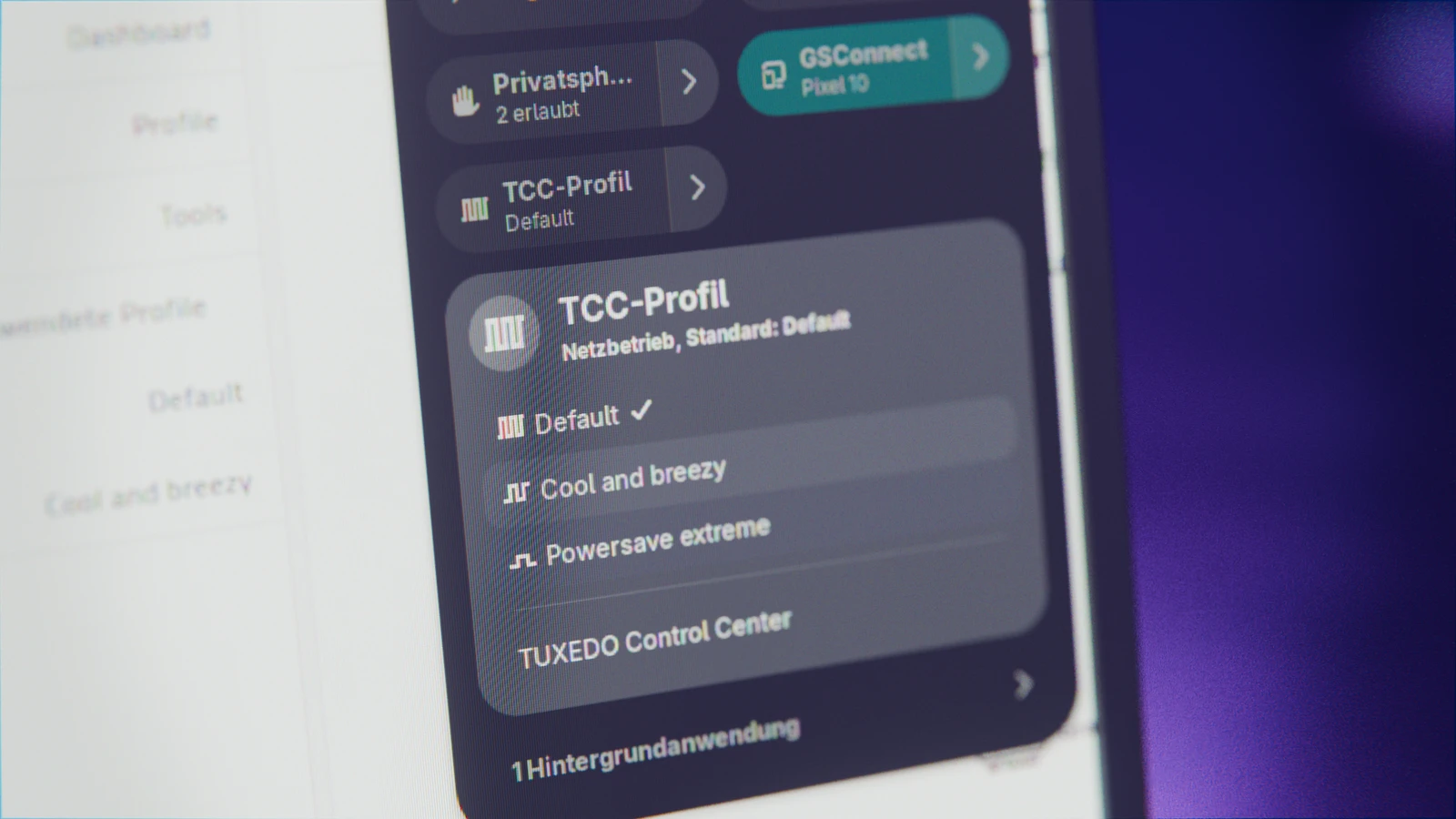
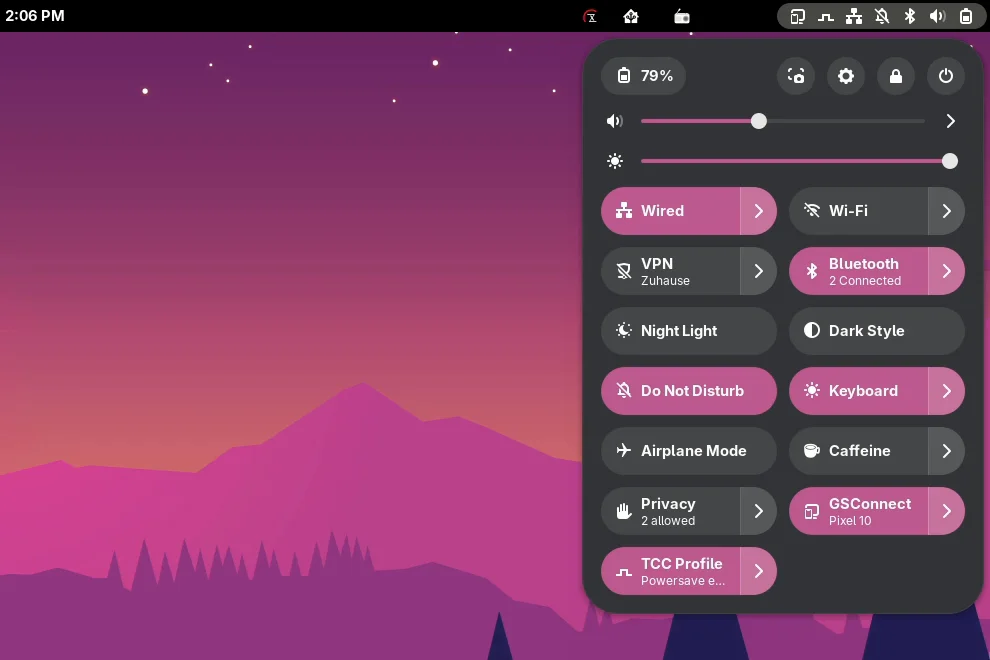
If you own a TUXEDO notebook, you control fans and processor with the TUXEDO Control Center. To switch between “quiet” and “full power”, you used to open the app or its tray icon. Pulsgeber puts the profiles where GNOME shows its power modes: in the Quick Settings at the top right.
Day to day, one click is all it takes: the power-saving profile on battery on the go, full power at the desk for the compiler or a game. Pulsgeber remembers your pick until the power source changes and shows in the menu which profile comes next. You only need the Control Center to create and edit profiles.
What Pulsgeber does
One toggle for all profiles
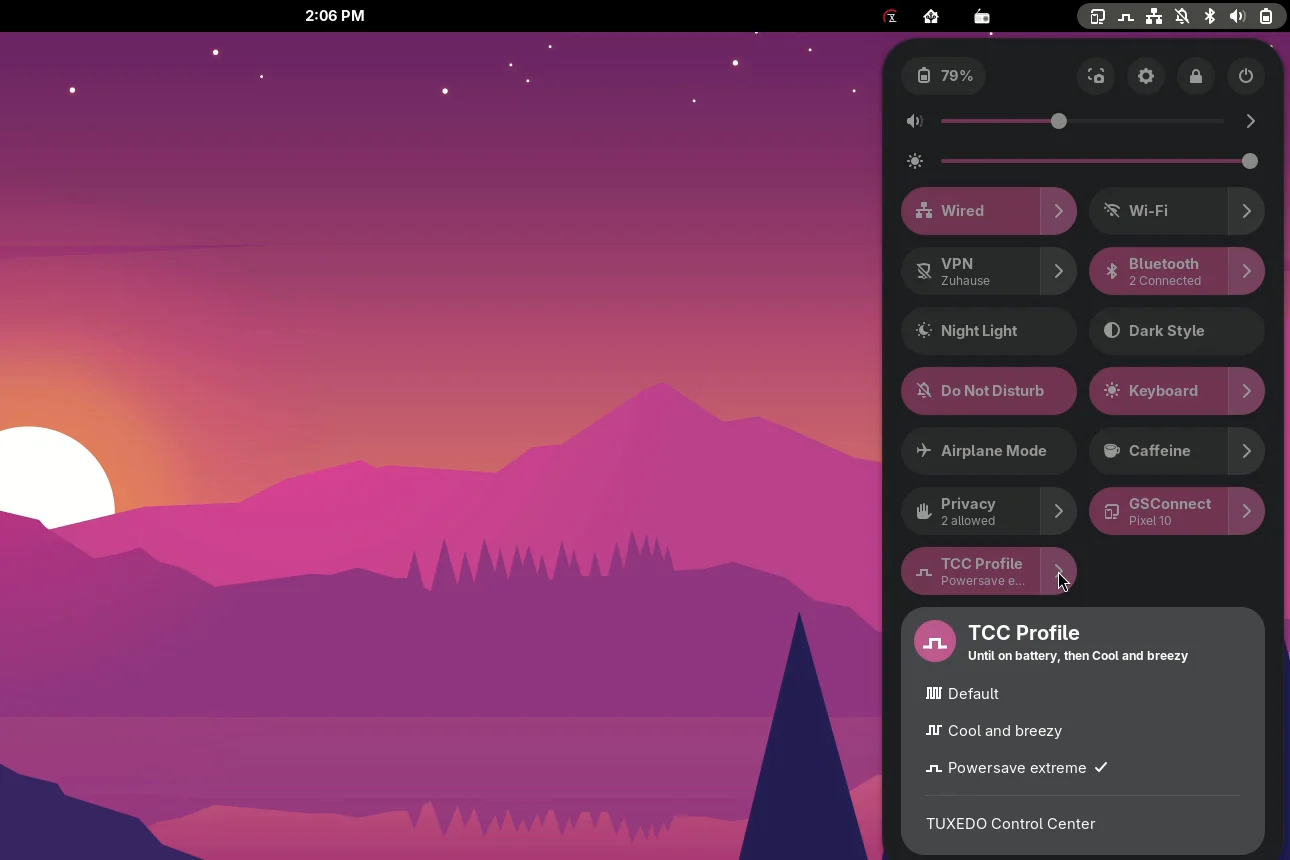
The menu lists every profile from the Control Center. Clicking the toggle switches between the default and the last picked profile, just like GNOME’s power mode.
AC power and battery at a glance
A profile picked by hand lasts until the power source changes. The menu header tells you what comes next, for example “Until on battery, then Cool and breezy”.
In step with the Control Center
Pulsgeber switches through the system service tccd. The Control Center shows the change right away, and Pulsgeber picks up changes made there within the check interval.
Its own icons
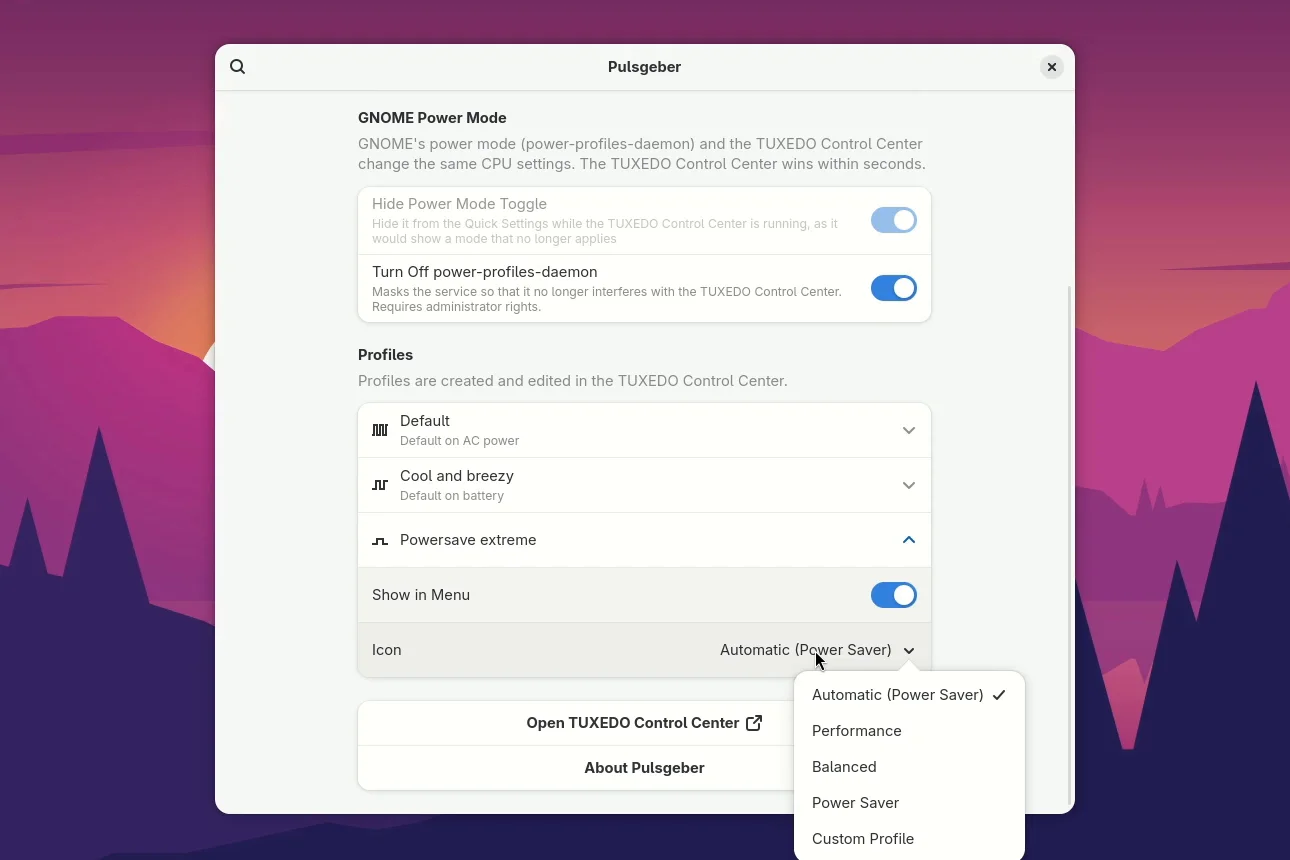
One pulse for power saving, two for balanced, three for performance, and a pulse above a slider for your own profiles. If you like, the top bar shows the icon while a non-default profile is active.
No tray needed
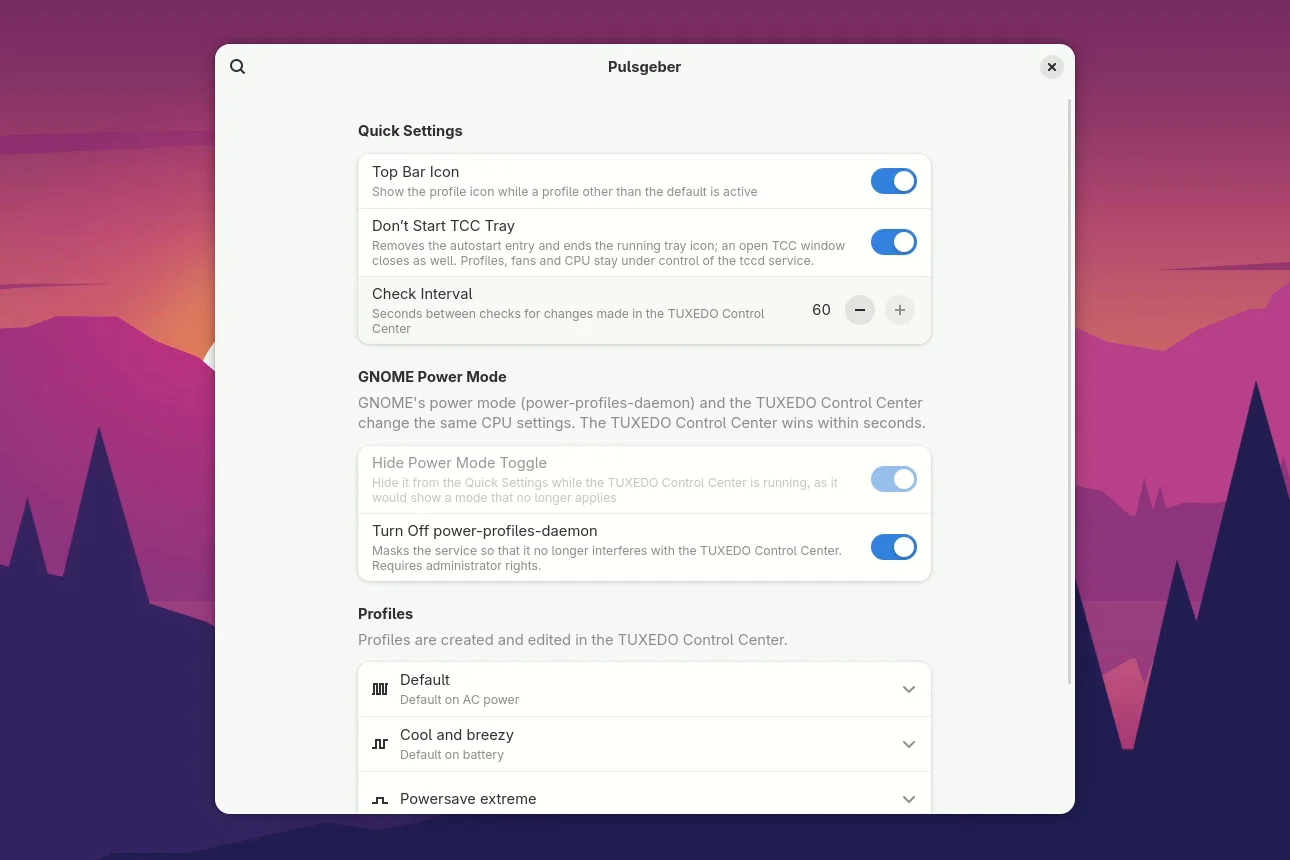
If you like, the Control Center tray no longer starts. The menu entry “TUXEDO Control Center” opens the app when you need it.
Peace with power-profiles-daemon
Pulsgeber hides GNOME’s power mode toggle and can turn off ppd, so the two services don’t overwrite each other.
Show or hide profiles
In the preferences you decide which profiles appear in the menu and which icon they get. Pulsgeber cleans up after deleted profiles by itself.
English and German
Pulsgeber follows the GNOME language. More languages can be added as a po file.
Ready in three steps
Install the Control Center
Pulsgeber needs the running tccd service from the tuxedo-control-center package. TUXEDO OS already has it.
Install the extension
Download the ZIP package from the release and install it:
gnome-extensions install pulsgeber@linuxundich.de.shell-extension.zipLog out and back in
On Wayland, GNOME only loads new extensions after logging in. Then enable it:
gnome-extensions enable pulsgeber@linuxundich.deQuestions and answers
Do I still need the TUXEDO Control Center app?
Only to create and edit profiles and to assign them to AC power and battery. The profiles are applied by the system service tccd, which runs from boot. Pulsgeber talks to it directly.
Why does GNOME’s power mode disappear?
power-profiles-daemon and tccd write the same processor settings. tccd restores its profile every ten seconds, so a change in GNOME’s toggle only lasts a moment. That’s why Pulsgeber hides the toggle.
How fast does Pulsgeber see changes from the Control Center?
tccd doesn’t announce a profile change by itself, so Pulsgeber checks regularly, every five seconds by default. You can change the interval in the preferences. When you open the menu, it is up to date anyway.
Why are my profiles named differently than on other notebooks?
The Control Center ships its own default profiles depending on the model. Older devices get “Default”, “Cool and breezy” and “Powersave extreme”, newer ones “Powersave extreme”, “Quiet”, “Office and Multimedia” and in some cases “High Performance”. Pulsgeber shows them as the Control Center names them.
Does it work without a TUXEDO notebook?
No. Without tccd there are no profiles for Pulsgeber to switch.
Is Pulsgeber a TUXEDO product?
No. Pulsgeber is an unofficial community project and not affiliated with TUXEDO Computers. TUXEDO provides no support for it, please report problems on GitHub.
Versions
| 0.5.0 | Oct 11, 2026 | Ends the Control Center through systemd, fewer disk writes |
| 0.4.1 | Oct 5, 2026 | Proper names for TCC’s newer default profiles |
| 0.4.0 | Oct 2, 2026 | Own icon for profiles created in TCC |
| 0.3.0 | Oct 2, 2026 | “Don’t Start TCC Tray” also closes the open app cleanly |
| 0.2.0 | Oct 1, 2026 | Profile icons, hiding the power mode toggle, turning off ppd |
| 0.1.0 | Oct 1, 2026 | First version with toggle, menu and preferences |
Found a bug or have an idea?
Let me know through the issues on GitHub. Translations are welcome as a po file in the po/ folder.
Pulsgeber is AI-assisted. The code, icons and translations were written with AI assistance, following my directions. I made the decisions, reviewed the results and tested everything on my own devices.
On the blog
Pulsgeber: TUXEDO Control Center Profiles in the GNOME Quick Settings
With Pulsgeber, you switch the profiles of the TUXEDO Control Center right from GNOME's Quick Settings. Version 0.4.0 of my small Shell extension is…