
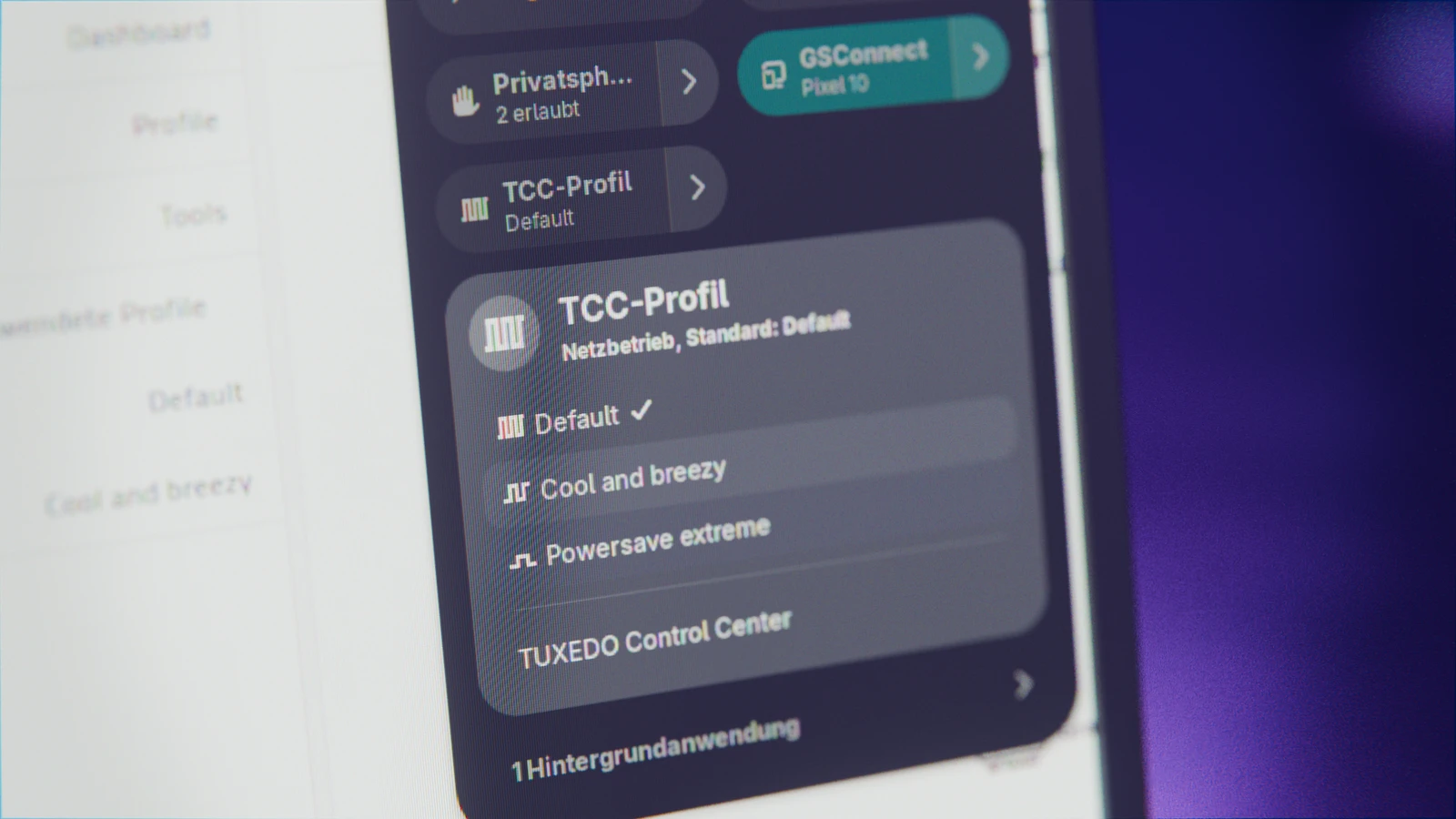
If you own a notebook from TUXEDO, you know the TUXEDO Control Center, or TCC for short. In this graphical app, you decide how fast the processor clocks, how loud the fans may get and which profile applies on AC power or on battery. Naturally, it all works best with TUXEDO OS, which is tailored to TUXEDO’s devices.
I, however, have been running Arch Linux and GNOME for years, and that won’t change on my InfinityBook either. Still, I don’t want to give up the hardware control the TCC offers. So I wanted to make the most of its features under GNOME as well, in a way that feels like a natural part of the desktop.
The result is Pulsgeber, a small extension for GNOME Shell, available now in version 0.4.0. AI helped me with the development: it wrote most of the code. The requirements and decisions, from the name and the icon to how it behaves, came from me. I carefully reviewed the results and tested the extension extensively on my own notebook.
What Pulsgeber does
Under GNOME, the TCC feels a bit like a guest. The profile menu sits in a tray icon (which GNOME isn’t really supposed to have in the first place), and the Control Center key with its shortcut Super+Alt+F6 does nothing under Wayland. On top of that, GNOME’s own power mode keeps getting in the TCC’s way: power-profiles-daemon and the TCC service tccd write the same processor settings.
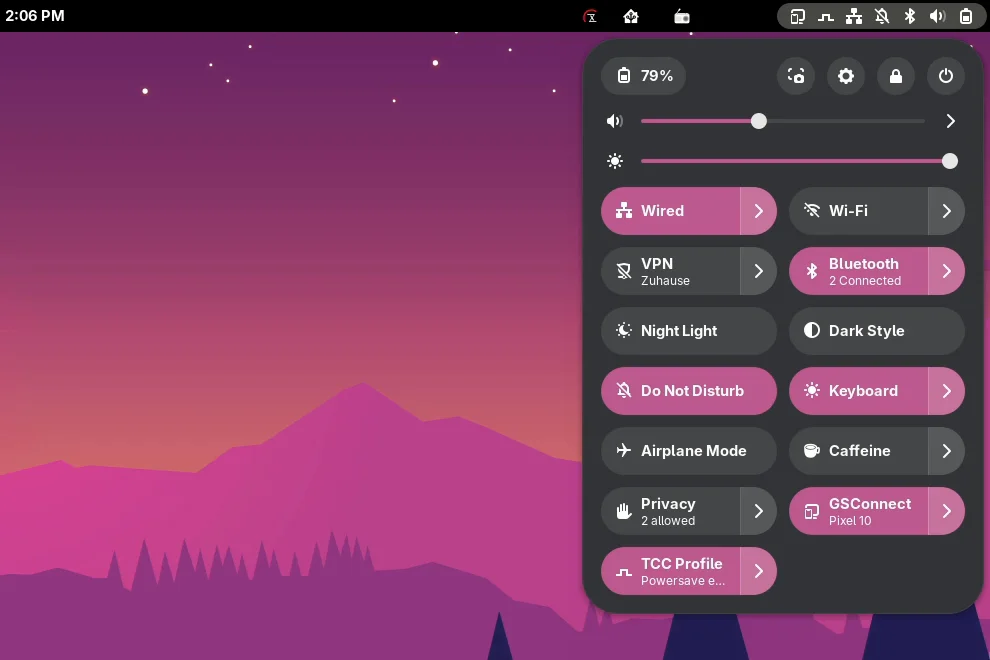
tccd restores its profile within a few seconds, so a change in GNOME’s menu only lasts for a brief moment. Pulsgeber cleans this up. The extension adds a “TCC Profile” toggle to the Quick Settings, exactly where GNOME usually shows its power modes. As you’d expect, clicking the toggle switches between the default profile and the one you picked last.
The menu next to it lists all profiles from the TCC. A profile you pick by hand only lasts until you plug in or unplug the power supply. After that, the profile you assigned to AC power or battery in the TCC takes over again. The menu header tells you what comes next, for example “Until on battery, then Cool and breezy”.
Each profile gets its own icon: one pulse for power saving, two for balanced, three for full performance, and a pulse above a slider for your own profiles from the TCC. If you like, the top bar shows the icon while a profile other than the default is active. That way, you can see at a glance how fast your notebook is ticking.
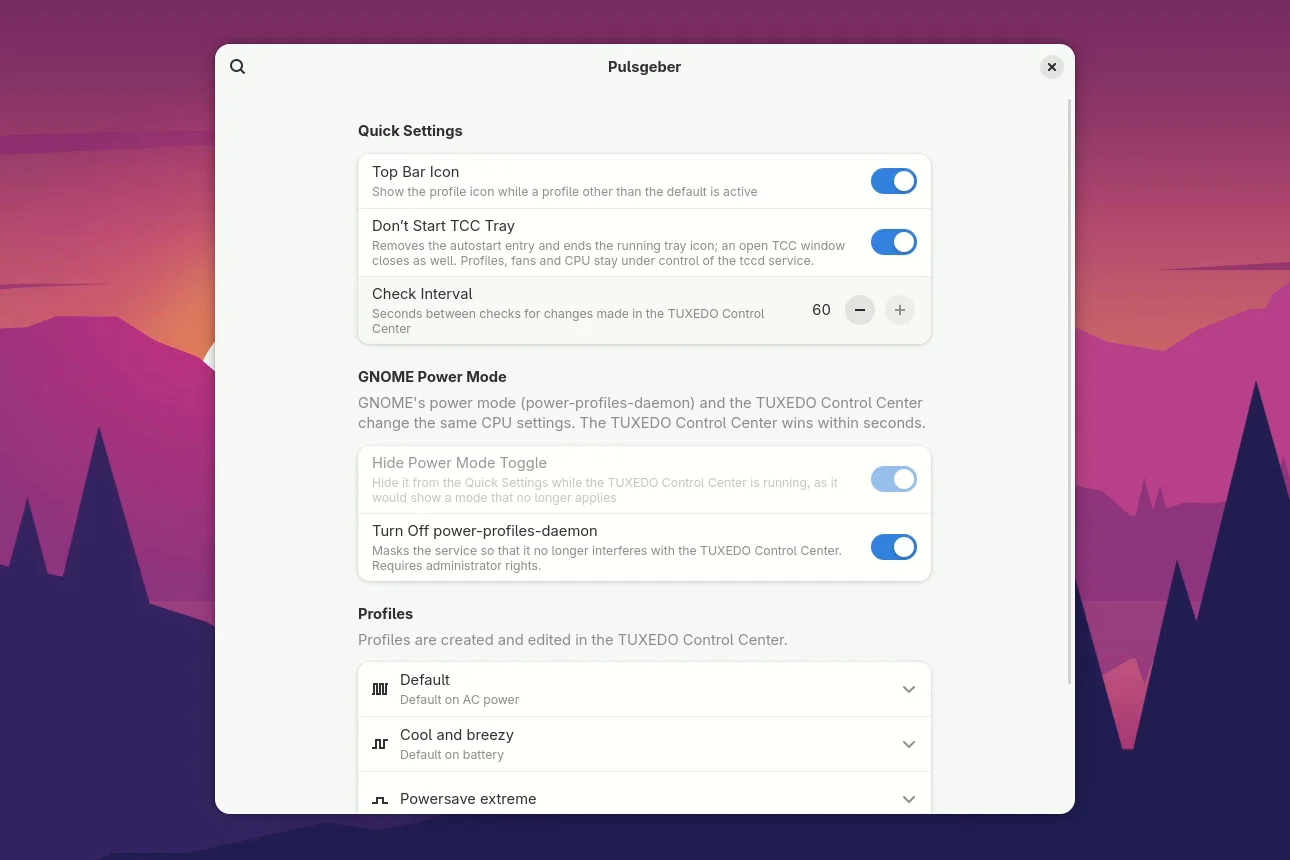
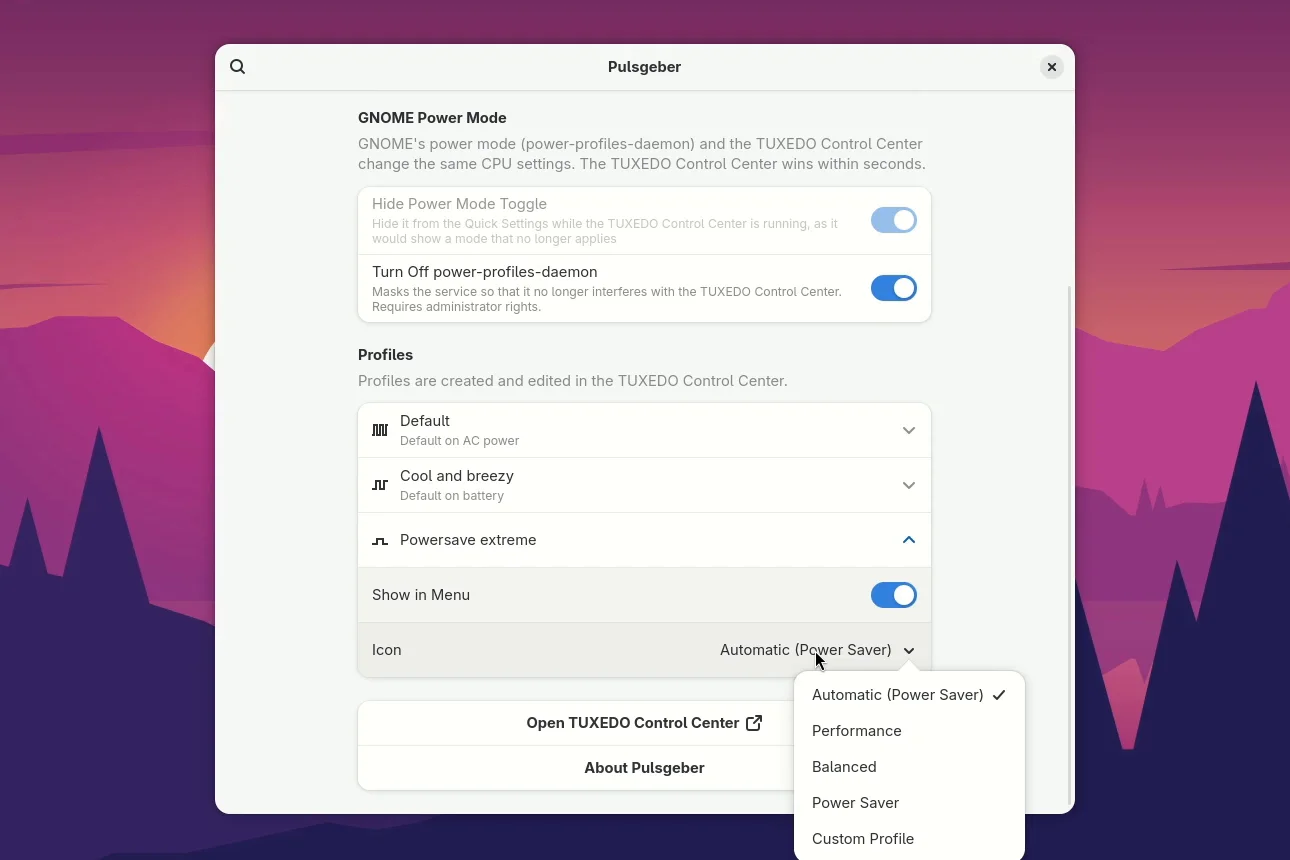
In the preferences, you can also hide GNOME’s power mode, turn off power-profiles-daemon completely if you wish, and keep the TCC tray from starting at all. You also decide which profiles appear in the menu and which icon each one gets. After that, you only need the TCC app to create and edit profiles. Every switch can be turned back at any time.
The actual switching is done by the system service tccd anyway, and Pulsgeber talks to it directly. So the Control Center app doesn’t need to be open or running in the background. The short video shows best what this means in practice: I switch profiles from the Quick Settings, and the TCC, opened for comparison, follows along every time.
Installation
Pulsgeber requires GNOME 50 or 51 and the TUXEDO Control Center with its service tccd. So far, I have tested the extension on an InfinityBook S 17 Gen6 with GNOME 50.5 on Arch Linux. My goal is to publish Pulsgeber on GNOME Extensions. Before I submit it there, though, I’d like to collect some feedback from you first.
That’s why Pulsgeber is only available on GitHub for now. Download the ZIP package pulsgeber@linuxundich.de.shell-extension.zip from the releases page and install it in the terminal:
gnome-extensions install pulsgeber@linuxundich.de.shell-extension.zipAfter logging out and back in, enable the extension:
gnome-extensions enable pulsgeber@linuxundich.dePulsgeber speaks English and German and follows the language of your desktop. You’ll find the source code in the GitHub repository, where I’m happy to accept translations into other languages. The Control Center itself is free software as well; its source code is on TUXEDO’s GitHub. More screenshots and answers to the most important questions are on the Pulsgeber project page.
For me, Pulsgeber has completely replaced the TCC tray icon: battery mode on the go, full power at the desk, all without opening the Control Center even once. Do you use a TUXEDO notebook with GNOME? Then give the extension a try and tell me what’s missing or where it falls short, either here in the comments or as an issue on GitHub.
Disclosure: I work for TUXEDO Computers. However, Pulsgeber is a private project that I created in my spare time. It is not a TUXEDO product and receives no official support from TUXEDO.
Leave a Reply