
A USB stick on the Fritzbox, and everyone in the house has a network drive: photos, documents, the music collection. On Linux, though, the share is more than one click away, because there are several ways to reach it. The file manager mounts it conveniently, while /etc/fstab makes it permanently available. Both get you there, but they differ in speed and reliability.
So what is the best way? Are there pros and cons to mounting Fritzbox shares through the file manager? What about the /etc/fstab file or systemd? And what about FTP: is the almost forgotten protocol any faster? A series of measurements on two systems provides the answers.
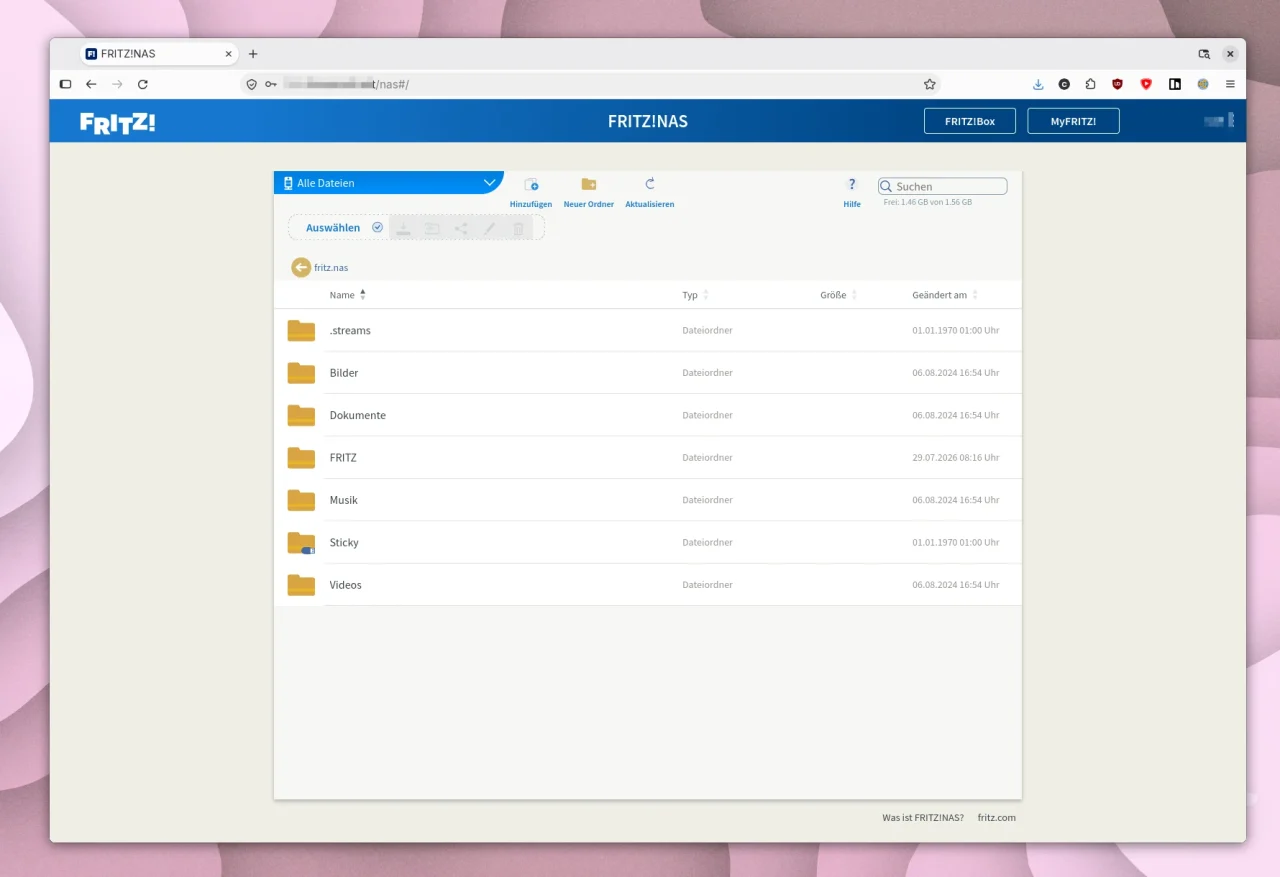
Before we get to Linux tools: the Fritzbox shares can also be opened in a browser, at https://fritz.box/nas#/. After login, the FritzNAS web interface shows the same folders that later appear in the file manager, including the folder of the USB stick. Add and New folder let you upload files and create folders, and there is a search as well. That is enough for single files; for everyday use the methods below are more convenient.
What to set up in the Fritzbox first
Nothing works without a user, because the Fritzbox does not let guests near the storage. Access over the network is always tied to an account. So create a dedicated user for the Linux machine under System | FRITZ!Box Users and give it the permission Access to NAS content, with Full access if you also want to write. A link to this page also sits in the storage settings under Manage users.
You switch the services on under Home Network | USB / Storage | Home Network Sharing. There you need the checkbox for Access via network drive (SMB). The share name is FRITZ.NAS out of the box and the workgroup is WORKGROUP. Support for SMBv1 stays off; you do not need it. If you also want to use FTP, tick Access via FTP. In the Device overview, NAS storage function must also be set to Active.
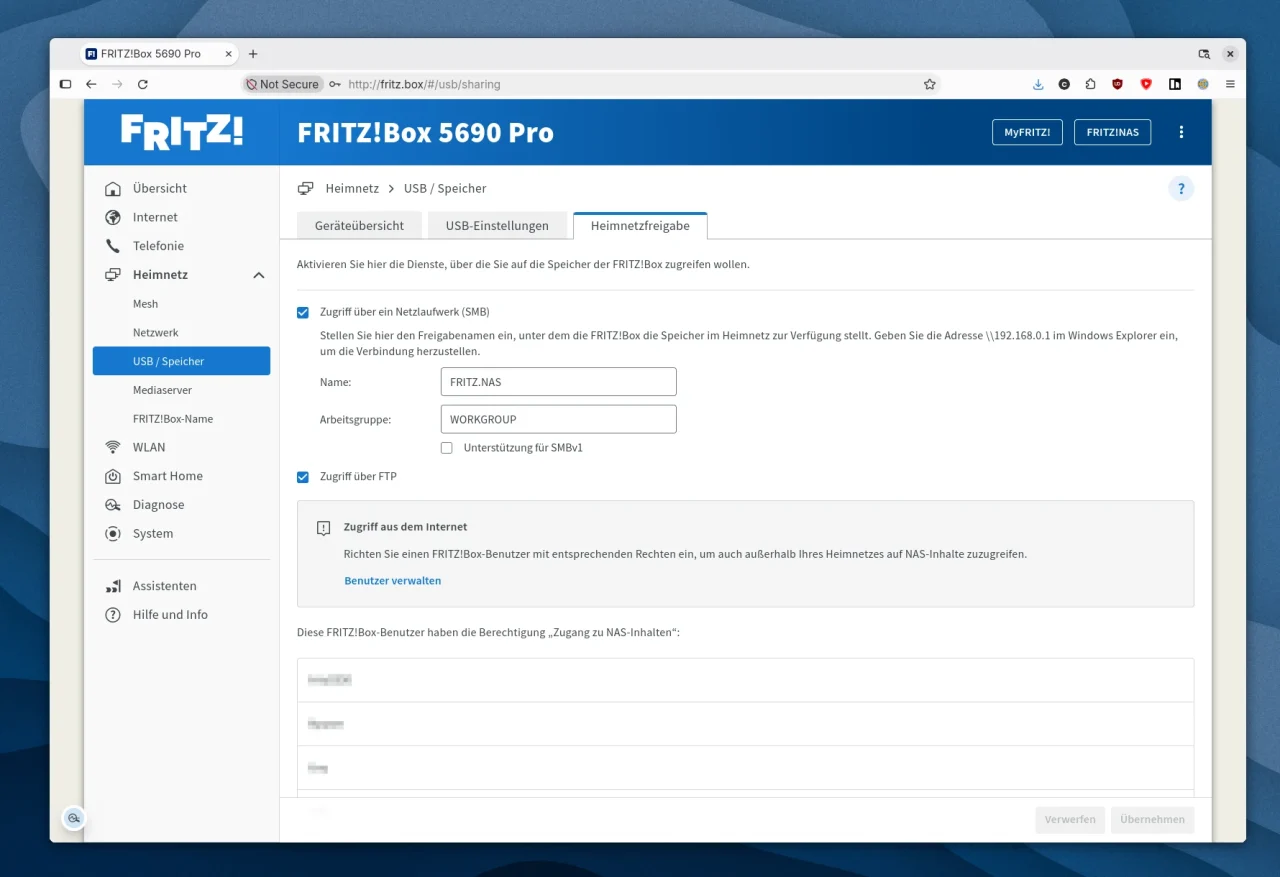
The share is reachable at fritz.box. It uses SMB, the protocol Windows also uses for network drives; AVM names versions 2 and 3. Below it lie the folders of the storage, and a plugged-in USB stick appears as a subfolder of its own. The name fritz.box only works inside the home network. The interface also shows the IP address of the box, which you can use instead of the name if fritz.box is ever not found.
// USB stick with USB 3.0
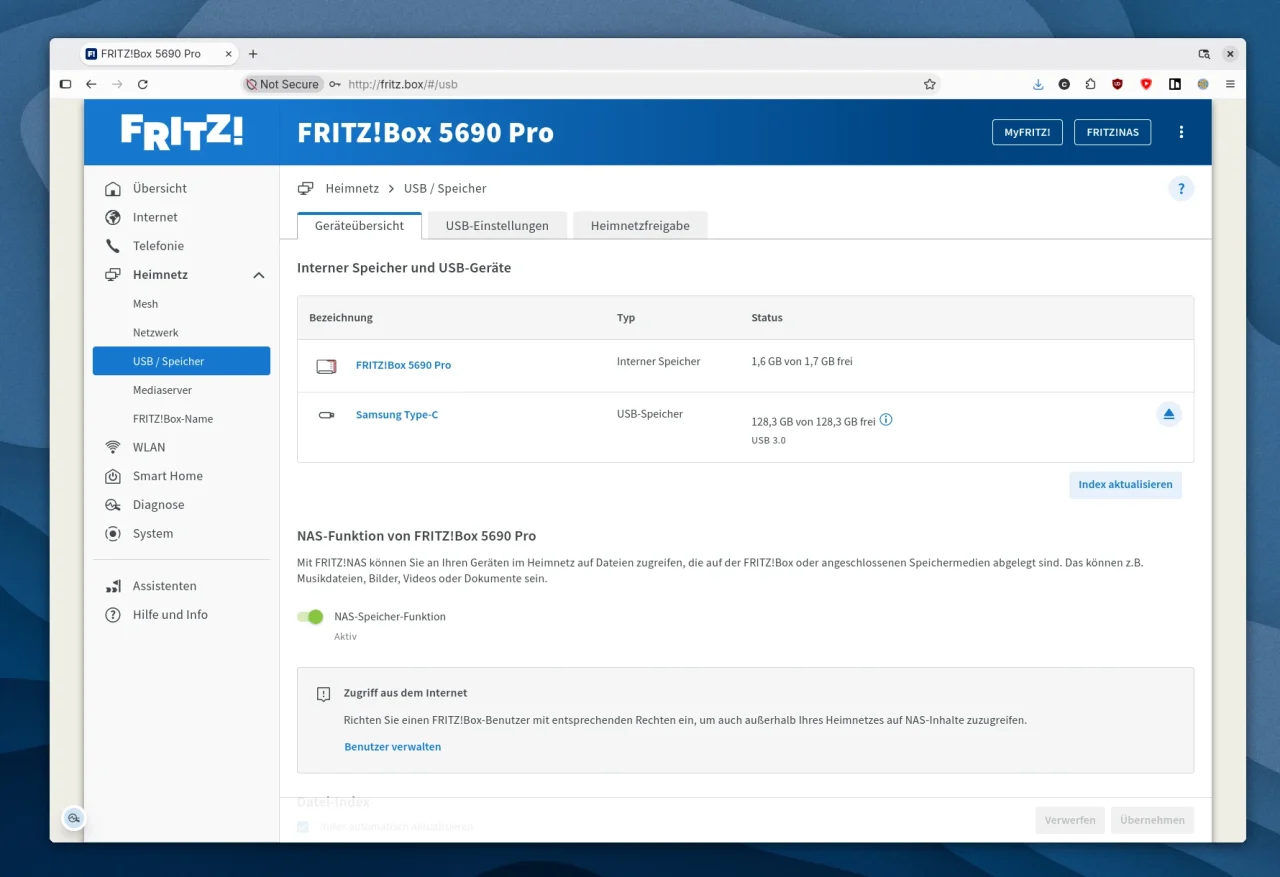
The Fritzbox may at first report a USB 3.0 stick as USB 2.0 only. Under Home Network | USB / Storage | USB Settings you will find the USB power saving mode: it must be set to Power Mode (USB 3.0), not Green Mode (USB 2.0). Then unplug the stick once and plug it back in, and it shows up in the device overview as USB 3.0.
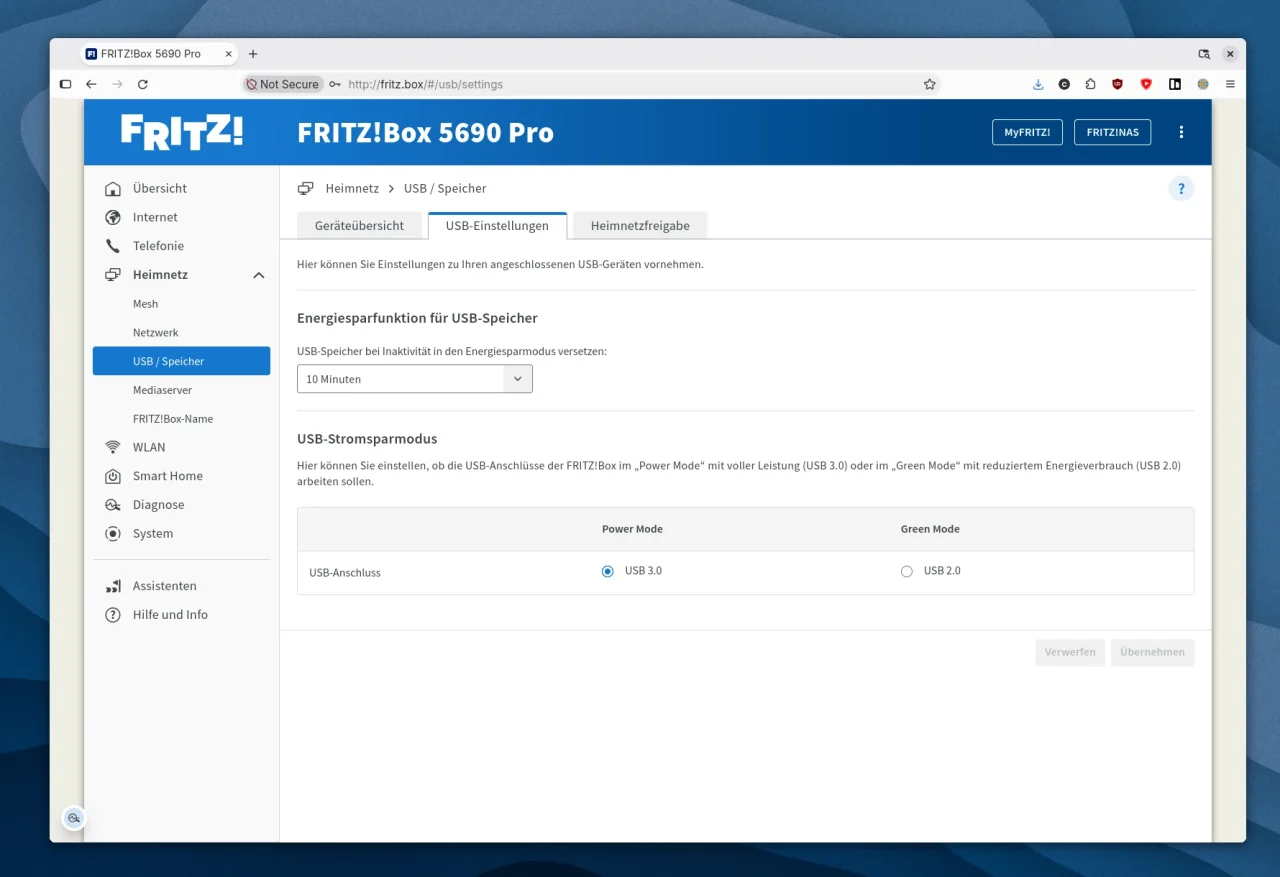
You can see whether it worked in the Device overview: the stick is listed as USB storage, with the note USB 3.0 below it. On the Fritzbox 5690 Pro the power saving mode was active from the factory, which throttled the stick. The difference is noticeable, because in power saving mode the port only delivers USB 2.0 speed.
// A dedicated user is worth it
Do not use the main account of your Fritzbox for the Linux machine. A dedicated user with NAS permission but without rights to change settings limits the damage if the credentials end up in plain text somewhere. With /etc/fstab that happens faster than you might think. Such an account can also be locked or given a new password later without any other device noticing.
GNOME: Files
On Ubuntu with GNOME you do not need to install anything; the support for network shares is on board. It is called GVfs and is the layer through which Nautilus accesses network shares. Open Files, press Ctrl+L and type smb://fritz.box into the location bar. Whether the box shows up in the network view does not matter; the direct address is enough.
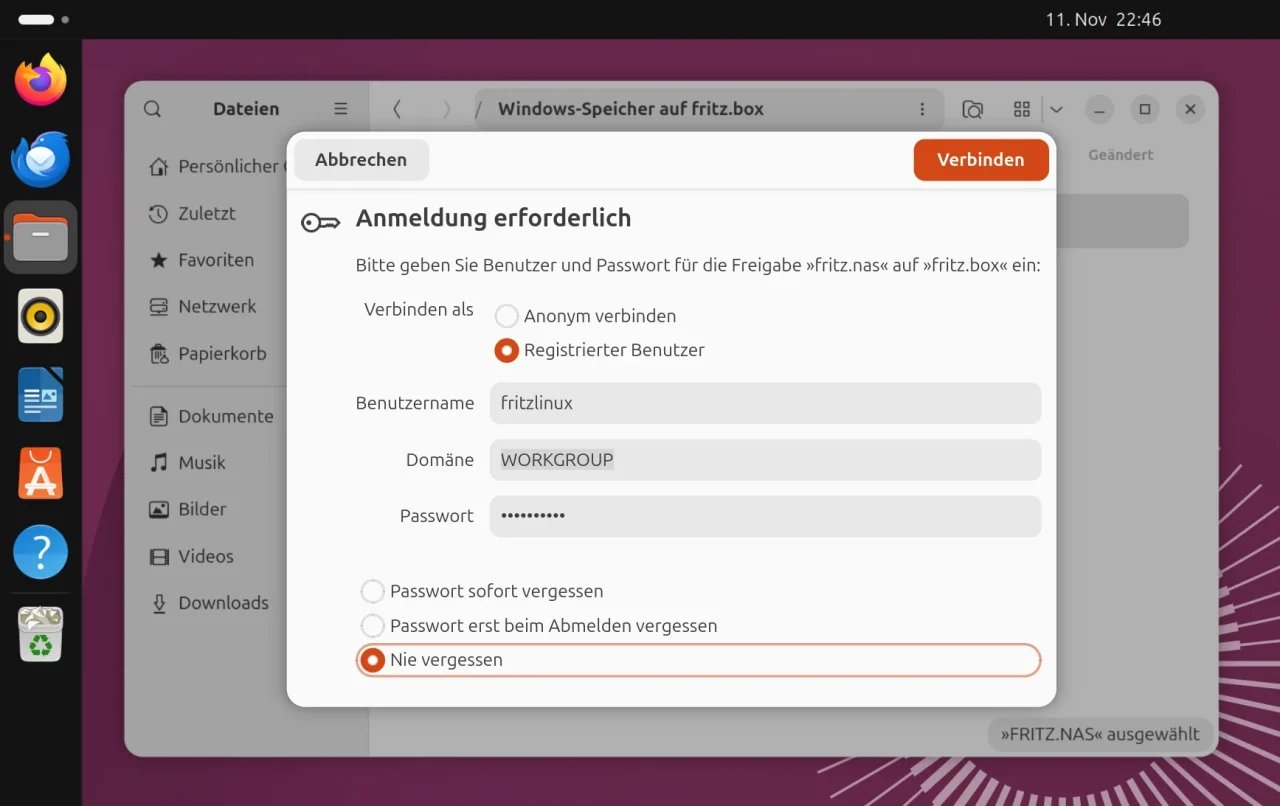
Under Windows Network on fritz.box, Nautilus first shows only the entry FRITZ.NAS, and it does not ask for a password yet. Only a double-click on it opens the login dialog. There you switch Connect as to Registered User, enter the Fritzbox user and password, and leave the domain at WORKGROUP. If you choose Remember forever, GNOME stores the password in the keyring and the dialog stays away from then on.
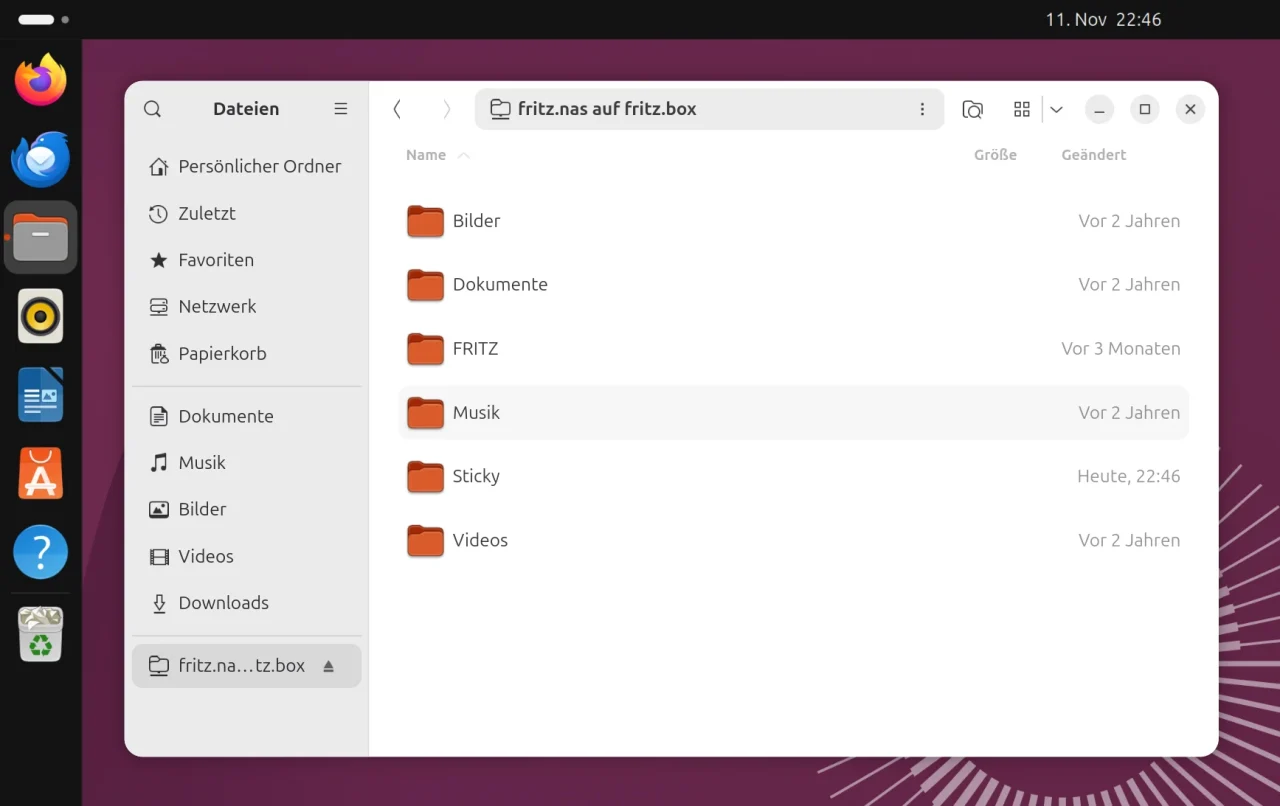
After that, Nautilus shows the folders of the share, and the sidebar on the left gets an entry for fritz.nas on fritz.box, through which you can reopen it at any time. The eject icon next to it ends the connection. The plugged-in USB stick appears as a folder of its own, named after the volume. Files can be copied, moved and deleted there like in any other folder.
Even programs that know nothing about GNOME can reach the files. GNOME additionally exposes the share as an ordinary folder under /run/user/1000/gvfs/smb-share:server=fritz.box,share=fritz.nas, where ls, cp or dd work as usual. That helps with scripts. The path contains the user ID and exists only while the share is connected. On the command line, gio mount mounts the share without a file manager:
gio mount smb://fritz.box/FRITZ.NASKDE Plasma: Dolphin
On TUXEDO OS with Plasma, you press Ctrl+L in Dolphin, type smb://fritz.box/ into the location bar and confirm with Enter. Unlike Nautilus, Dolphin asks for user name and password right away, before it shows anything. Enter the Fritzbox user and, if you do not want to see the dialog every time, tick Remember password.
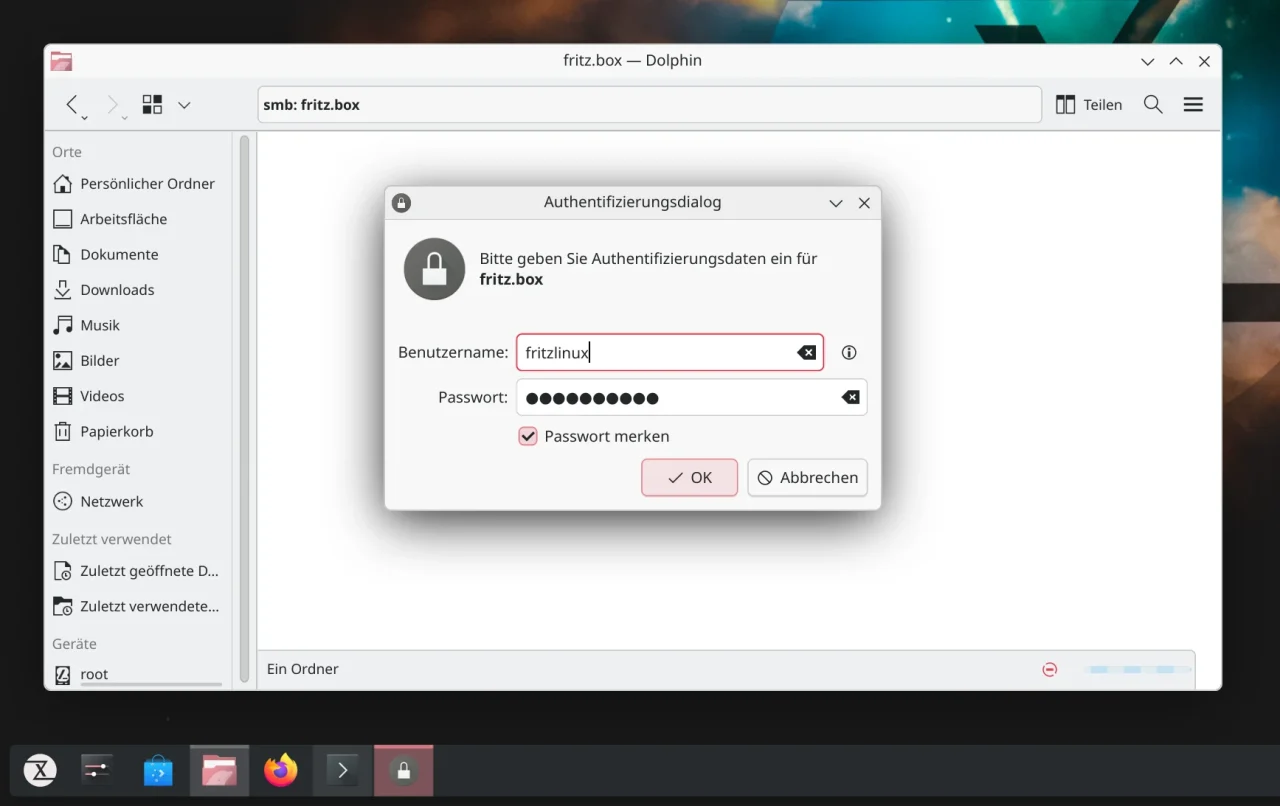
When you open the share, Dolphin asks a second time, now for FRITZ.NAS itself (server fritz.box, resource FRITZ.NAS). The fields are already filled in, so you just confirm with OK. Dolphin then shows the folders of the share, and the USB stick again appears as a folder of its own. Reading and creating a folder worked in the test.
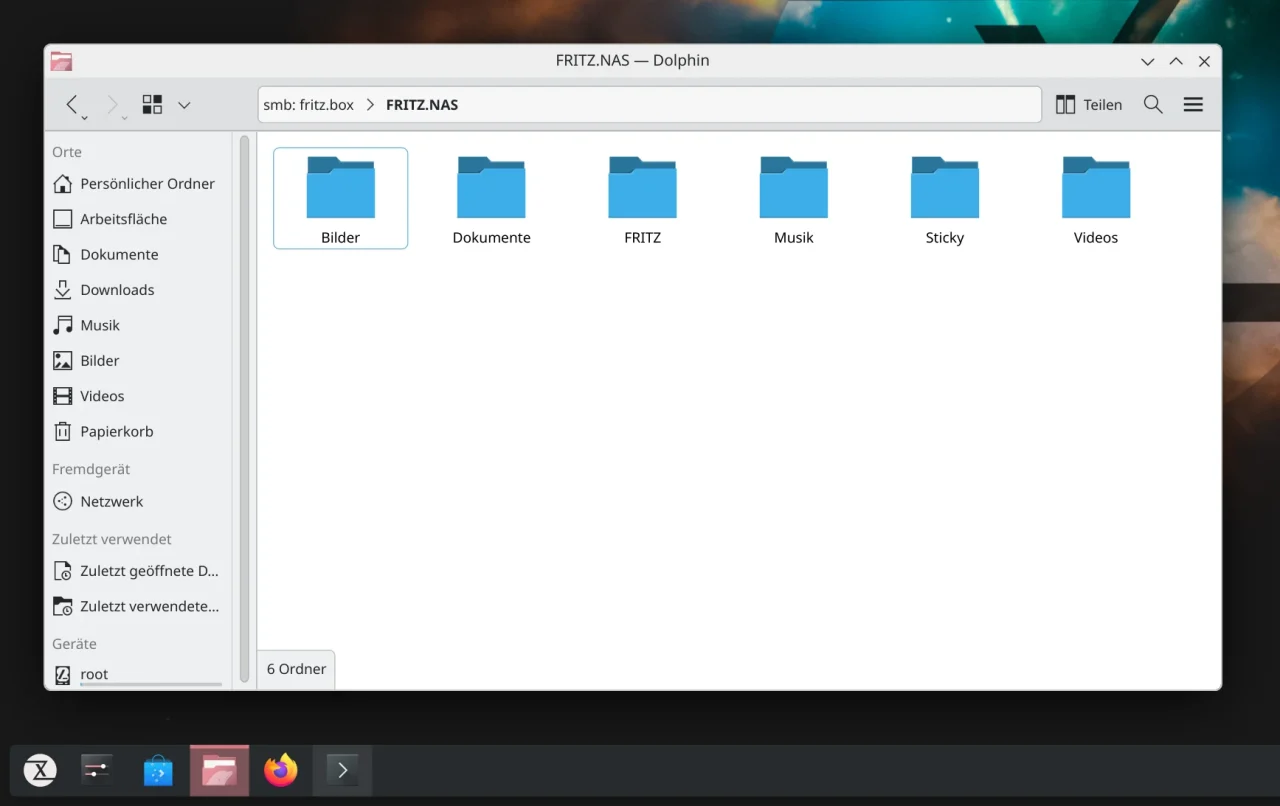
Other programs do not see the share without further ado: Dolphin uses the KDE-specific layer KIO for this, which only KDE programs understand. An add-on service called kio-fuse would expose the share as a folder to all programs, but in the test it denied every access. Dolphin itself could write. If you need fixed paths that every program understands, /etc/fstab is the better choice.
Permanent: the share in /etc/fstab
The file /etc/fstab defines which drives Linux mounts. If you enter the share there, you get an ordinary folder, for example /mnt/fritz. That pays off mainly for programs that only know regular paths, and for scripts without a login dialog. You need the package cifs-utils for this (usually already installed on Ubuntu). The credentials do not belong in the fstab, but in a separate file that only root may read:
sudo install -m 600 /dev/null /etc/fritz-smb.cred
sudo nano /etc/fritz-smb.credusername=YOUR_FRITZBOX_USER
password=YOUR_PASSWORDNext you create the folder in which the share should appear (the mount point) and add a line to the fstab. It names the source, the mount point, the file system type and the options; the two zeros at the end always stay that way for network shares. The options x-systemd.automount and noauto make sure the share is only mounted on first access. That way the computer does not wait for the Fritzbox at boot or on foreign Wi-Fi:
sudo mkdir -p /mnt/fritz
sudo nano /etc/fstab//fritz.box/FRITZ.NAS /mnt/fritz cifs credentials=/etc/fritz-smb.cred,uid=1000,gid=1000,file_mode=0644,dir_mode=0755,noserverino,_netdev,nofail,noauto,x-systemd.automount,x-systemd.idle-timeout=60,x-systemd.mount-timeout=10 0 0// uid and gid
With uid and gid you decide which user and which group the files of the share belong to on your computer. Linux knows both internally only as numbers. On desktop systems the first user created usually gets 1000, but the group number can differ: on one of the test machines it was 1004. id shows your numbers, and id -u and id -g return them individually:
id
uid=1000(NAME) gid=1000(NAME) groups=1000(NAME),27(sudo)
id -u
1000
id -g
1000
Then you reload the configuration and trigger the mount with a first access. In the test this worked right away, and after 60 seconds of idleness systemd released the mount again, leaving the folder behind as an empty trigger. uid and gid should match your account; the box above shows how to find them. Without file_mode and dir_mode, all files appear as executable:
sudo systemctl daemon-reload
ls /mnt/fritz
// Without noserverino: “Stale file handle”
In the test, the default mount ran into an error: after the cache had been cleared, a file that had just been written could no longer be opened, and the system reported Stale file handle. With the option noserverino the problem was gone, while nohandlecache did not help. It could be reproduced on Ubuntu and TUXEDO OS, on internal storage and on the stick, in every run. noserverino therefore always belongs in the options for a Fritzbox.
Linux identifies every file by an internal number supplied by the server. The Fritzbox, however, reports changing numbers for the same file, in the test first one and after clearing the cache a completely different one. Linux then takes the file for a different one and gives up. With noserverino, Linux assigns the numbers itself, and the problem disappears.
The price is that Linux no longer recognizes links to the same file (hard links), which hardly matters on a photo archive. Why the box answers this way is not clear. The same error appears in the Home Assistant forum (“Samba error with Fritz.Nas: CIFS stale file handle”) and in an Umbrel issue with a Fritzbox as storage, where the same option helped.
Alternative for advanced users: systemd units instead of fstab
If you prefer working with systemd units, you write a .mount and an .automount file instead of the fstab line. The result is the same, because systemd generates exactly these units from the fstab anyway. The advantage: each unit can be checked individually with systemctl status, and the messages end up in a log of their own with journalctl -u mnt-fritz.mount.
The file names are not freely selectable; they must match the path of the mount point. /mnt/fritz becomes mnt-fritz. Both files live in /etc/systemd/system/. You do not need to create the mount point by hand, since systemd creates /mnt/fritz itself on the first mount. systemd-escape shows which name systemd expects; for the first file it is mnt-fritz.mount:
systemd-escape -p --suffix=mount /mnt/fritz
mnt-fritz.mount[Unit]
Description=Fritzbox share FRITZ.NAS
After=network-online.target
Wants=network-online.target
[Mount]
What=//fritz.box/FRITZ.NAS
Where=/mnt/fritz
Type=cifs
Options=credentials=/etc/fritz-smb.cred,uid=1000,gid=1000,file_mode=0644,dir_mode=0755,noserverino
TimeoutSec=10Next comes mnt-fritz.automount. The options _netdev, nofail, noauto and the x-systemd.… entries of the fstab line are dropped, because the sections of the units take over their jobs: After=network-online.target waits for the network, and TimeoutIdleSec=60 disconnects after a minute of idleness. The .automount file makes sure the share is only mounted on first access and disappears again after a while without use. It points to the same mount point as the .mount file:
[Unit]
Description=Mount Fritzbox share FRITZ.NAS on access

[Automount]
Where=/mnt/fritz
TimeoutIdleSec=60

[Install]
WantedBy=multi-user.target
You enable the .automount file, not the .mount file. First systemd reads the new files, then the automount starts immediately and by itself after every reboot. In the test the mount point then stood ready as autofs while the actual mount was still inactive. The first access mounted the share, and after 75 seconds of idleness only the autofs trigger was left:
sudo systemctl daemon-reload
sudo systemctl enable --now mnt-fritz.automount
ls /mnt/fritz
Another advantage shows with services that should not run without the share, such as a backup or a media server. They add a single line to the [Unit] section of their unit. In the test, systemd mounted the share itself when such a service started and only then launched it. In systemctl list-dependencies, mnt-fritz.mount then appears as a dependency. With the fstab line this is only possible via detours:
[Unit]
RequiresMountsFor=/mnt/fritz
If you have a laptop that moves between networks, an older article about the NetworkManager dispatcher (in German) describes another variant, pitfalls included. There the share is mounted by a script as soon as the home network is reachable and unmounted again when the network changes. That is an alternative to the automount if the connection should really exist only on the home network.
Multiple users and computers
The Fritzbox assigns the permissions, not Linux. Every user under System | FRITZ!Box Users gets the permission Access to NAS content. When editing the user (pencil icon) you decide how far it reaches: Full access for reading and writing, Read-only access or Individual settings. With the individual variant you choose, folder by folder, where the user may read and where they may also write.
It makes sense to have one user per person instead of one account for everyone. That way an account can be locked later without the others needing a new password, and a guest or a child gets only Read-only access. The same account may log in from several computers at once, which worked without problems in the test. If you change a password, you must update the credentials file used by the fstab.
The Linux permissions on the mounted folder, on the other hand, are only a facade. They merely determine what ls -l displays: in the test, chmod 600 reported success and left the mode at 644 anyway, and chown root did not change the owner. Anyone who really wants to lock something down does so in the Fritzbox, not with chmod. The same applies to the options uid, gid, file_mode and dir_mode of the fstab line: they only change the display.
On a computer with several accounts, the fstab mount has exactly one login, and every local user who can get into the folder works with the rights of that Fritzbox user. With dir_mode=0755, even the system user nobody could list the folder in the test. On shared computers, set dir_mode=0700 or a dedicated group with gid= and dir_mode=0770. The route through Files in GNOME or KDE’s Dolphin, by contrast, logs in each account individually.
// No locks between computers
If two computers access the same file, the Fritzbox does not protect you. In the test, a virtual machine held a lock on a file, and a second, real computer got the very same lock anyway. Programs that rely on such locks, such as SQLite databases or the KeePass password file, should therefore never be open on the share from two devices at the same time.
The cache plays a role too. With the default settings, the second computer saw a changed file immediately. With cache=loose,actimeo=30, it still read the old content one second after the change. For folders that several people write to, the default therefore stays. In any case, the share belongs on the home network. Never open the SMB port 445 of the Fritzbox to the internet; when you are away, a VPN does the job.
More options: smbclient, FTP and rclone
For one-off copying, the package smbclient is enough. It needs no mount and no extra rights, and the credentials file from above can be reused with -A. FTP works too once you have enabled Access via FTP: the Fritzbox then has port 21 open, and curl uploads files. Dolphin and Nautilus understand ftp:// as well, but it is inconvenient as a permanent solution. A download with smbclient and an upload via FTP look like this:
smbclient //fritz.box/FRITZ.NAS -A /path/to/cred -c "get file"
curl --user USER -T file ftp://fritz.box/
Example: nightly backup to the Fritzbox
A typical use for smbclient is a backup that runs at night. The script packs a folder into a tar.gz archive and pushes it to the share. The weekday is part of the file name, so there are at most seven archives that overwrite each other in turn, and you need no cleanup script. The credentials file is the same as for the fstab, and you replace NAME_OF_THE_STICK with the folder of your stick:
#!/bin/bash
# Nightly backup: push a folder as tar.gz to the Fritzbox
set -euo pipefail

SOURCE="$HOME/Documents"                 # this folder gets backed up
SHARE="//fritz.box/FRITZ.NAS"
TARGET="NAME_OF_THE_STICK/Backup"        # folder on the share
CRED="$HOME/.fritz-smb"                  # credentials file with username= and password=
FILE="/tmp/backup-$(date +%a).tar.gz"    # weekday in the name: seven archives in rotation

tar -czf "$FILE" -C "$(dirname "$SOURCE")" "$(basename "$SOURCE")"
smbclient "$SHARE" -A "$CRED" -c "mkdir $TARGET" >/dev/null 2>&1 || true
smbclient "$SHARE" -A "$CRED" -c "put $FILE $TARGET/$(basename "$FILE")"
rm -f "$FILE"
For a test, run the script twice: the first time it creates the target folder, the second time it overwrites the archive from the same weekday. With an impossible target it ends with exit code 1, so that a timer records the error in the log. Fetching an archive back and unpacking it worked as well; only the weekday in the file name has to match the state you want:
smbclient //fritz.box/FRITZ.NAS -A ~/.fritz-smb -c "get NAME_OF_THE_STICK/Backup/backup-Mon.tar.gz"
tar -xzf backup-Mon.tar.gz
If you prefer FTP, replace the two smbclient lines with a curl call. The target folder is created automatically. The credentials live in a separate file in your home directory that only you may read (chmod 600), so the password appears neither in the script nor in the process list. This too should work for you; in the test the archive landed in the target folder on the stick:
install -m 600 /dev/null ~/.fritz-netrc
nano ~/.fritz-netrcmachine fritz.box login YOUR_FRITZBOX_USER password YOUR_PASSWORDcurl --fail --silent --show-error --ftp-create-dirs \
--netrc-file "$HOME/.fritz-netrc" \
-T "$FILE" "ftp://fritz.box/$TARGET/$(basename "$FILE")"For the night you need a timer. Under systemd, two small files in the user directory ~/.config/systemd/user/ are enough, and the script lives at ~/bin/fritz-backup.sh. The service starts the script, and the timer calls it at 2:30 a.m. Persistent=true catches up on a missed run, for example when the computer was off at that time:
[Unit]
Description=Backup to the Fritzbox

[Service]
Type=oneshot
ExecStart=%h/bin/fritz-backup.sh[Unit]
Description=Backup to the Fritzbox every night
[Timer]
OnCalendar=*-*-* 02:30
Persistent=true
[Install]
WantedBy=timers.targetYou enable the timer, not the service. The third command starts a run immediately so you can see whether everything works, and the fourth shows the log. In the test, the next run then appeared in the list for 2:30 a.m., and the manually started run put the archive on the stick:
systemctl --user enable --now fritz-backup.timer
systemctl --user list-timers fritz-backup.timer
systemctl --user start fritz-backup.service
journalctl --user -u fritz-backup.service
If you want to address several cloud storages and the Fritzbox with one tool, use rclone with the SMB backend. The share is set up there as a storage of its own, and the share name FRITZ.NAS goes into the path. Copying and mirroring a folder worked in the test. With this command the password ends up in the shell history; if you want to avoid that, enter it interactively through rclone config instead:
rclone config create fritz smb host fritz.box user YOUR_USER pass YOUR_PASSWORD --obscure
rclone sync ~/Documents fritz:FRITZ.NAS/NAME_OF_THE_STICK/Backup/Documents
WebDAV and SSH (sshfs), on the other hand, are not possible: port 22 is closed, and there appears to be no WebDAV access to the storage. In everyday use that hardly matters, because SMB and FTP cover the usual cases: uploading files, storing backups and mounting a share as a folder. NFS gets a section of its own further down.
Speed comparison
The measurements ran on a TUXEDO laptop with Ubuntu 26.04.1, GNOME 50.1 and kernel 7.0, connected through a 2.5 Gbit USB adapter to a Fritzbox 5690 Pro attached to a gigabit port. Two storages were tested: the internal one of the box (1.7 GB) and a 128 GB USB 3.0 stick. Every test ran three times, and the table shows the median. A 512 MB file (filled with zeros, cache cleared before each read) was read and written.
| Method | Write internal (MB/s) | Write stick (MB/s) | Read internal (MB/s) | Read stick (MB/s) |
|---|---|---|---|---|
| GVfs (Files/Nautilus) | 49.2 | 60.2 | 66.3 | 64.6 |
| mount.cifs, SMB 3.1.1 | 45.5 | 44.9 | 104.7 | 104.9 |
| mount.cifs, SMB 3.0 | 45.3 | 44.8 | 104.4 | 104.6 |
| mount.cifs, SMB 2.1 | 45.7 | 45.1 | 104.8 | 105.2 |
mount.cifs, cache=loose | 48.4 | 44.6 | 109.4 | 109.4 |
| smbclient | 54.7 | 70.6 | 106.8 | 103.9 |
| FTP (curl) | 53.9 | 65.5 | 107.7 | 107.6 |
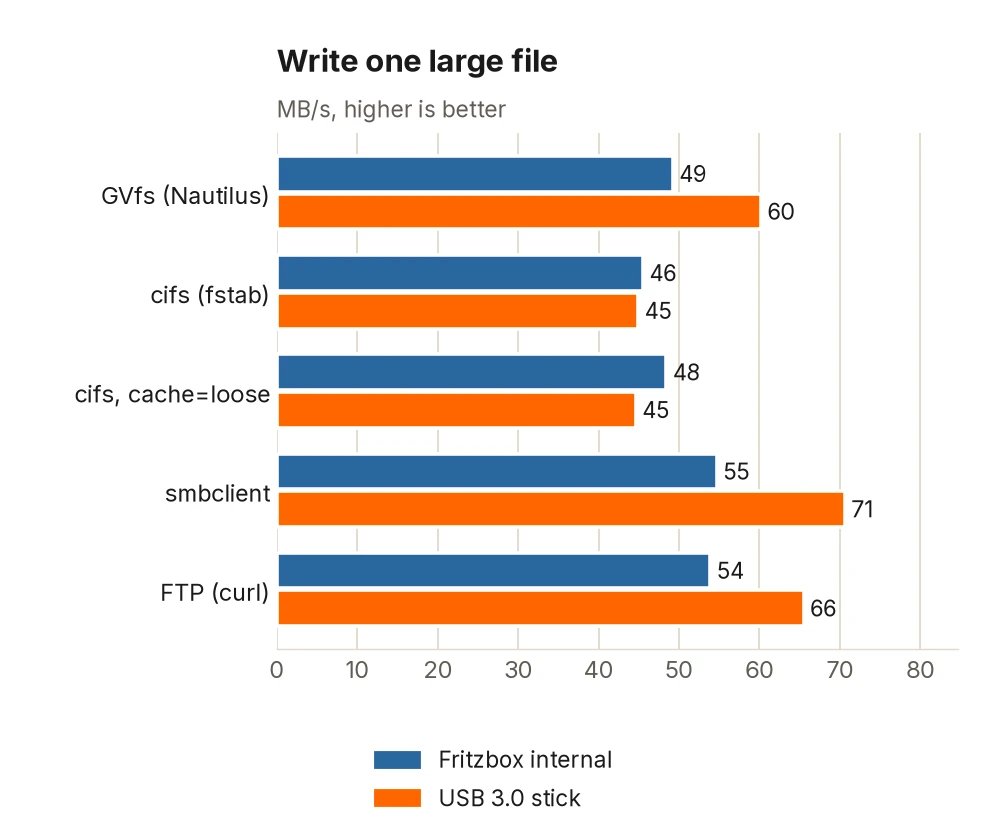
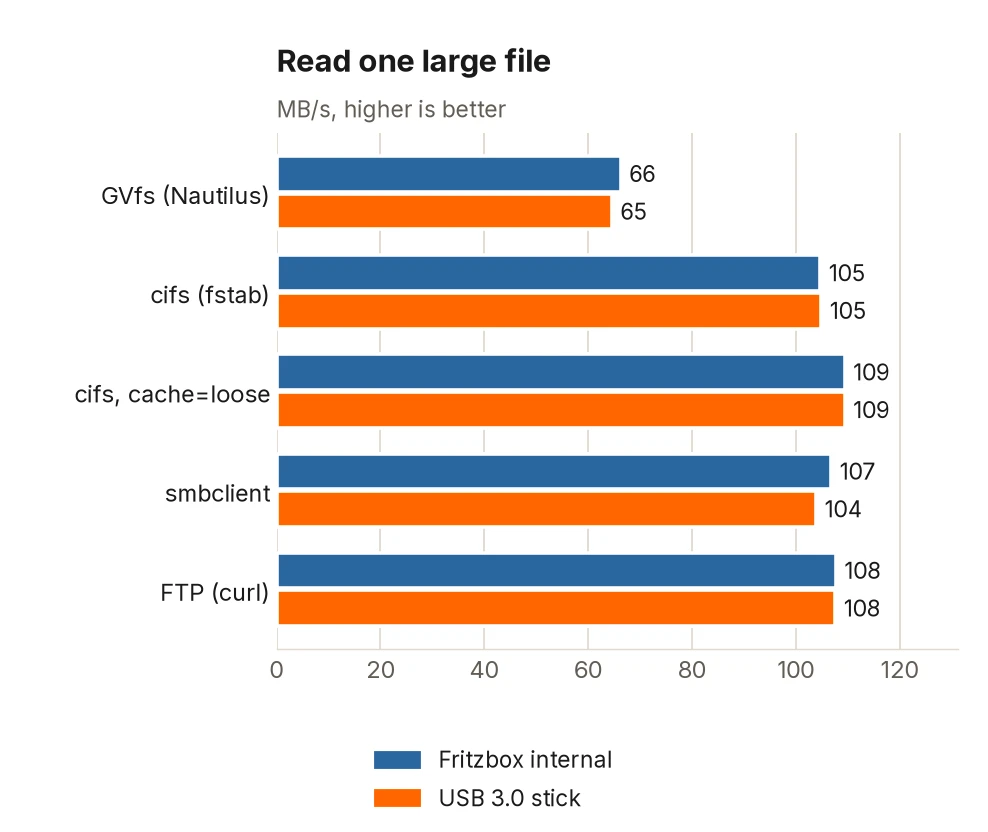
The same runs were repeated later on the same laptop under TUXEDO OS (kernel 7.2, Plasma). The values are almost identical: the kernel mount writes at 46 to 49 MB/s and reads at 105 MB/s, smbclient writes at 64 to 68 MB/s, FTP at 52 to 65 MB/s, depending on the storage. Deviations of more than 3 MB/s occurred only when writing with smbclient to the internal storage (64 instead of 55 MB/s).
When reading large files, it is not Linux that holds things back but the network: the Fritzbox sits on a gigabit port, and a good 100 MB/s is just under what such a connection can deliver. Internal storage and stick give the same result. The laptop’s 2.5 Gbit adapter is not used to capacity. The SMB version makes no difference; 2.1, 3.0 and 3.1.1 are equally fast.
When writing, the kernel mount stays at around 45 MB/s, whether internal or on the stick. smbclient and FTP, by contrast, write to the USB 3 stick at 65 to 71 MB/s, and GVfs at 60 MB/s. So the storage is not the bottleneck with the kernel mount, and the measuring method is not the cause either; that was cross-checked.
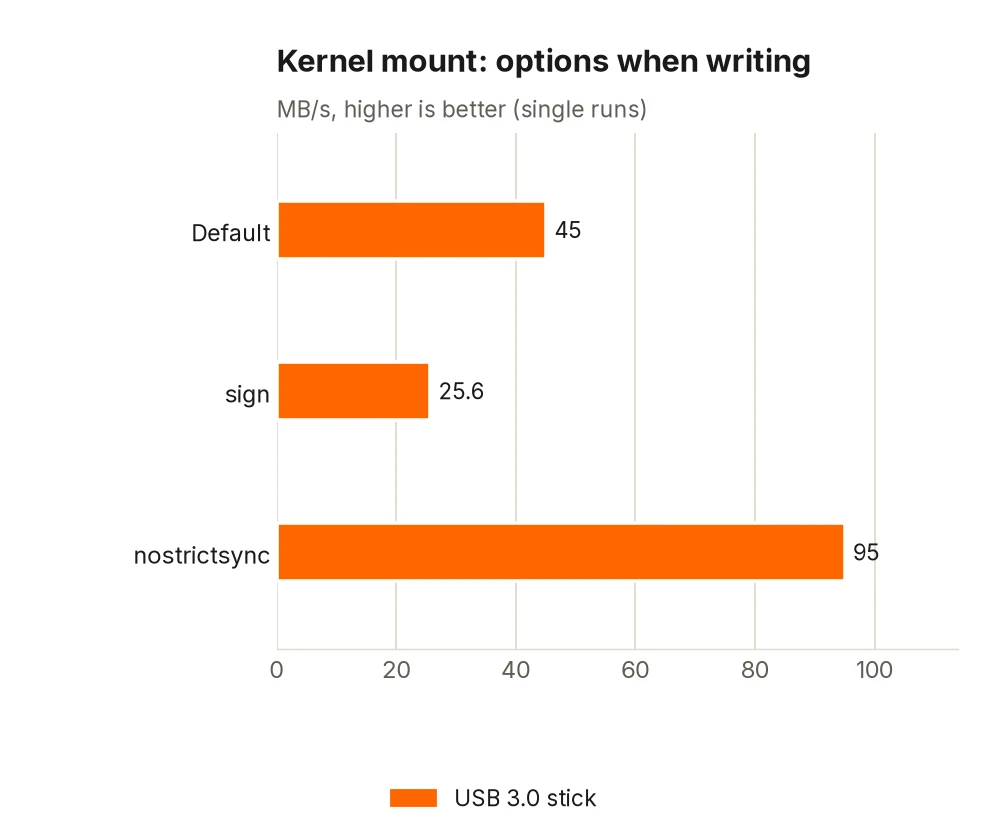
The cause turned up while trying out settings. Buffer sizes (wsize) and other options change nothing, and packet signing (sign) even costs almost half. With nostrictsync, however, writing jumps to around 95 MB/s. The option stops Linux from demanding, when a file is closed, that the box write it to the storage medium. The box then reports “done” before the data is on the stick.
// Use nostrictsync with care
The speed of nostrictsync is bought at a price: the data initially sits only in the working memory of the Fritzbox. If the power fails there, or you pull the stick right after copying, files can be missing or damaged. For backups the option should stay off; for a photo archive that you back up elsewhere anyway, it is acceptable.
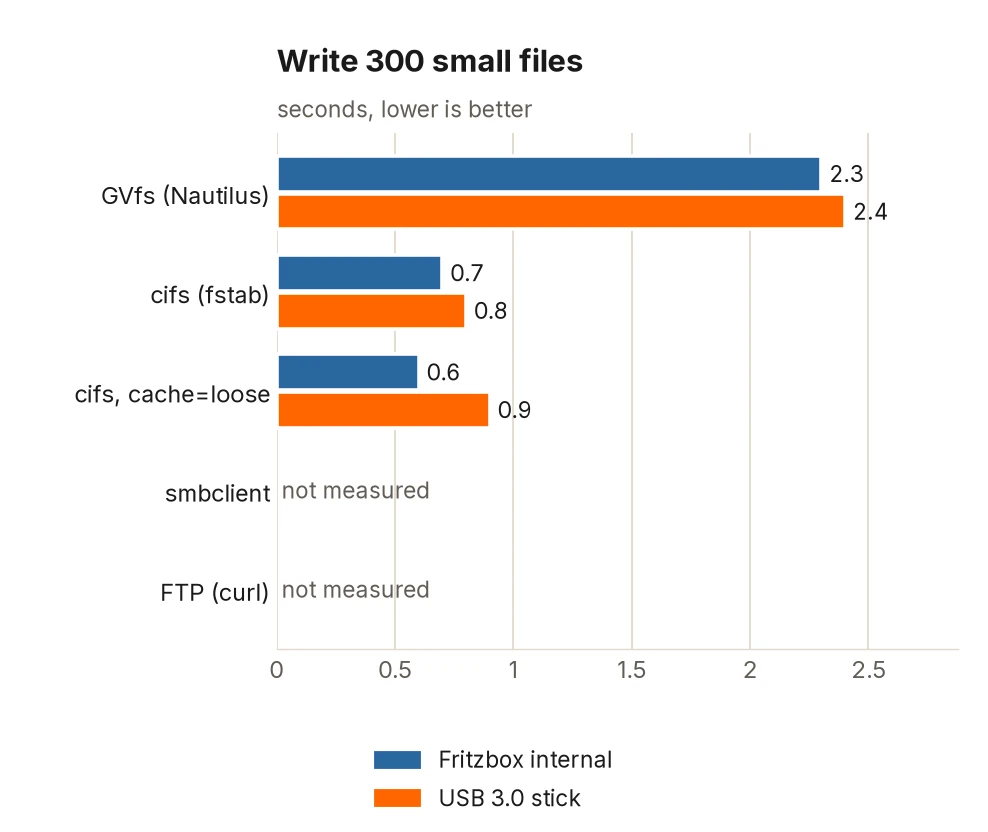
With many small files (300 of 16 KB each), GVfs is clearly behind: on the stick it needs 2.4 seconds to write and 2.5 to read, the kernel mount only 0.8. For a few photos that goes unnoticed, for a folder with thousands of files it does not. On the internal storage the picture was the same (2.3 against 0.7 seconds).
cache=loose brings four percent when reading and nothing measurable when writing. You will hardly notice four percent in everyday use. In return, the computer sees changes made by other devices later. For a network drive that several people use, it should stay off. The measurements come from a single day and a single router, so the values are guideposts, not guarantees.
// Which method for what
For everyday use, the share in the file manager is fast enough and the most convenient. If you copy many files or let programs access the share, use /etc/fstab with x-systemd.automount. For single large files that you write to the box, smbclient or FTP are fastest. It is best to do without cache=loose and nostrictsync as long as several devices write.
NFS and Freetz
The Fritzbox itself offers no NFS: the box does not answer on ports 2049 and 111. In the past, the add-on project Freetz helped; among other things it retrofitted an NFS server. The original Freetz is considered outdated, its last release dates from 2012. In old forum posts you will find many guides that refer to boxes and firmware versions that have long since stopped being current.
The fork Freetz-NG, which continues the work of the original project, is alive: its news run up to November 2026, and a new version appeared in September. An NFS server with a web interface also remains part of it, the nfsd-cgi. The list of supported firmware includes many Fritzboxes, among them the 5690 Pro. If you want to try it, first find out which firmware your own box runs.
It is still no sure thing. Freetz-NG replaces the box’s firmware with a self-built image, and according to the news, newer FRITZ!OS 8.5 versions only partly work, with many patches failing. The documentation of the NFS server names only an old Fritzbox 7390 as a test device. For the 5690 Pro it is untested, and the gain would be modest: when reading, the network is already at its limit, and when writing, it is the writing to the storage medium that slows things down.
Experiences and measurements
How do you mount your Fritzbox shares? Experiences and tips are welcome in the comments, especially on other Fritzbox models and firmware versions, on USB storage with other file systems and on per-user folder permissions, which this test could not settle. Measurements from faster storage or a 2.5 Gbit port on the box are welcome too.
Leave a Reply