
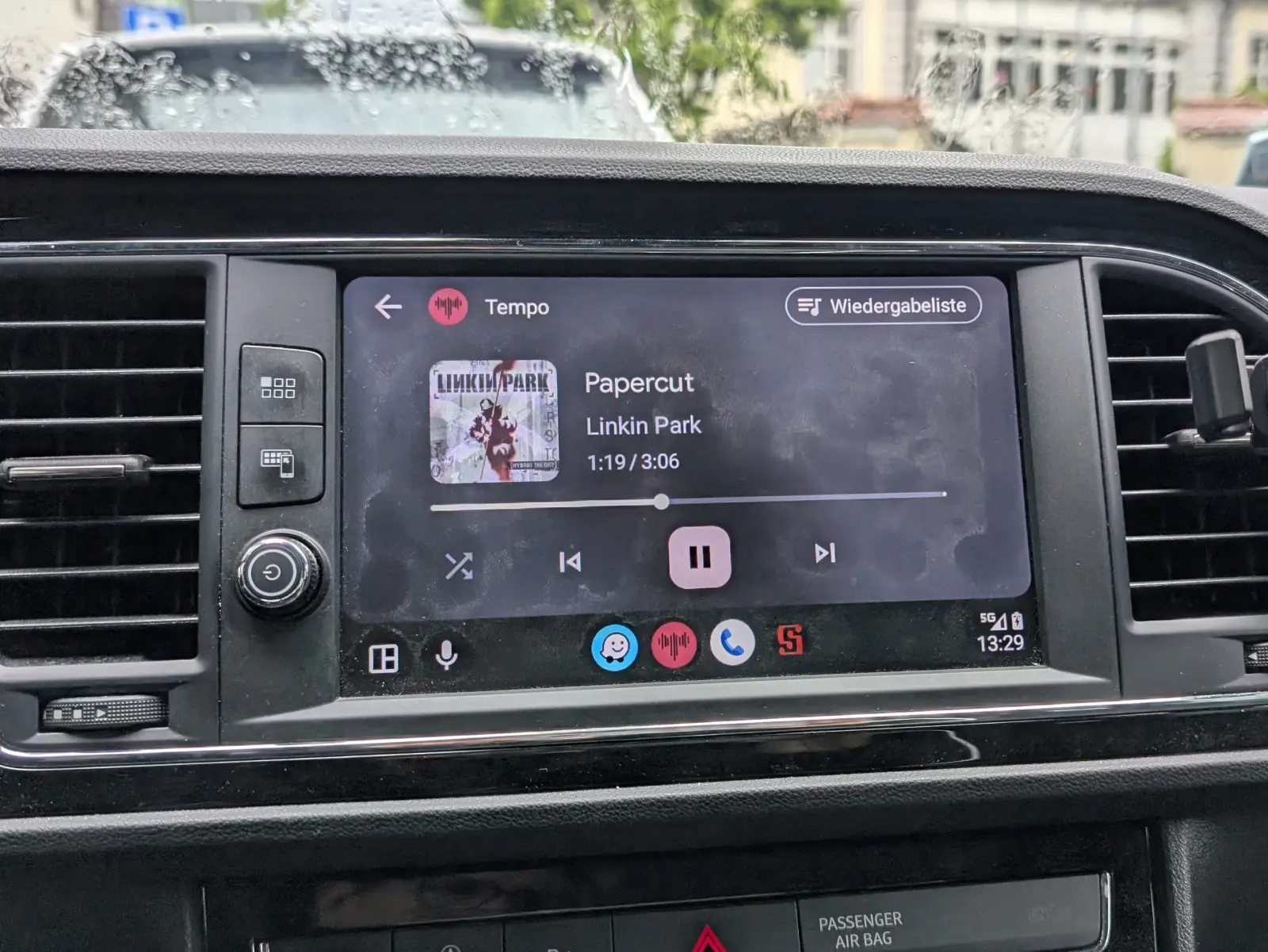
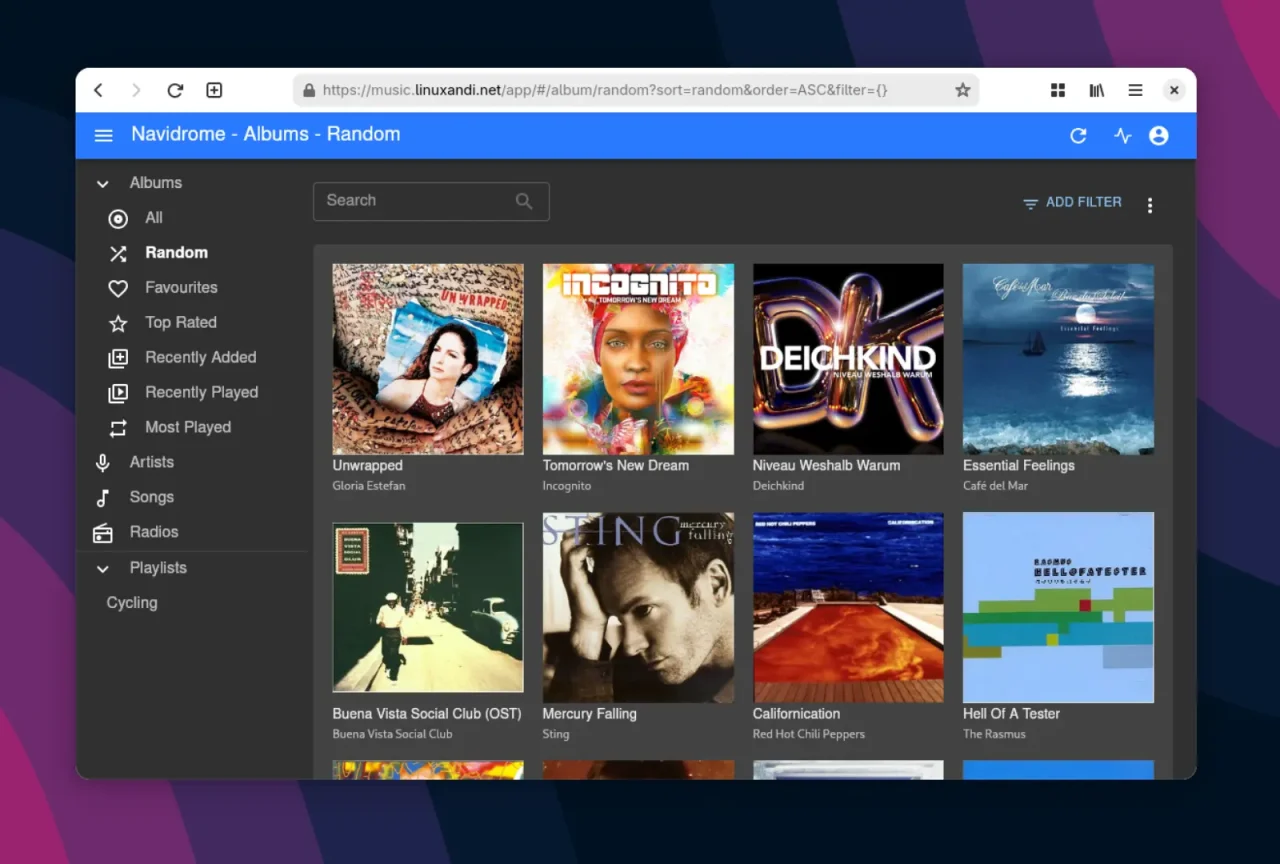
Music is a piece of home for me. No matter whether I’m sitting at my desk, out on my bike, or driving long distances in the car. Instead of handing my collection over to Spotify, Apple Music, or YouTube, I run my own music server with Navidrome, a lightweight, open-source, Subsonic-compatible server.
On my smartphone I use either Symfonium or the open-source app Tempo, depending on my mood. Symfonium is ambitiously developed and configurable down to the smallest detail, but proprietary. Both integrate into the display of compatible cars via Android Auto. With Tempo, though, you need to know how. As an open-source app, it has Google standing in the way as a gatekeeper.
Why Navidrome?
Navidrome is a free music server that works via the Subsonic protocol. It’s easy on resources (on my machine it runs in a Docker container) and comes with a fairly modern web interface, a comprehensive API, and support for numerous clients on all common operating systems. Linux and Android included, of course. The big advantage: I have access to my own music anytime, anywhere, without paying a third party or sitting through ads.
- Runs on almost anything: Raspberry Pi, NAS, server
- Standardized interface: Compatible with many Subsonic clients
- Supports multiple users: Handy if you share your collection with family or roommates
- Transcoding: If you like, the music can be automatically downsampled depending on your connection
For me, Navidrome is the ideal solution because I tag and manage my music myself, without a platform pushing “similar artists” on me or analyzing my playlists. And yes, we all get to an age where we no longer welcome a new album or new artists into our music collection every single day, so an account with Spotify and co. is definitely worth it. #sadbuttrue
Tempo: A simple client with a clear focus
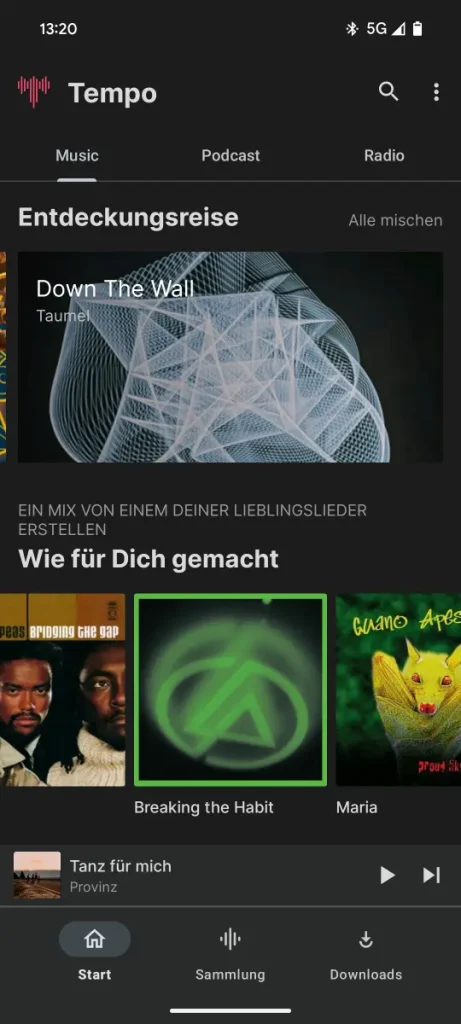
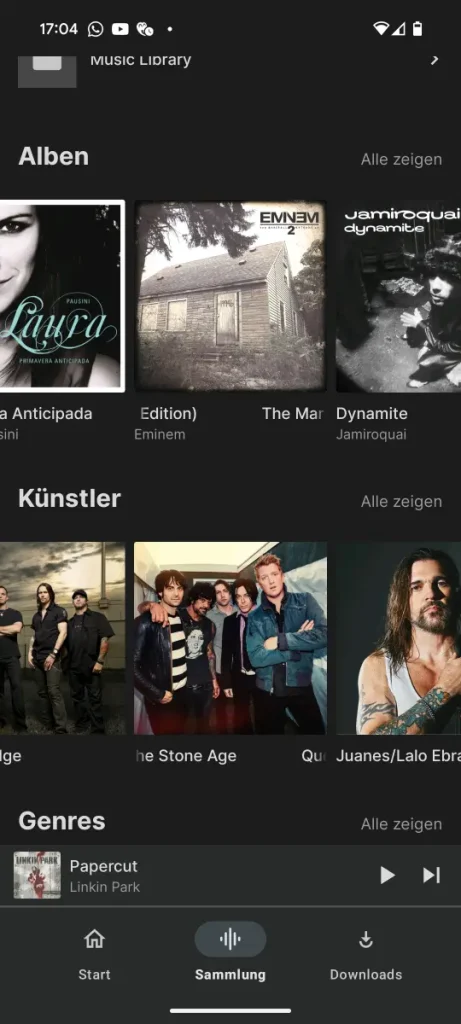
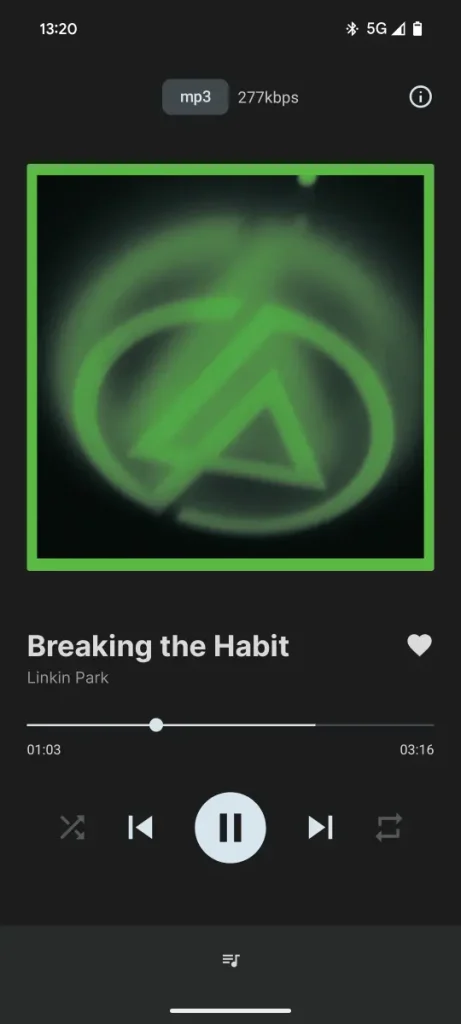
Tempo is a native Android app aimed specifically at users of Subsonic-compatible servers. There is, for example, no playback of locally stored music. Unlike bloated players, Tempo focuses on clarity and speed. The app is open source, ad-free, and easy to install via F-Droid or GitHub.
The developers and I both recommend installing the GitHub version via the APK file, though, because only it includes all features. The F-Droid version has also been lagging behind for some time now. The GitHub page says as much: “Use the GitHub version of the app for full Android Auto and Chromecast support.”
For Symfonium, on the other hand, you have to buy a lifetime license after a short trial period. With a donation of at least 7 euros, it doesn’t cost the world. The developer also takes good care of his app. The changelog of the reliably arriving updates is usually too long to read.
Features
- Clear navigation by artists, albums, genres, or decades
- Gapless playback for seamless listening (important for live albums)
- Playlist management right in the app
- Support for Last.fm scrobbling
- Chromecast integration
- Android Auto support
Using Android Auto with Tempo
For Tempo to work in the car, Android Auto not only has to be installed on your smartphone, but certain settings also have to be enabled. For apps that don’t come from Google’s Play Store, like Tempo, this is a bit hidden.
Enabling developer mode for Android Auto
First, you need to enable the Android Auto developer mode so that Tempo shows up as an app on the display in your car. On your phone, go to the Android Auto settings:
- Android 10 or newer: Settings » Apps » See all X apps » Android Auto » Additional settings in the app
- Android 9 or older: Directly in the Android Auto app under Menu » Settings
Scroll all the way down and tap the version number ten times. You may know something similar from Android’s own developer mode. After that, a prompt asks whether you want to enable developer settings. Confirm with OK. Then open the three-dot menu at the top right and select Developer settings.
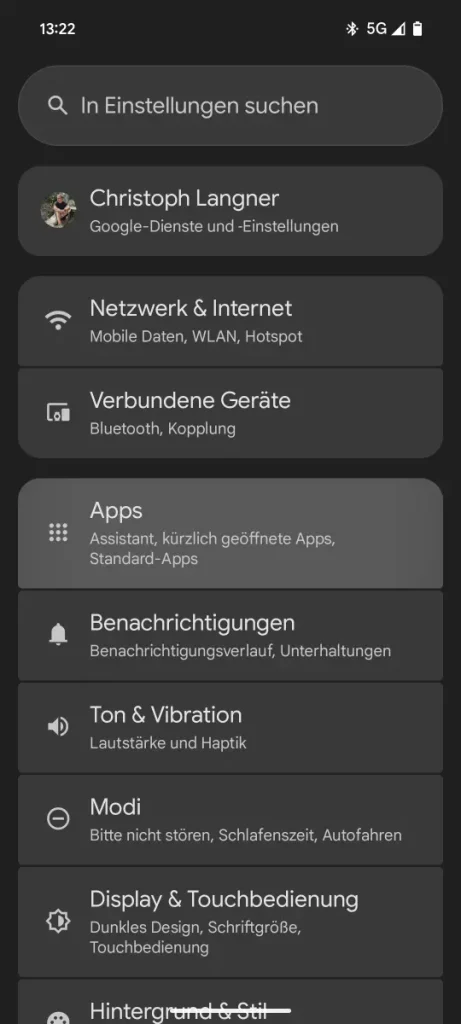
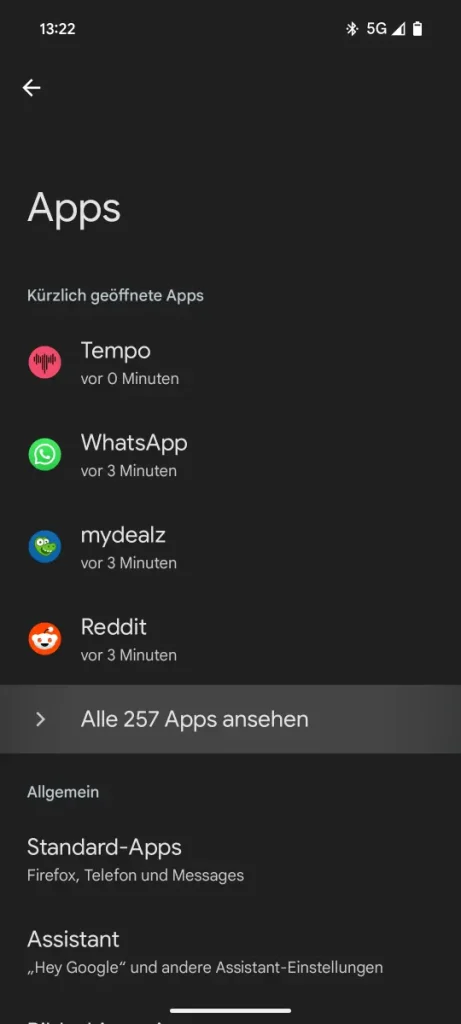
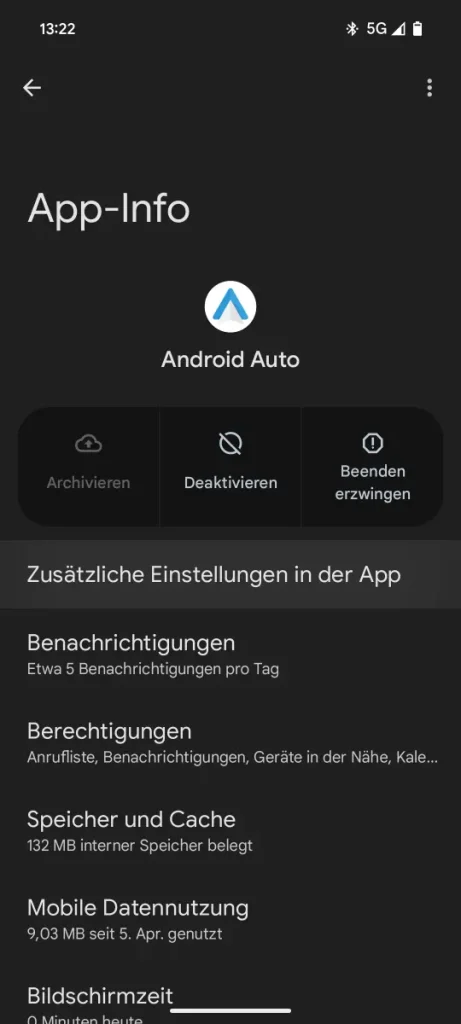
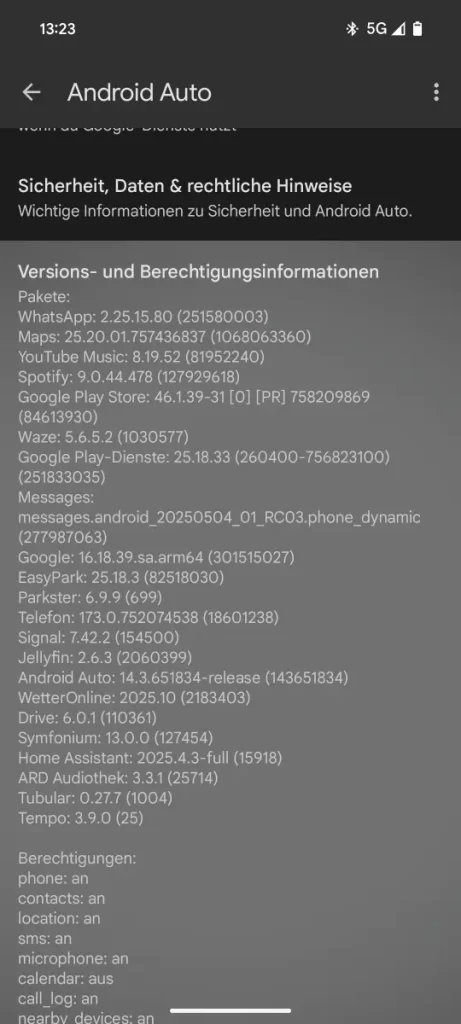
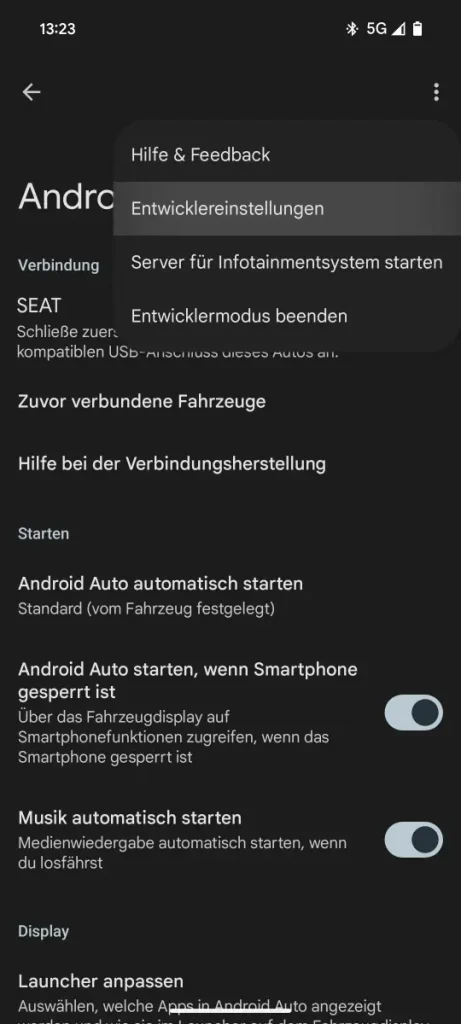
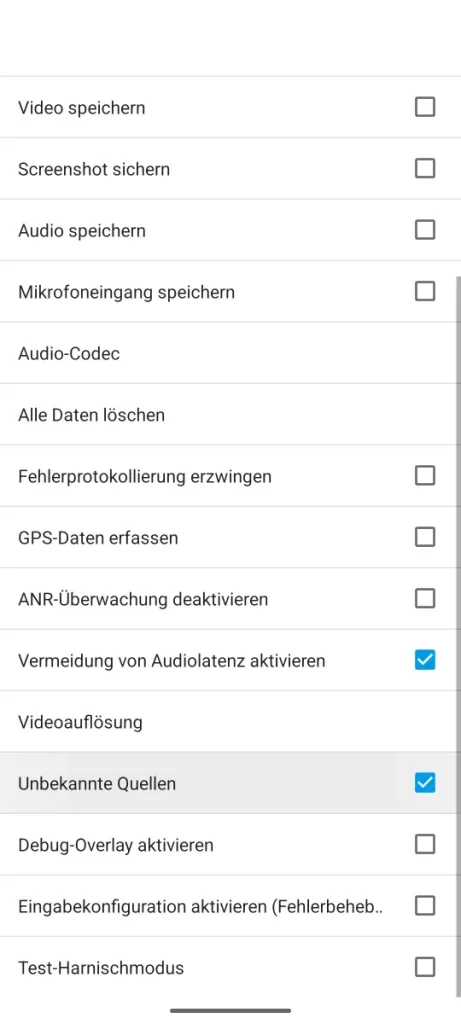
In this dialog, now enable the option Unknown sources. This allows alternative apps like Tempo to access Android Auto, even if the developers haven’t obtained an official Play Store certification, which wouldn’t be all that easy for open-source projects.
Note: You only have to do this once. After that, Tempo is automatically recognized as a media app as soon as your smartphone is connected to the car, by cable or wirelessly.
Installing Tempo on your smartphone
Since Tempo can’t currently be found in the Google Play Store, you install the app manually: via F-Droid, other open-source market clients like Droid-ify, or directly via GitHub releases. Make sure that Install from unknown sources is allowed in the Android settings for the browser or file manager you use.
Note: As mentioned above, you need the GitHub version (currently Tempo 3.9.0) if you want to use Android Auto. With Tempo 3.8.1 from F-Droid, Tempo does show up among the Android Auto apps, but you only get an empty screen when you start it. Here is the corresponding bug report.
After the first launch, enter the URL of your Subsonic server, your username, and your password. Tempo then connects directly to your collection. Naturally, Tempo also supports other servers that use the Subsonic protocol. For my part, I tried the app with my Navidrome server, and it works without any problems.
Optional: Enabling transcoding in Tempo
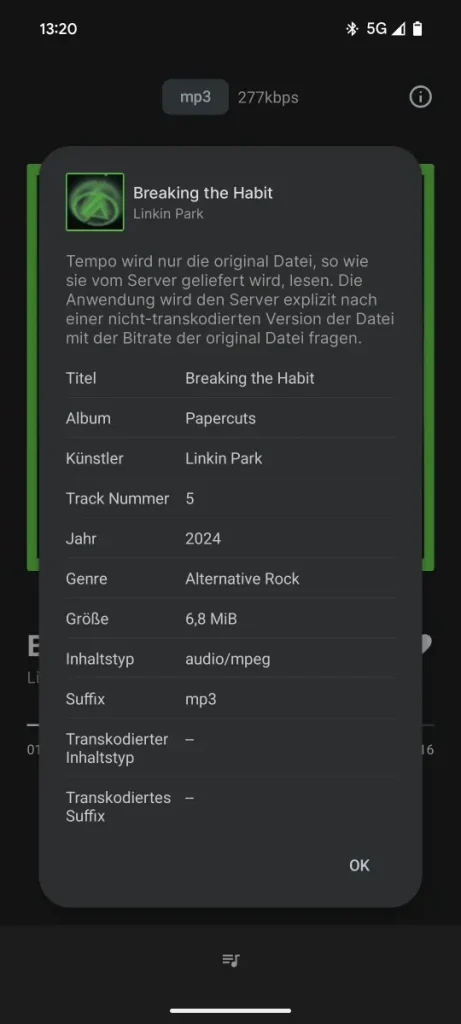
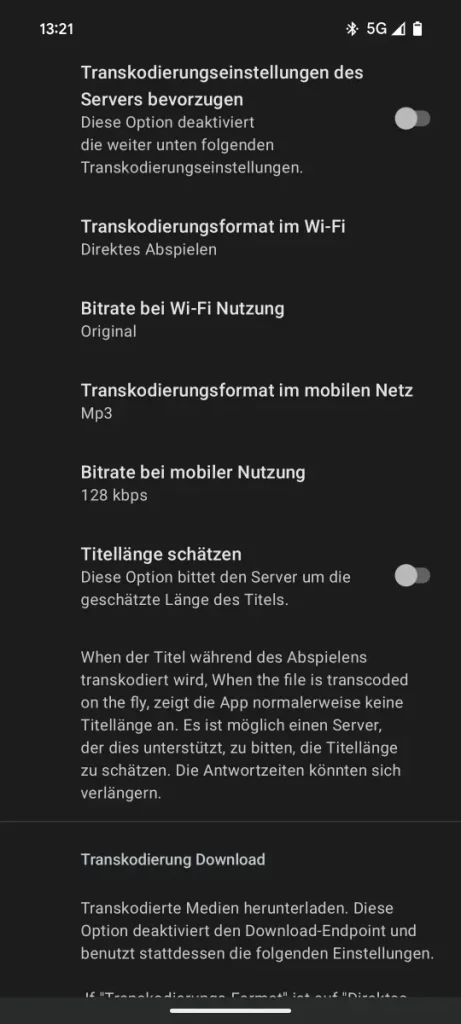
Tempo also supports transcoding (if your server allows it). In the car in particular, it can make sense to stream FLACs or high-resolution formats as MP3 at 192 or 256 kbit/s. That saves data (at least on my plan, which is limited) and stays stable even on a shaky connection. You’ll find the relevant options in Tempo’s settings. In my case, I didn’t have to configure transcoding separately in Navidrome.
Tempo on your phone and in the car
With Navidrome and Tempo, there’s a completely free solution for mobile music on Android, including integration into the car via Android Auto. You’re fully independent of streaming services, can listen to your own music in high quality, and avoid tracking, ads, and subscriptions entirely.
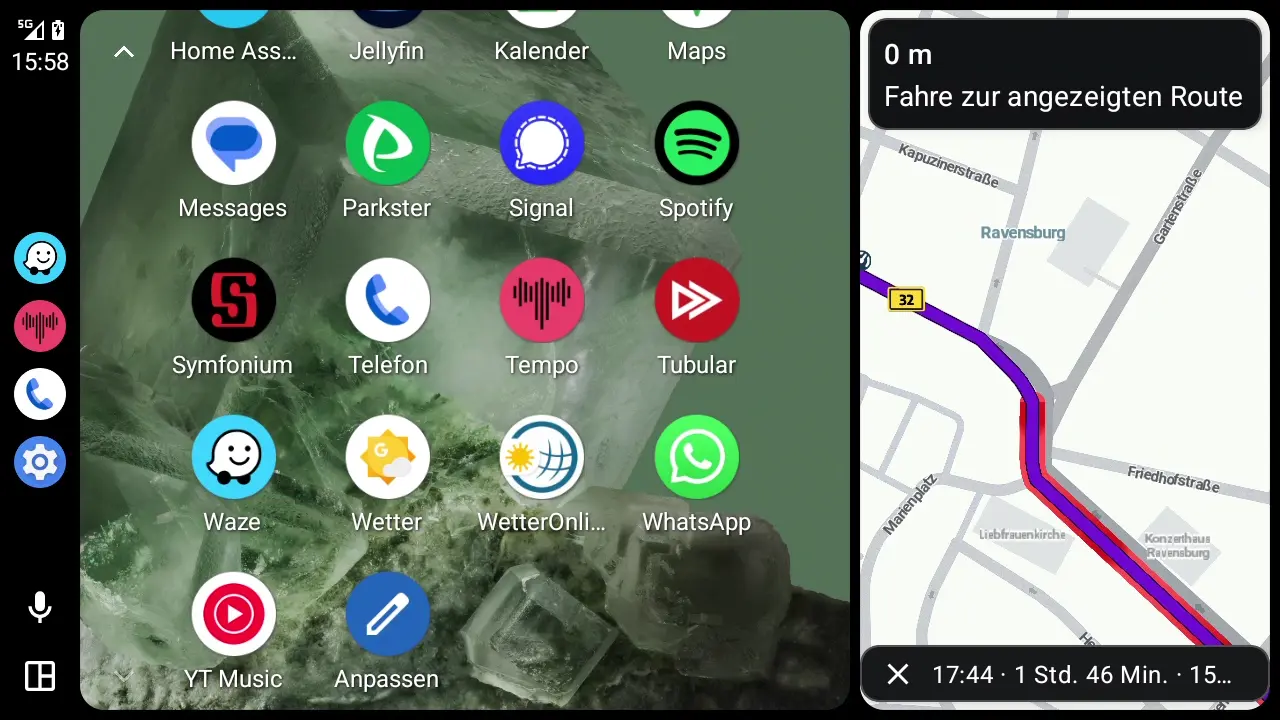
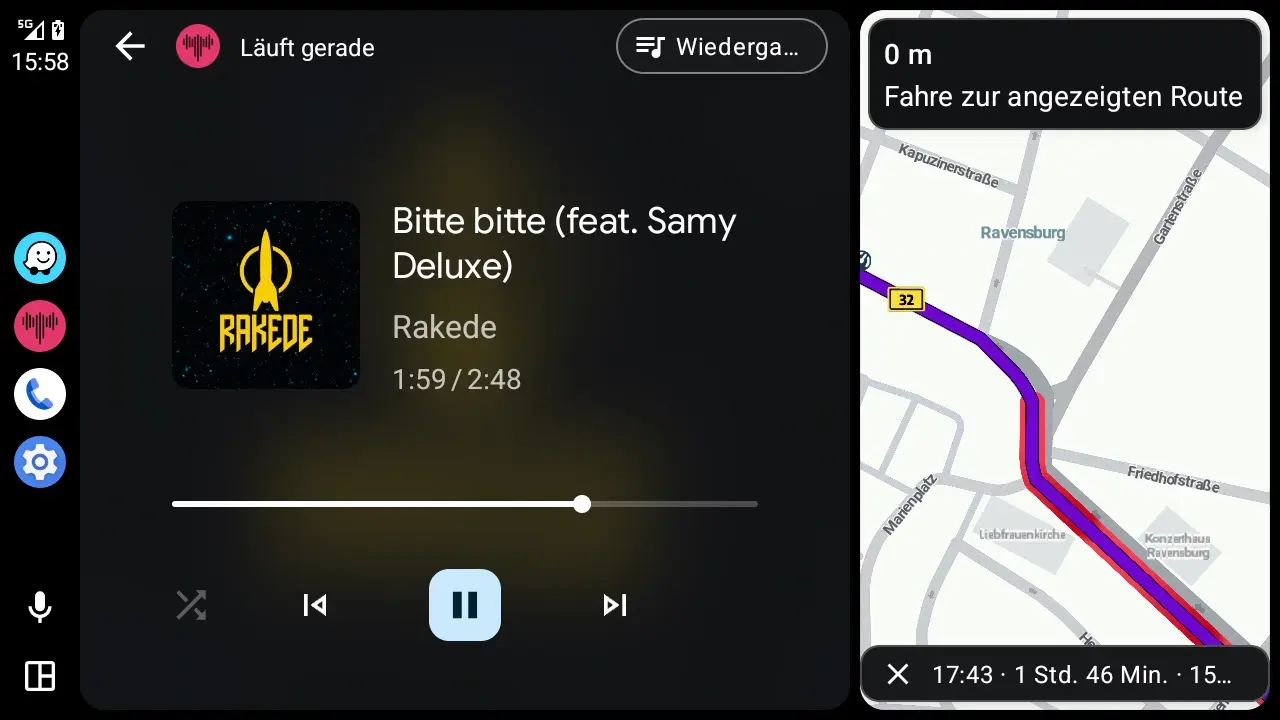
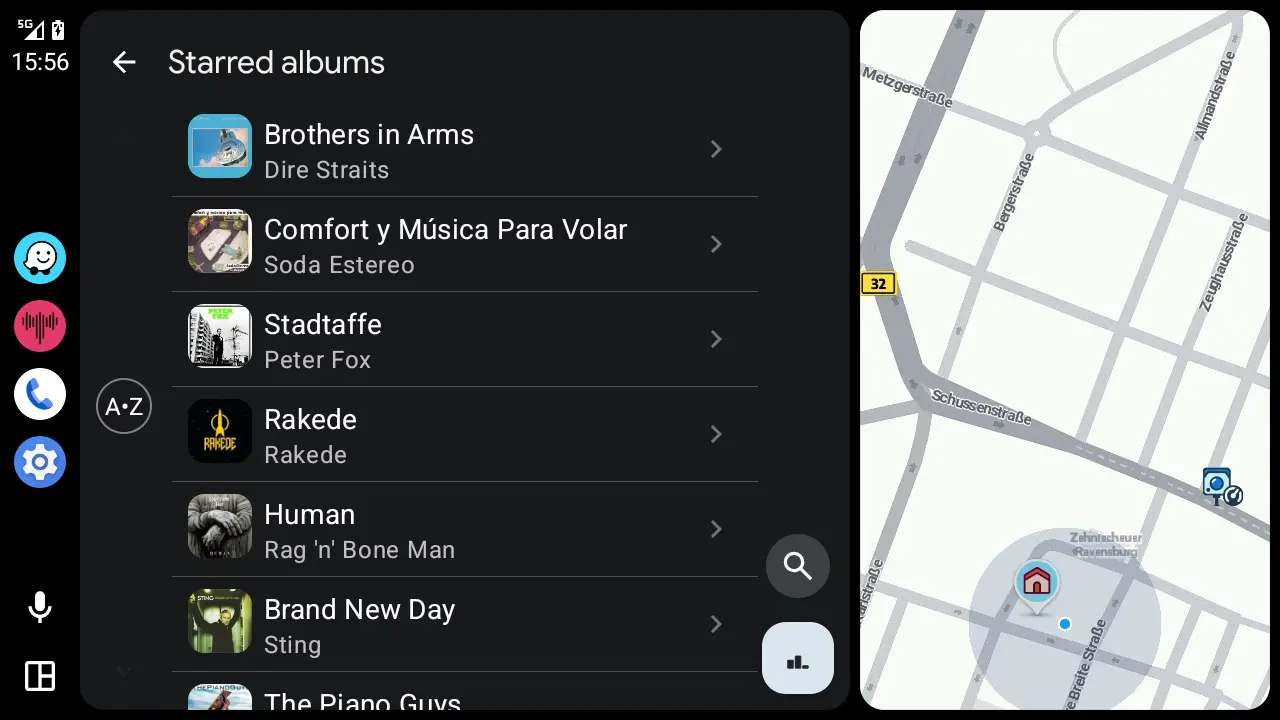
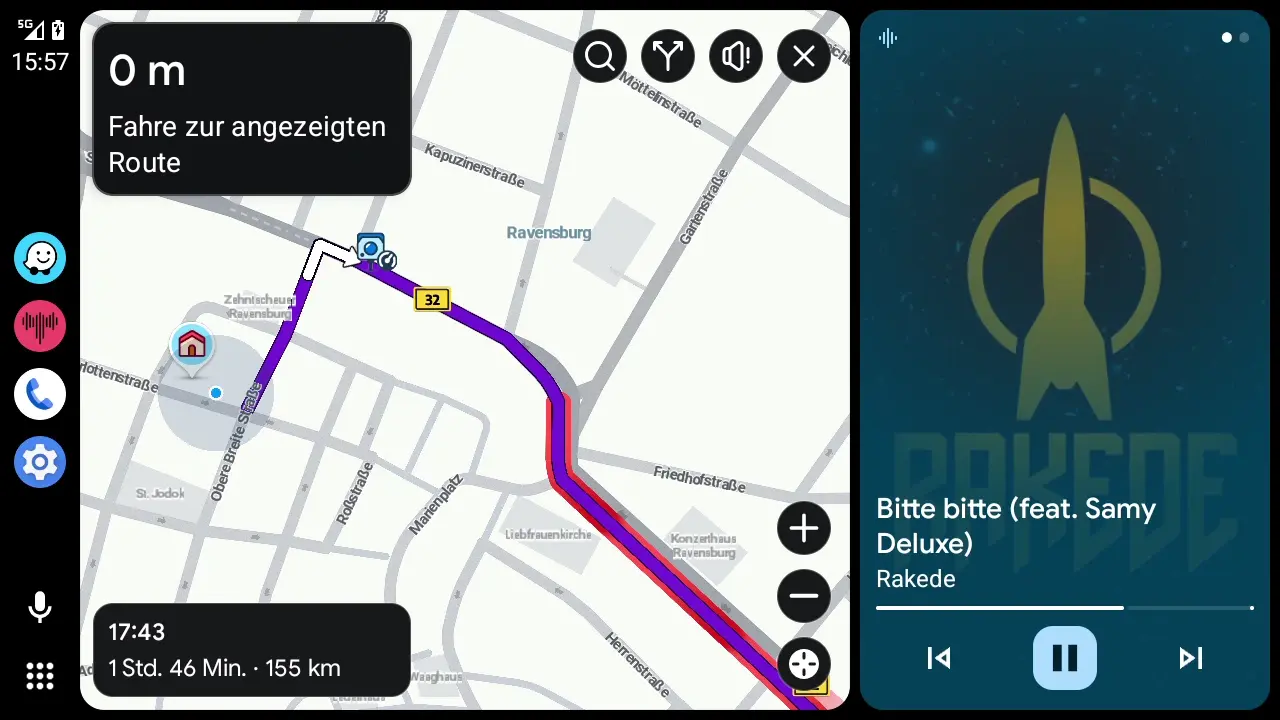
If you’ve curated your collection over the years and care about privacy, this is a lean, respectful alternative to the cloud. And best of all, Tempo cuts a really good figure on the car display: simple, functional, and stripped down to the essentials.
Leave a Reply