
If you still run first-generation Sonos speakers and keep your music collection on your own server, Samba quickly hands you a little problem: Without SMB1 and the old NTLMv1 login, the speakers won’t play a single track. That’s why the usual guides on the web simply turn everything back on that Samba switched off for good reason. But there’s a much cleaner way to do it, and you don’t have to give up your music.
Why Sonos S1 still needs SMB1
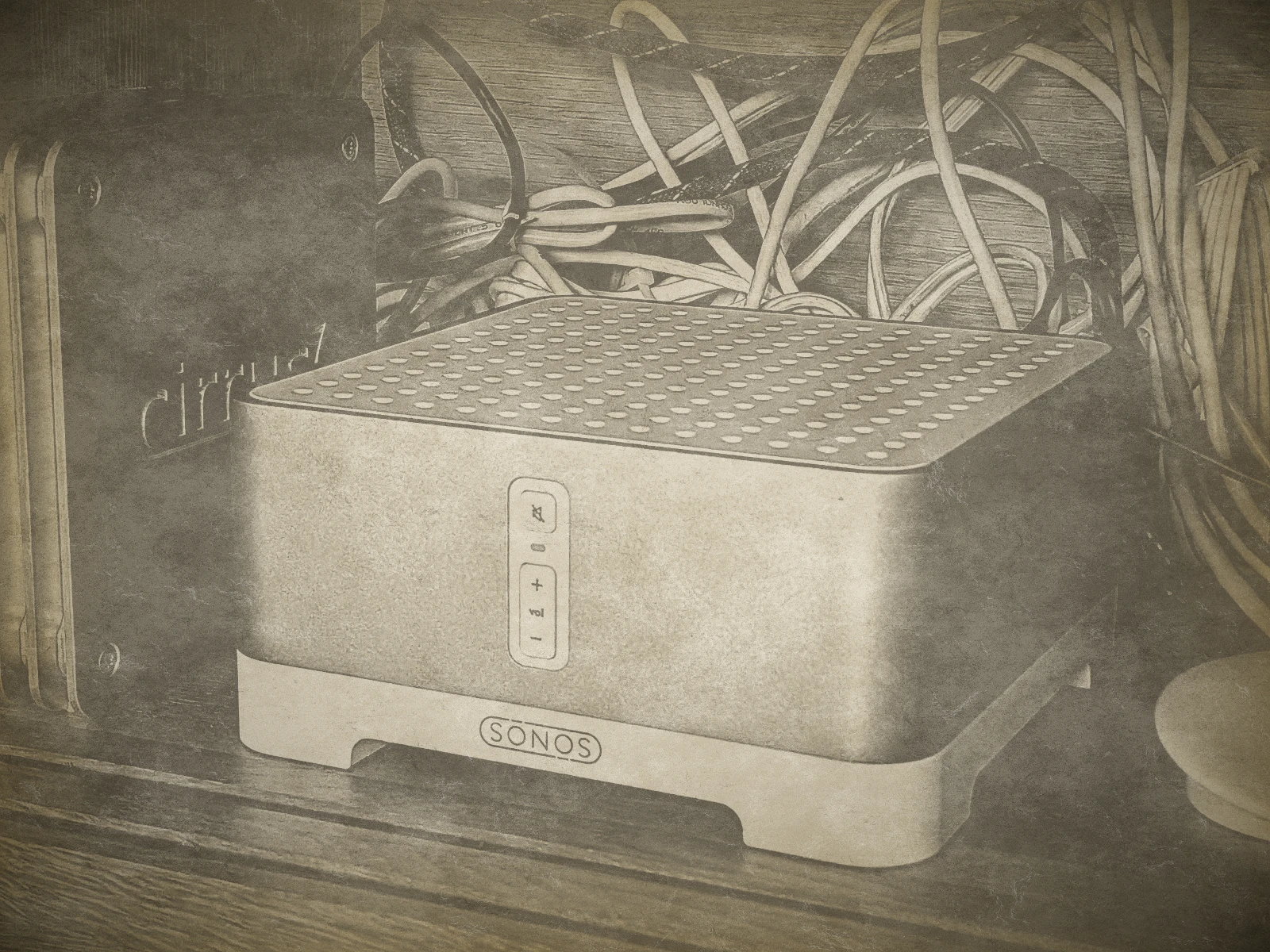
I still have two Play:3, a Play:1, and a Connect:Amp on my network. All of them run the S1 software, for which Sonos only ships bug fixes these days. The speakers don’t just play streams, they also play my music collection from the server. According to a discussion in the Sonos forum, however, the S1 devices only have enough resources for SMBv1 – the old hardware simply can’t do more.
Samba, on the other hand, retired the old protocol a long time ago. Since version 4.11, server min protocol defaults to SMB2_02, and according to the Samba project, NTLMv1 authentication has been disabled since version 4.5. The usual guides turn both back on globally with two lines. Sure, the speakers play after that, but they’re not the only ones who get the door held open for them.
If you run an S2 system, you’re off the hook. Sonos added SMBv2 and SMBv3 there with version 13.4.1 in December 2021 and no longer speaks SMBv1 at all. S2 users can leave Samba’s defaults alone. The rest of this article is for everyone who, like me, is still attached to their old speakers and doesn’t want to throw them out over a protocol.
What’s wrong with the quick fix
Samba can only allow SMB1 for the whole server, not for individual shares or devices. Ever since WannaCry exploited a hole in Microsoft’s SMB1 in 2017 at the latest, the protocol has been considered legacy baggage, and NTLMv1 makes it easy for attackers to crack captured logins. If the speaker then logs in with your regular user on top of that, it’s your main password of all things that travels across the network using the weakest method available.
On top of that come lines that people like to copy along while they’re at it. With wide links and allow insecure wide links, Samba follows symlinks even when they point outside the share. Often the entire data directory is shared writable, too. Sure, from the outside a little home server like this is usually locked down. But the same LAN is also home to TVs, smart plugs, and speakers whose software you have no control over.
A dedicated user just for Sonos
The most important step is a dedicated user that exists only for the speakers and isn’t allowed to do anything else. It needs neither a home directory nor a shell; Samba only knows it for logging in. You set the password once and don’t use it anywhere else, because with NTLMv1 you should consider it semi-public. Creating it from scratch takes two commands:
sudo useradd -r -M -s /usr/bin/nologin sonos
sudo smbpasswd -a sonos
If you already have a user the speakers log in with, trim it down with usermod. It loses its shell and gets / as its home directory and a locked Unix password. Logging in to Samba uses the separate password from smbpasswd and keeps working regardless. If your speakers have been using your regular user so far, however, you’re better off creating a new one:
sudo usermod -s /usr/bin/nologin -d / sonos
sudo passwd -l sonos
The smb.conf
The configuration allows SMB1 and NTLMv1 but fences in everything around it. Samba only listens on the LAN interface and not on Docker bridges or VPN tunnels. Guests are kicked out, there are no printers, and every share gets a list of users who are allowed in. You’ll of course have to adapt the name of the network interface (enp0s25 on my machine) and the paths to your system:
[global]
   workgroup = WORKGROUP
   server string = bender
   server role = standalone server

   # Sonos S1: nur SMB1 + NTLMv1
   server min protocol = NT1
   server max protocol = SMB3
   ntlm auth = ntlmv1-permitted

   # nur LAN und lokal, nicht auf den Docker-Bridges
   interfaces = lo enp0s25
   bind interfaces only = yes

   map to guest = never

   # keine Drucker
   load printers = no
   printing = bsd
   printcap name = /dev/null
   disable spoolss = yes

[homes]
   browseable = no
   writable = yes
   valid users = %S
   invalid users = sonos

[musik]
   path = /data/musik
   browseable = yes
   read only = yes
   valid users = sonos anna ben lena

[data]
   path = /data
   writable = yes
valid users = anna benBy the way, ntlmv1-permitted is just the more descriptive name for the old yes. The [musik] share (German for music) is read-only; sonos and the family, here anna, ben, and lena, are allowed to read it. Even if someone cracks the speaker’s login, all they get is the music. Only anna and ben can access [data], wide links doesn’t appear anywhere, and symlinks therefore stay within their share.
The line invalid users = sonos under [homes] matters, too. This share offers every user their home directory, and for the speaker user that’s the root directory after the usermod above. Without that line, there would be a writable share \\bender\sonos covering the entire system. What actually works there is still governed by file permissions, but directories like /tmp are open to everyone.
If you can’t set up the Sonos library from scratch right now, there’s also an intermediate step without a separate music share. In that case, add sonos to the valid users of the existing share and also set read list = sonos. The speaker can then still read everything the file permissions allow, but can’t write anything. In the long run, though, a separate share is clearly the better choice.
Before you activate the new file, have testparm check it. It complains about typos and unknown options before Samba trips over them. Then restart the service – on Arch it’s called smb, on Debian and Ubuntu smbd. Open connections drop briefly, but mounted shares on your computers usually reconnect on their own:
sudo testparm -s
sudo systemctl restart smb
The music library in the Sonos app
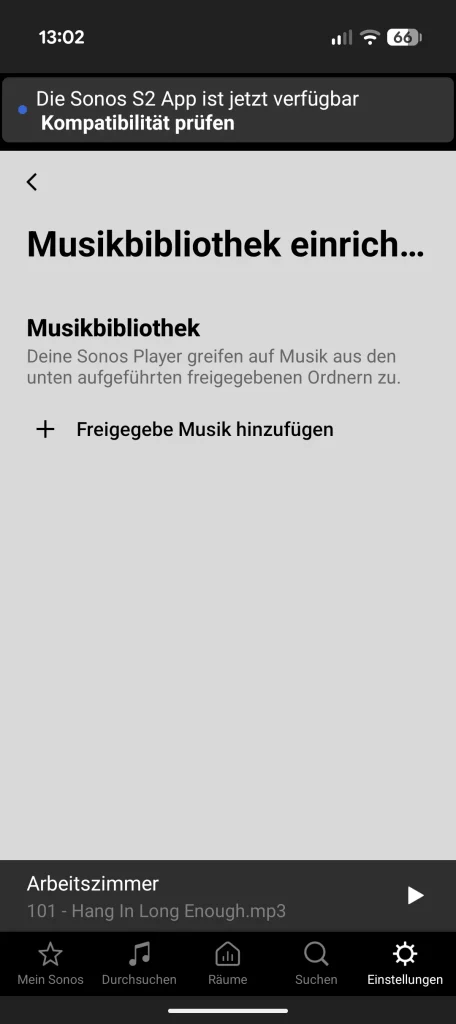
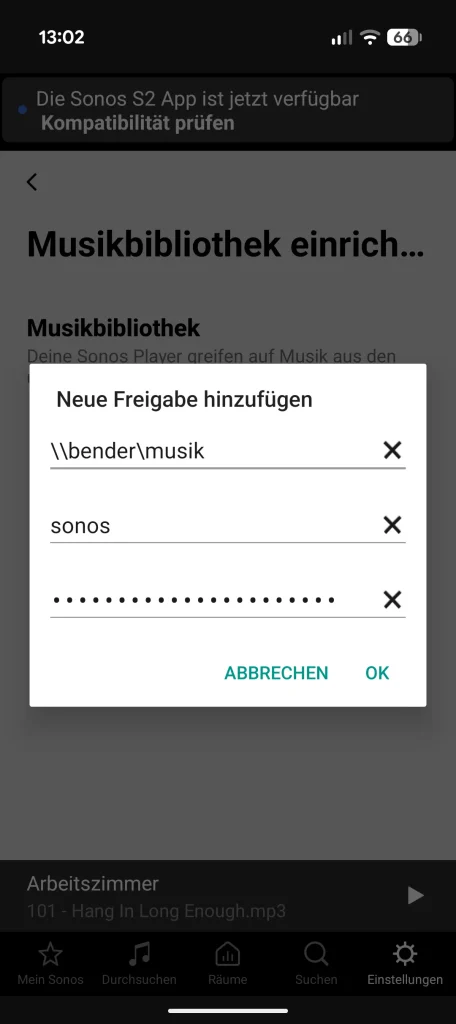
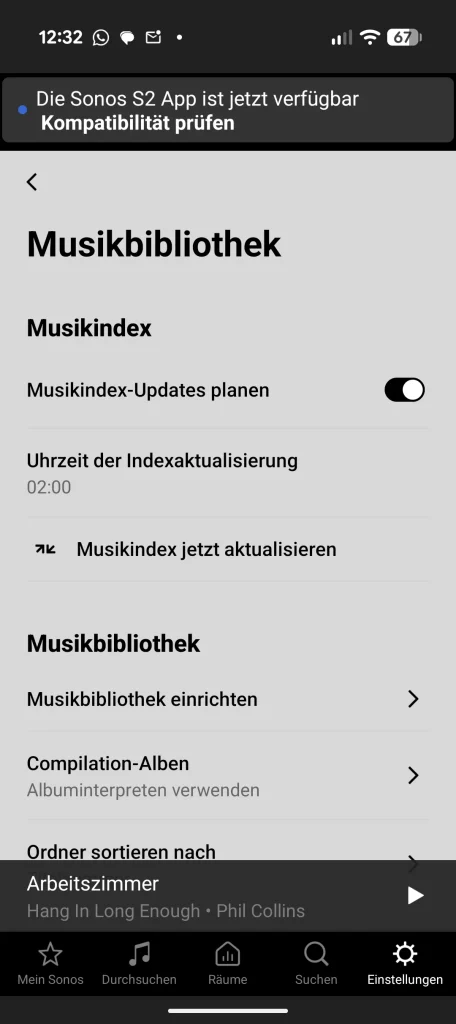
Finally, add the share as a music library in the S1 app. Open Settings and go to Music Library and Music Library Setup. Enter the share in Windows format as the path, i.e. \\bender\musik, followed by the user sonos and its password. Sonos then indexes the collection, which can take a while for large libraries.
Checking the result
smbstatus shows you whether everything works as intended. The Protocol Version column tells you who is connected with which protocol. Regular computers should keep connecting via SMB3 – my notebook, for example, uses SMB3_11 – and only the speakers show up with NT1. A guest login without a password, on the other hand, should bounce off with NT_STATUS_ACCESS_DENIED when you try it with smbclient from another computer:
sudo smbstatus -b
smbclient -N //bender/data -c ls
Don’t let the output of the second command mislead you. The line “Anonymous login successful” sounds like an open door, but it only concerns the connection to the server itself, which a client uses to fetch the list of shares, for example. The second line is what counts, because nobody gets into the share itself without a user name and password:
smbclient -N //bender/data -c ls
Anonymous login successful
tree connect failed: NT_STATUS_ACCESS_DENIED
On my server it looks like this: The speaker in the bedroom reads as sonos via NT1, while the notebook is connected with SMB3_11 and a signed connection. That’s exactly how it should be, because the old protocol stays limited to the devices that can’t do anything else. The other speakers only show up while they’re actually accessing the library:
sudo smbstatus -b

Samba version 4.25.0
PID     Username     Group        Machine                                   Protocol Version  Encryption           Signing
----------------------------------------------------------------------------------------------------------------------------------------
732192  sonos        sonos        192.168.0.60 (ipv4:192.168.0.60:38427)    NT1               -                    -
711090  anna         anna         192.168.0.191 (ipv4:192.168.0.191:52826)  SMB3_11           -                    partial(AES-128-CMAC)
And in the long run?
Of course, I’m still not entirely happy with SMB1. My server already runs bonob, which brings Navidrome into the Sonos app as a music service. If the music comes through that, no speaker needs a Samba share anymore, and SMB1 could go for good. But if you can’t do without Sonos’s built-in library, the restricted setup is a good compromise in my view.
All in all, the clean approach only costs you one user and a few extra lines in smb.conf. The speakers play just as well as with the quick fix, except that they no longer offer a path to the rest of the server. How did you hook up your old Sonos speakers? Is SMB1 still running on your network, too, or did you switch to S2 long ago?
Leave a Reply