
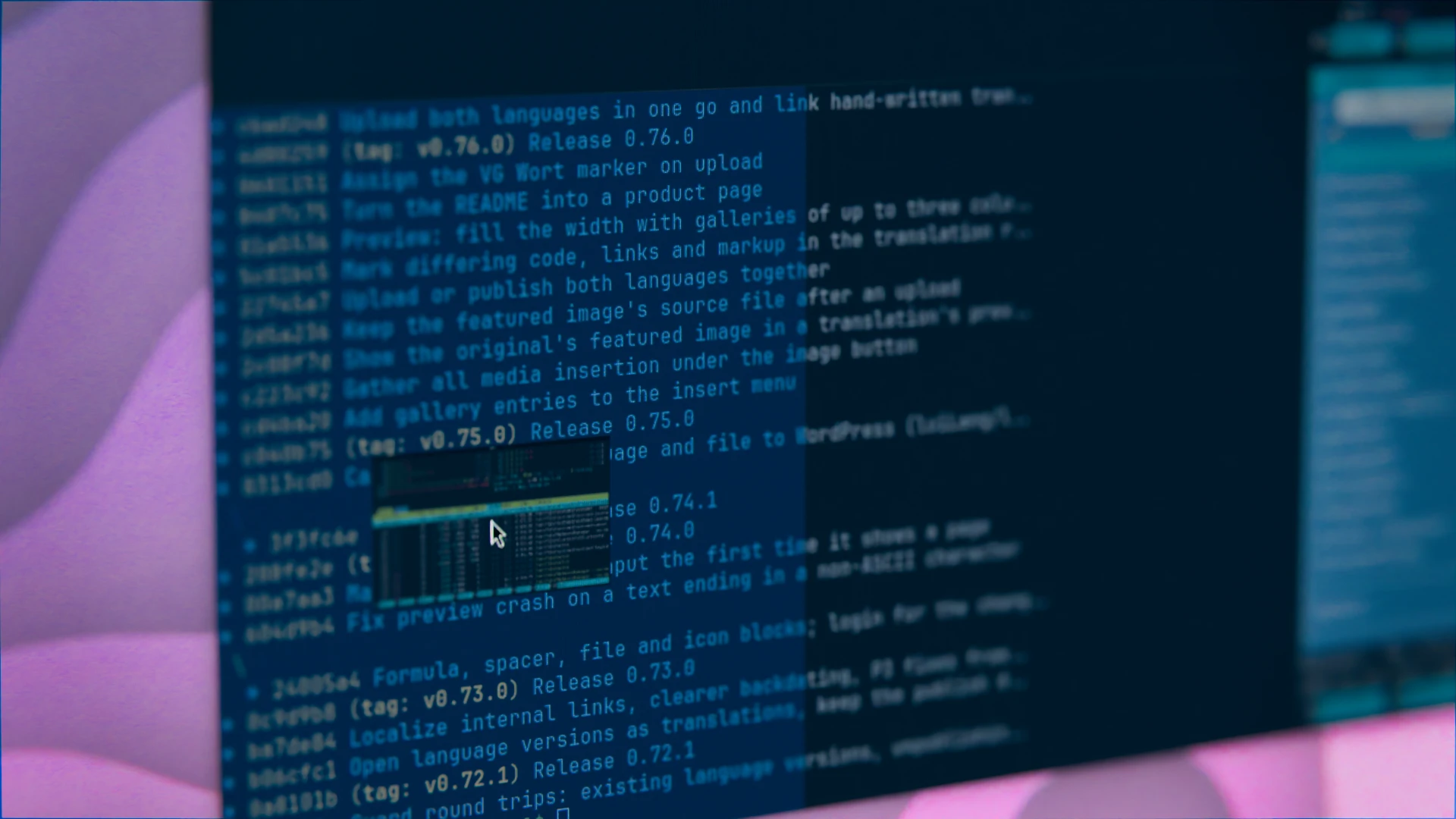
For a long time, Tilix was my terminal on Linux. Splitting one window into several terminals without bothering with Tmux or Zellij is just nice. But Tilix depends on old libraries and has become a pain to build from the AUR on Arch Linux. Yes, it still works. But compiling gtkd, its binding to GTK 3, takes what feels like forever.
So I’m glad there’s Ghostty, a modern terminal with tiling built on GTK 4 and libadwaita. On my machine, it has replaced Tilix, which I introduced back in 2016 under its old name Terminix (in German). I covered Ghostty in depth in the German magazine LinuxUser, issue 06/2026. Now version 1.4 is out, and it brings quite a few changes that matter to Linux users in particular.
What is Ghostty?
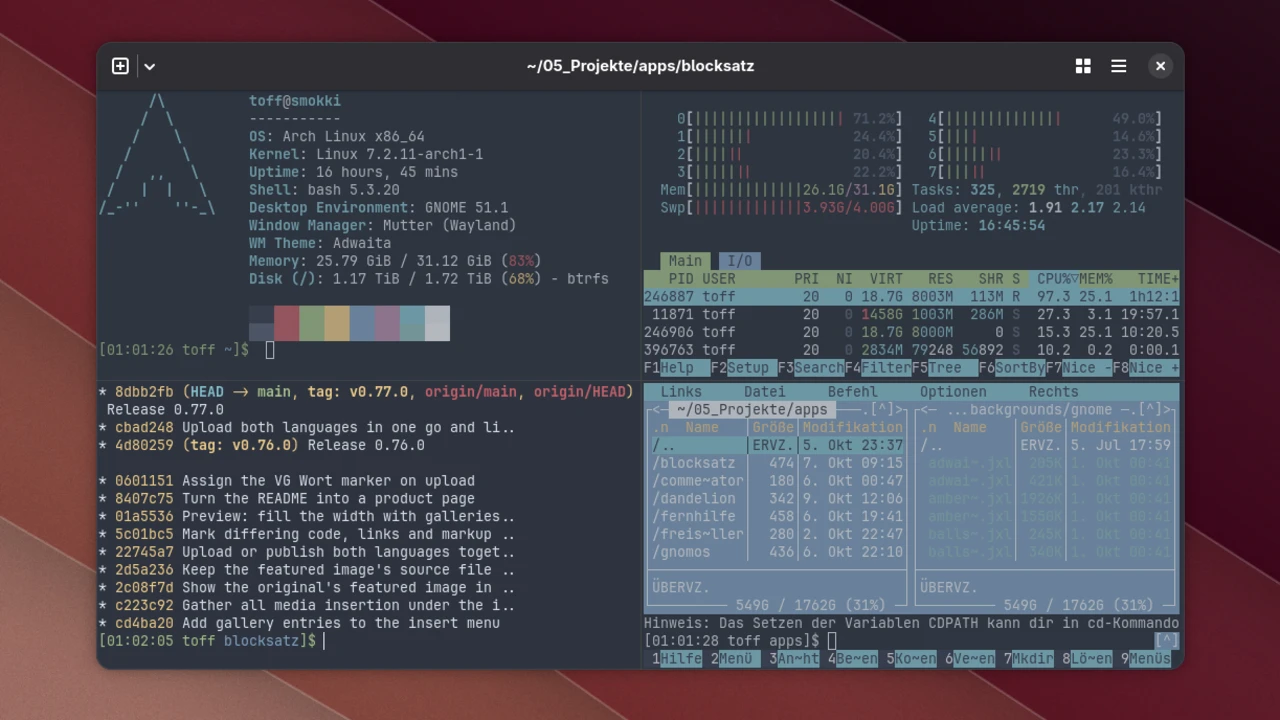
If you haven’t come across Ghostty yet: the terminal comes from Mitchell Hashimoto, whom many of you will know as the founder of HashiCorp (Vagrant, Terraform). Ghostty aims to be fast and feature-rich while still feeling like a regular desktop app. On Linux, it uses GTK 4 for that and fits in nicely with GNOME. Ghostty is free software under the MIT license.
Tabs, splits and an overview of all open tabs come built in. You open new splits with Ctrl+Shift+O to the right and with Ctrl+Shift+E below. What you won’t find is a menu bar with settings dialogs. You configure Ghostty in the text file ~/.config/ghostty/config. On top of that, programs running in Ghostty can show images right in the terminal, for example as a preview in a file manager.
Less memory for weaker machines
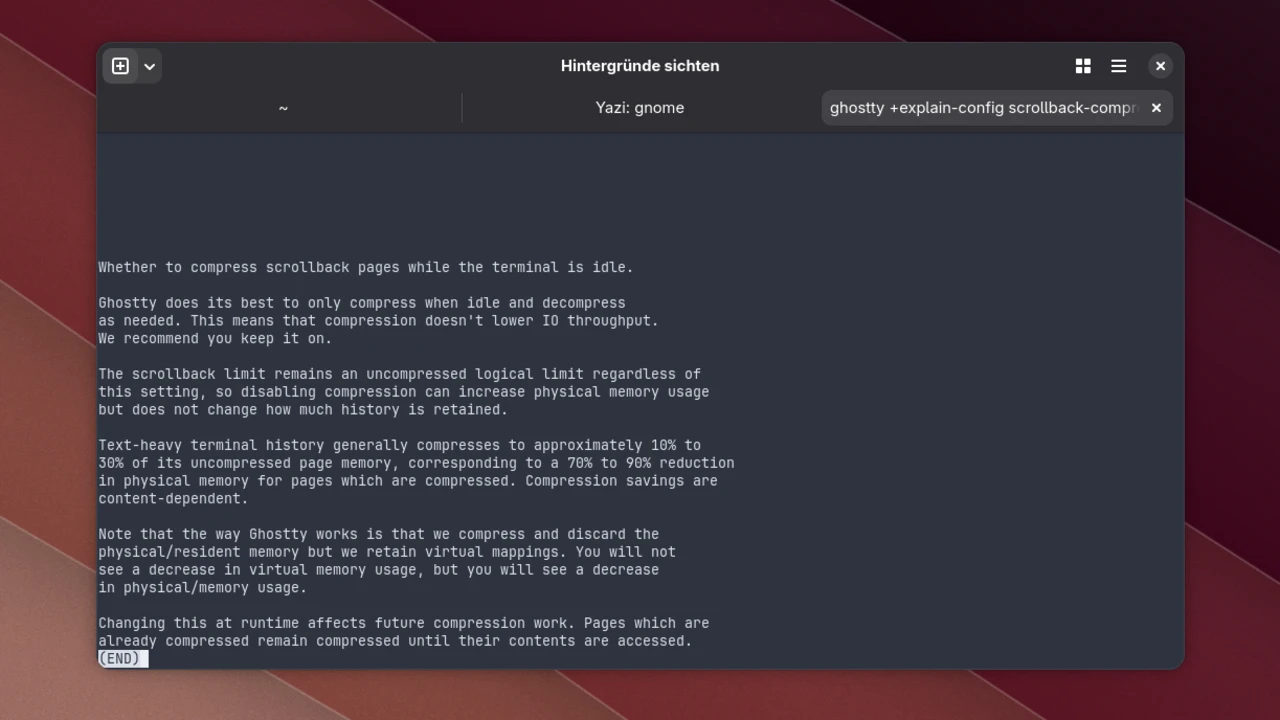
Ghostty 1.4 compresses the scrollback whenever nothing is happening in the terminal. According to the developers, it then needs 70 to 90 percent less memory. Most people won’t notice that in everyday use. But if you want to squeeze the most out of a weaker machine, or you work with huge files and output, you also need a terminal that goes easy on resources.
At the same time, Ghostty now remembers more. The project raises the scrollback per terminal from 10 to 50 MB, so you can scroll back a lot further. When you scroll or search, Ghostty quietly decompresses the data again. Compression is available on 64-bit Linux and macOS. If you don’t want it, turn it off with scrollback-compression = false. By the way, Ghostty itself tells you what an option does.
Sharper text with fractional scaling
If your monitor runs at 125 or 150 percent scaling, you’ll probably like the next change. Until now, text in Ghostty looked slightly blurry at those values. With 1.4, text and box-drawing characters are crisp there too. To get there, the project rewrote how Ghostty draws on Linux. Tearing, the kind you might see while scrolling, should be pretty much gone as well.
The rewrite comes at a price, though. Ghostty 1.4 needs at least GTK 4.18 and libadwaita 1.7, which is no problem on an up-to-date Arch Linux. Ubuntu 24.04 LTS, on the other hand, ships versions that are too old. If you’re still on that LTS, the developers recommend sticking with an older Ghostty release or using a Flatpak.
Moving splits with the mouse
If you work with splits a lot, you’ll like this one: you can now rearrange splits with the mouse. Move the pointer to the top edge of a split, and a handle with three dots appears. Drag it onto another split, and a blue area shows where it will land. This works across tabs and windows, too. Running programs, output and the working directory move along with it.
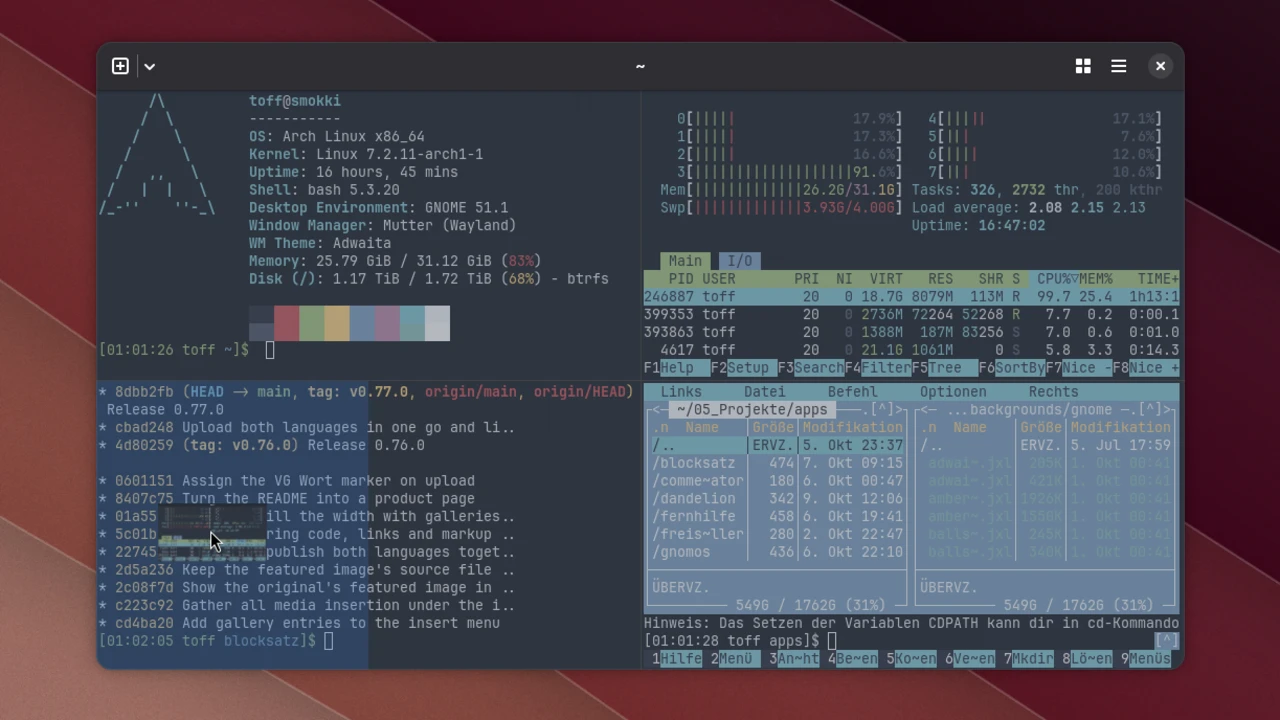
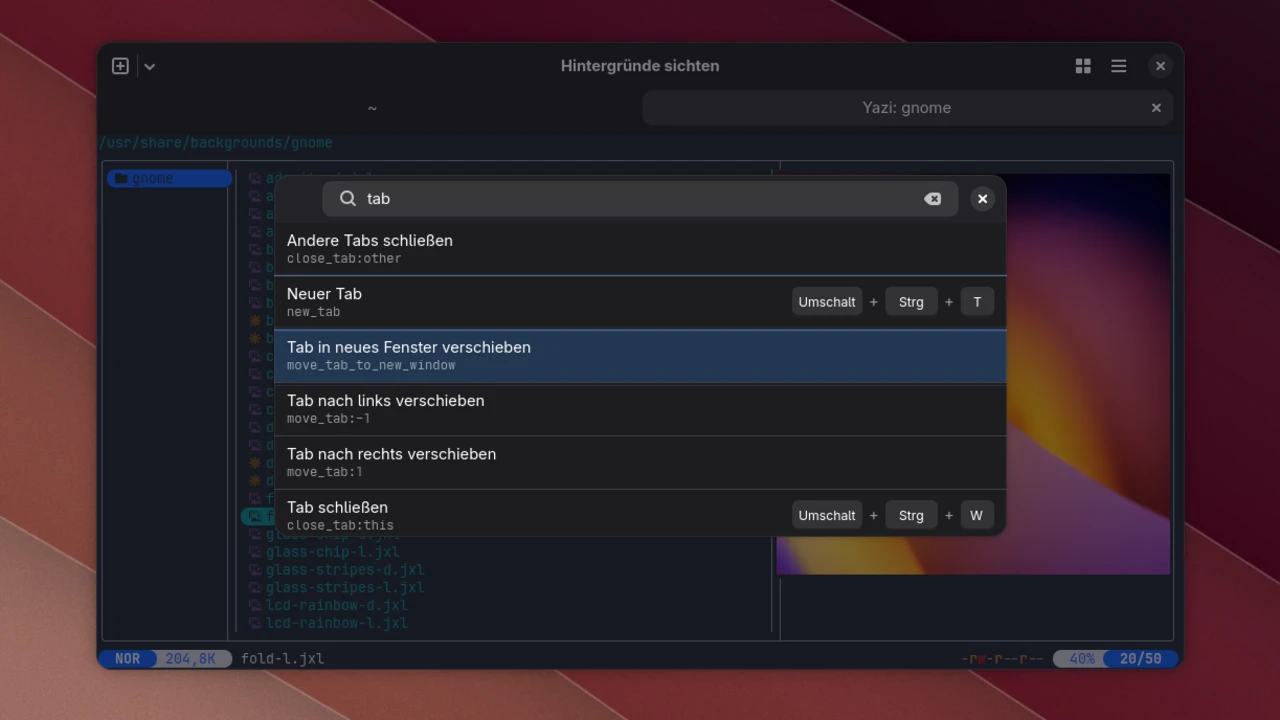
That way, you can move a running htop from the bottom to the left without restarting it. On Linux, though, you can only drop a split onto another split, not into a new tab or window of its own. Whole tabs, on the other hand, can be moved to a new window through the command palette. If the handle bothers you, hide it with drag-handle = never.
Naming windows and a fully localized command palette
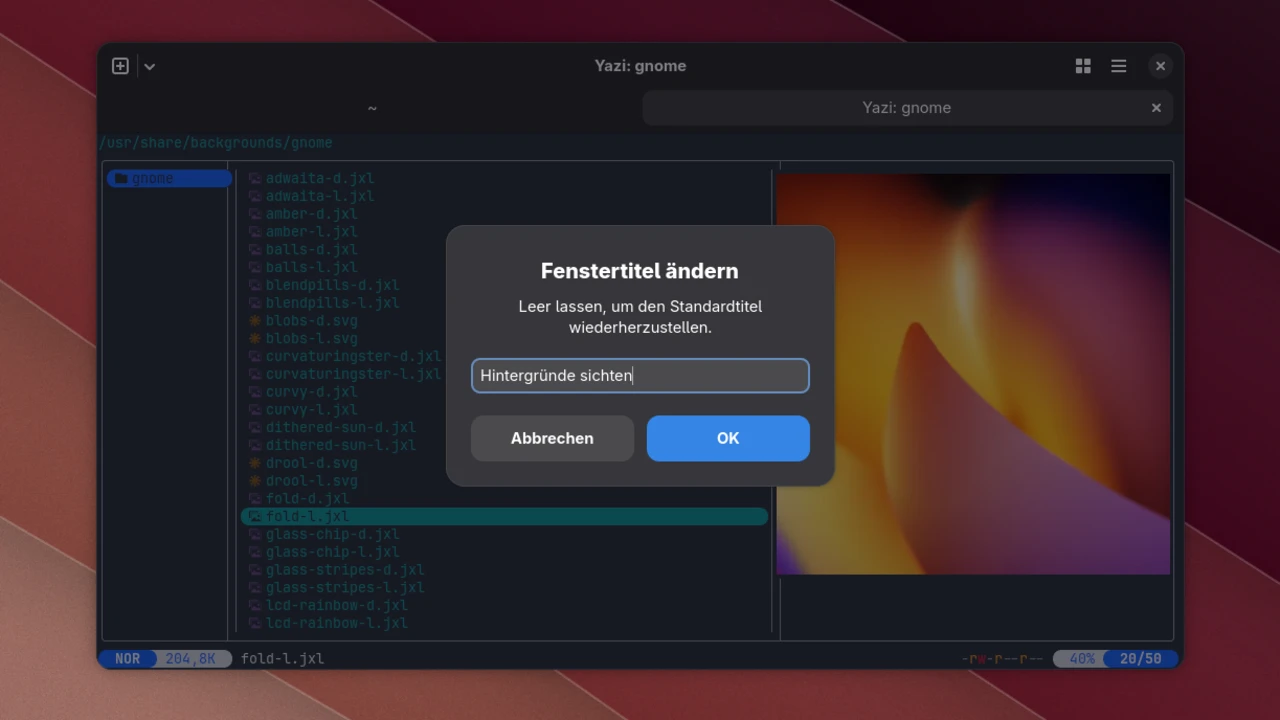
With several Ghostty windows open for different projects, it’s easy to lose track. That’s why you can now rename windows from the menu, say to “Blog” or “Server”. Leave the field in the dialog empty, and Ghostty goes back to the automatic title. The command palette is now fully translated as well. In my German setup, it shows every action in German and, where there is one, the matching shortcut.
Handy if you like a drop-down terminal in the style of Guake: the new command ghostty +toggle-quick-terminal shows and hides Ghostty’s quick terminal, for example from a shortcut of your own. That works on Plasma, Sway or Hyprland, but not on GNOME, which lacks the interface it needs. Also new: you can choose the screen the quick terminal appears on.
Images in the terminal and more speed
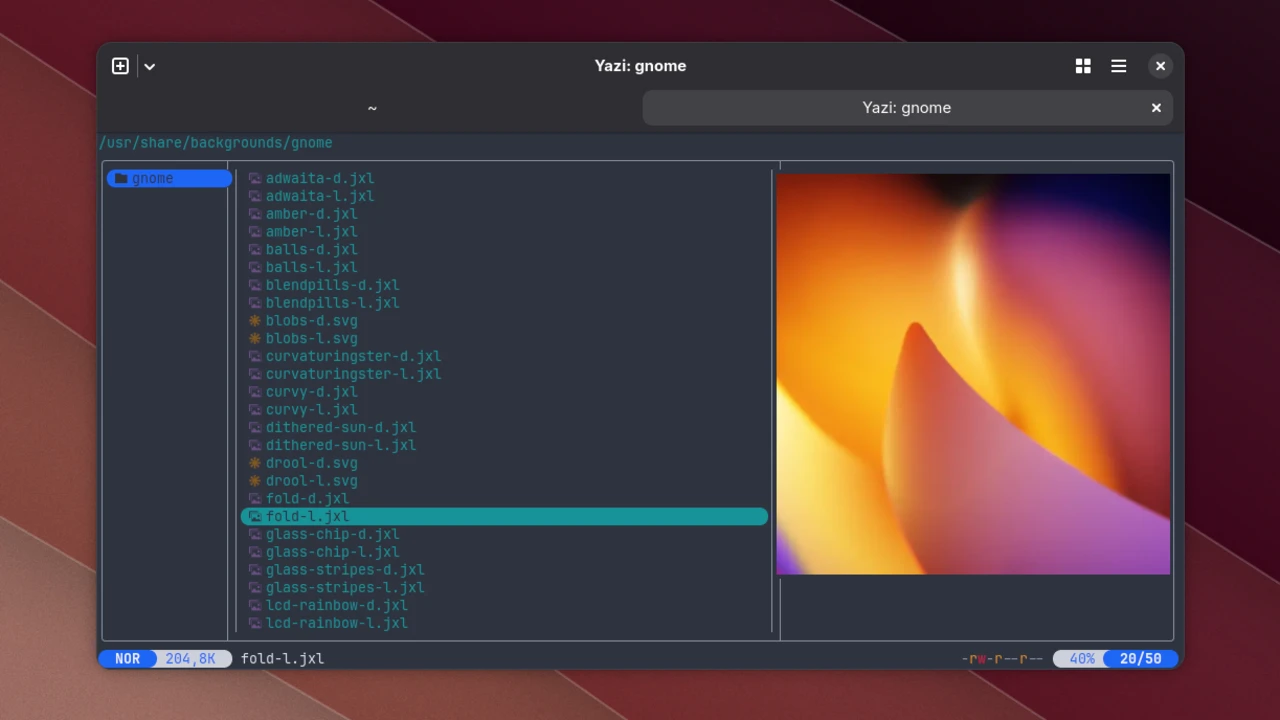
Programs can show images in Ghostty through the Kitty graphics protocol. With 1.4, Ghostty supports the protocol completely, including animated images, and loads large graphics noticeably faster. Terminal file managers such as Yazi or Tfm benefit from this, since they show images right in their preview. That way you find the right photo without opening an image viewer first.
Ghostty has become faster elsewhere, too. According to the project’s measurements, the terminal processes plain text 5.7 times as fast as before. You’ll notice that when a build or a log writes lots of lines to the terminal. Resizing the window with a long scrollback is supposed to be up to six times quicker. Some of the other numbers in the release notes only apply to macOS, though.
No more error messages over SSH
If you log in to a server over SSH from Ghostty, you may know errors like “missing or unsuitable terminal: xterm-ghostty”. Programs like htop or nano then don’t work properly on the server, because the server doesn’t know Ghostty. New is the command ghostty +ssh, which hands the server the information it needs when necessary. If that fails, it falls back to a compatible setting.
ghostty +ssh user@serverThere’s also a security reason to update. Ghostty 1.4 fixes ten vulnerabilities. Among other things, crafted graphics commands could crash the terminal. On top of that, you could trick the paste protection, which is supposed to warn you before multi-line commands run by accident right away. Some of the vulnerabilities only affect macOS or Zsh as your shell, though.
Watch out for shortcuts and copying
A few changes break old behavior. On Linux, Ctrl+Shift+Page Up and Ctrl+Shift+Page Down now move tabs. To jump to the previous or next prompt, use Ctrl+Shift+Up and Ctrl+Shift+Down instead. Programs running in the terminal no longer see these key combinations. If you need them there, remove the binding again with unbind in the configuration.
If you’ve set Ghostty to copy selected text automatically, you should also take a look at your configuration. With copy-on-select = clipboard, the selection now only ends up in the regular clipboard. If you want to keep pasting it with the middle mouse button as before, change the value to both. What the middle mouse button pastes is set by middle-click-action.
libghostty: Ghostty is coming to other programs
In the discussion on Hacker News about the release, Mitchell Hashimoto points to libghostty. The library contains Ghostty’s core, meaning everything that makes up a terminal on the inside. Other programs can use it instead of writing their own terminal. Hashimoto jokingly calls Ghostty itself “just a glorified tech demo for libghostty”.
For you, this means Ghostty’s technology is gradually showing up in other programs. The terminals in JetBrains’ IDEs already run on it, and a switch is being discussed for Neovim. And a KDE developer is building a new terminal based on libghostty that could eventually succeed Konsole. Version 1.0 of the library is expected in the next few months.
Installation
On Arch Linux, Ghostty is in the Extra repository, though at the time of writing still at version 1.3.1. Version 1.4 should follow there in the next few days. Besides the terminal itself, you should also install the shell integration and the terminfo. If you don’t want to wait, the AUR has the package ghostty-nightly-bin, which I also used for the screenshots in this article.
sudo pacman -S ghostty ghostty-shell-integration ghostty-terminfoThe project itself doesn’t provide ready-made packages for Linux; that’s left to the distributions. Ubuntu has shipped Ghostty in its official repositories since 26.04, though not always in the latest version. For Fedora, there’s a COPR repository, plus a Snap, an AppImage and a Debian package from the community. Ghostty’s installation guide gives you an overview.
All in all, Ghostty 1.4 is a well-rounded update in my opinion. As someone who switched from Tilix, I’m glad to see a modern tiling terminal on a GTK base being developed so actively. If you’d rather stay closer to how Tilix works, take a look at Rutile as well. You’ll find all changes in the release notes. Which terminal do you use?
Leave a Reply