
Updated October 15, 2026
I brought this article from 2014 up to date: the links to Intel and Logitech point to the official sources again, a step-by-step guide sums up the fixes, and the charts have been redrawn. The problem itself hasn’t changed, USB 3.0 still interferes with 2.4 GHz wireless today.
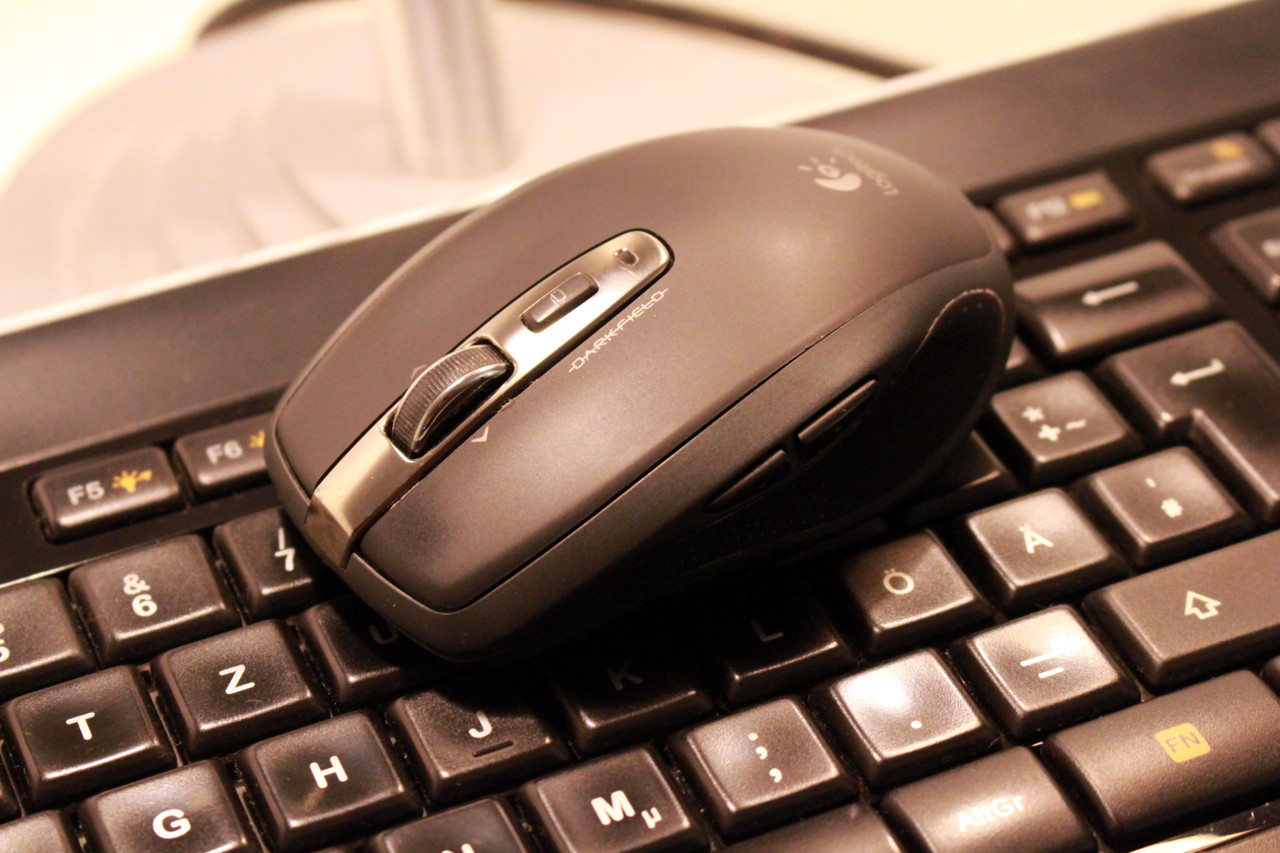
I have to admit: I’m a fan of wireless mice. Sure, ordinary rechargeable batteries drain far too quickly, but Eneloop batteries take care of that nicely. Mousing around without a cable is simply more comfortable. When I switched to a new computer and installed Arch Linux, though, my previously flawless Logitech wireless mouse drove me to despair.
Where I used to move the cursor across the screen with precision, after the switch it just jerked and stuttered along miserably. The cause wasn’t the system, as I first suspected. The culprit is USB 3.0: the fast ports get in the way of wireless keyboards and mice. By the way, this isn’t a Linux problem, the mouse stutters on Windows just the same.
Tracking down the cause cost me quite a few nerves over several weeks. I suspected the new computer, combed through Arch Linux forums for problems with USB mice and tried the mouse’s dongle in every port on the machine. No matter what I did, the mouse simply refused to work as precisely as I was used to from Logitech.
Not even the USB port of the monitor right next to the computer helped. The mouse itself, a Logitech Anywhere MX, wasn’t to blame either: it worked flawlessly on other computers. In other words, I had tried all the obvious tips, and nothing helped. In the end, it was pure chance that put me on the right track.
When your wireless mouse jumps all over the screen
I stumbled on the solution while rearranging my desk. My second monitor has USB ports as well, and lo and behold: with the Logitech dongle plugged into that monitor, about a meter away from the computer as the crow flies, the mouse works as usual again. No more lag, no dropouts, no twitching. So simple that it’s almost annoying I didn’t think of it right away.
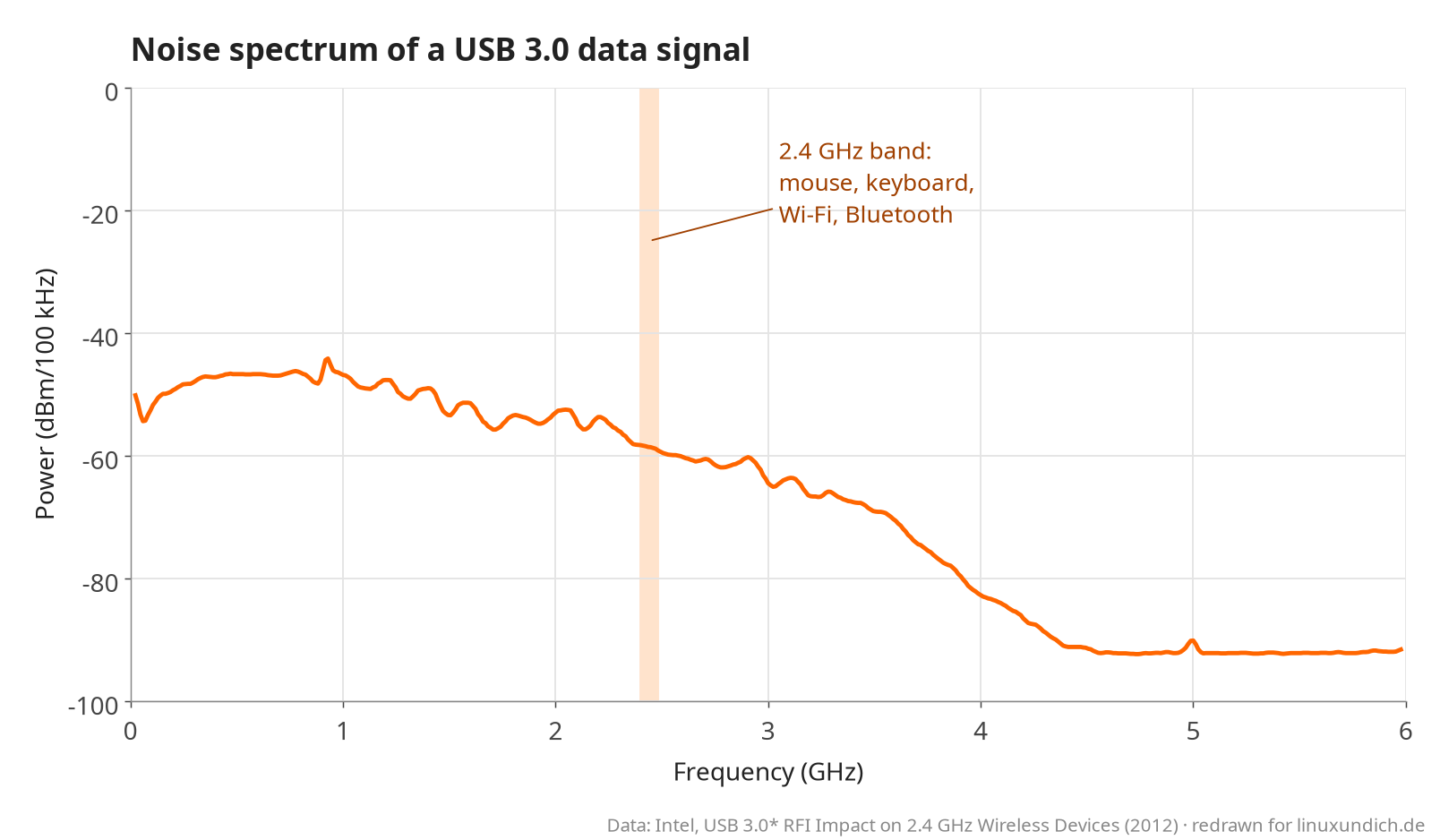
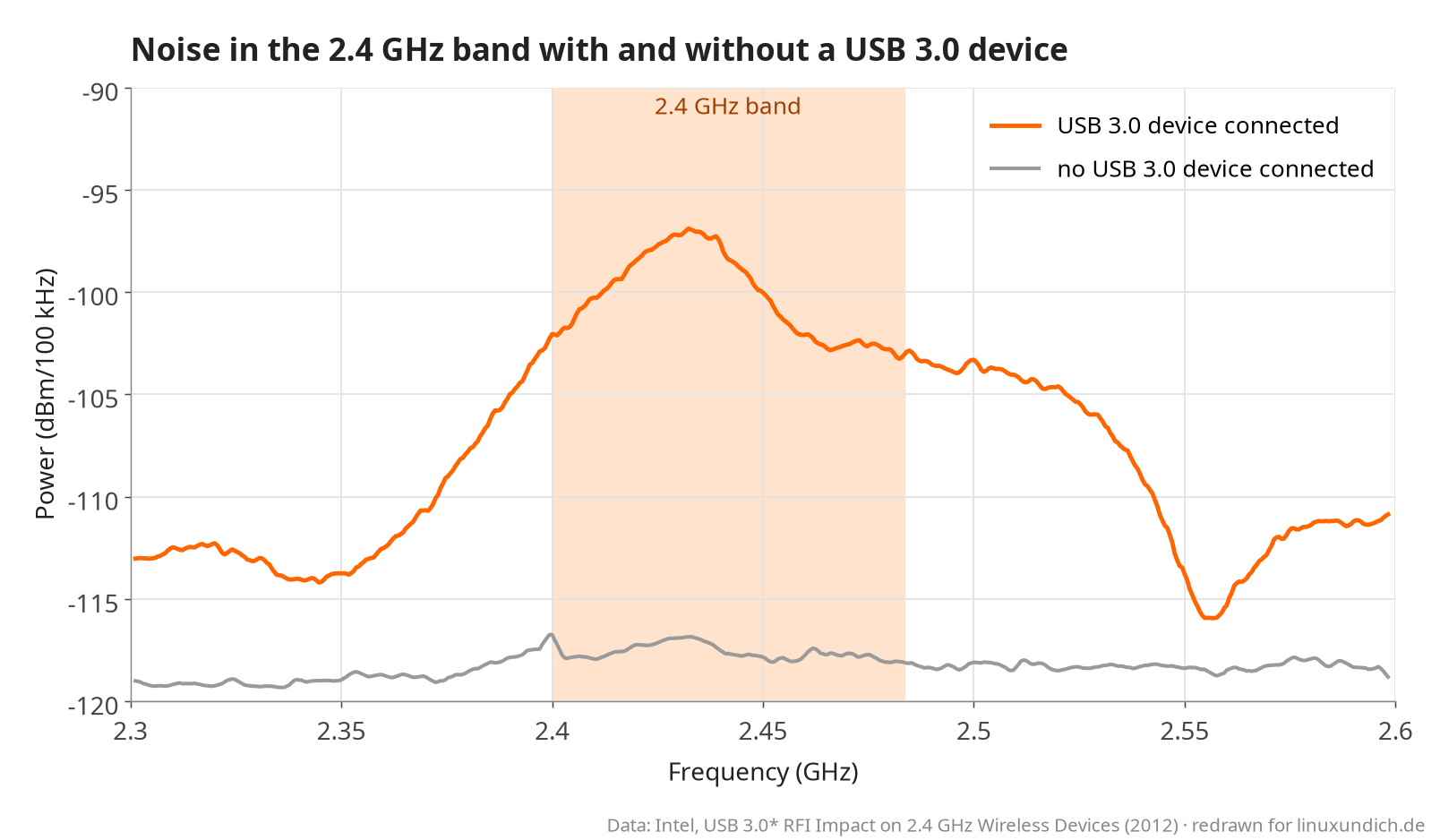
You’ll find the explanation if you add “USB 3.0” to your search for a “choppy mouse” or “mouse lag”. Because that’s where the problem lies: USB 3.0 ports and cables radiate broadband noise into their surroundings that also covers the 2.4 GHz band. That’s exactly where the receivers of mice and keyboards operate, and they simply can’t compete with the noise anymore.
Intel has known about it since 2012
Intel has known about the problem for a long time. In the white paper USB 3.0* Radio Frequency Interference Impact on 2.4 GHz Wireless Devices from April 2012, the chipmaker describes over 22 pages how plugs, sockets and cables of USB 3.0 devices interfere with wireless signals in the 2.4 GHz band. The noise sits right in the middle of the band, so a filter won’t help. It lowers the signal-to-noise ratio and with it the sensitivity and range of the receivers.
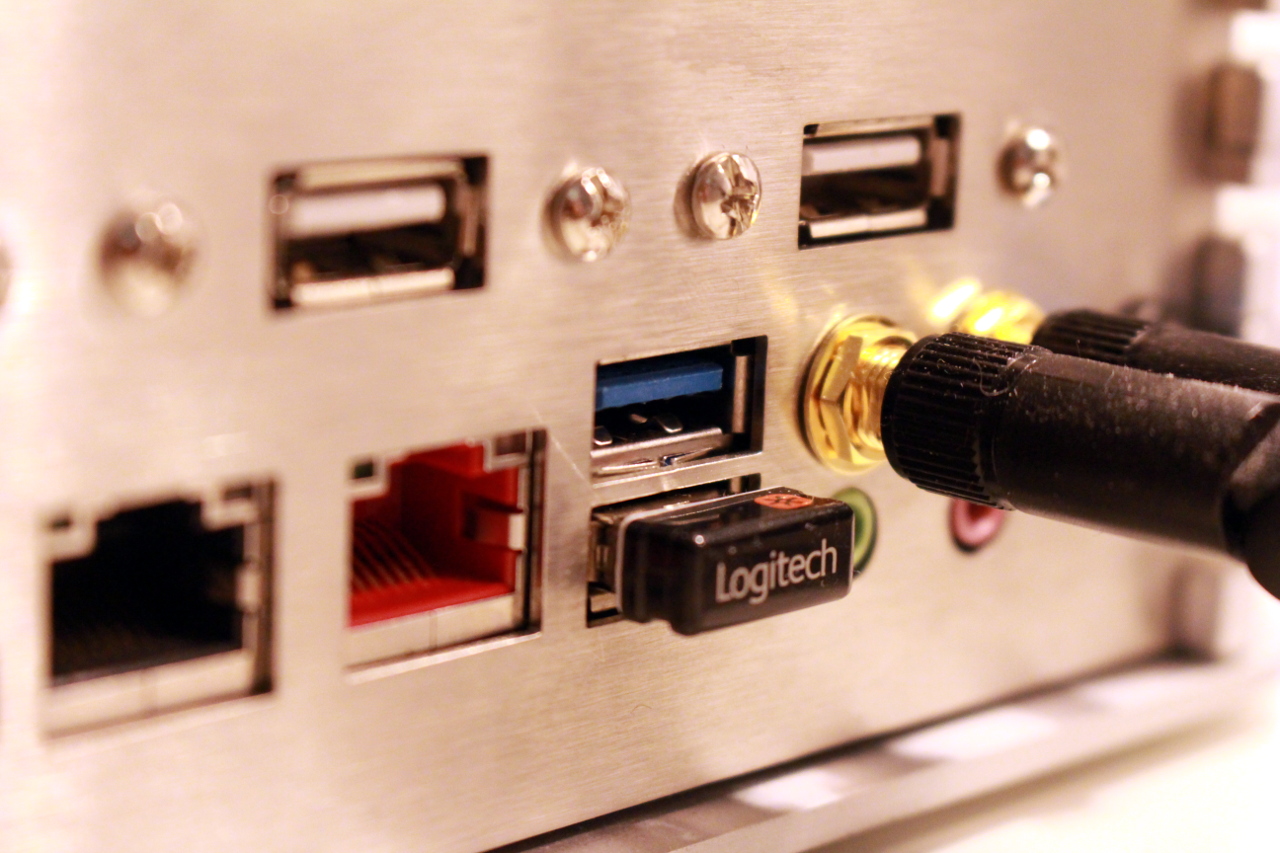
Intel advises manufacturers to shield USB 3.0 hardware better. What’s left for you is the practical advice: don’t plug the wireless receivers of your keyboard and mouse into a USB 3.0 port, use a classic USB 2.0 port instead. You can usually spot USB 3.0 ports by their blue insert or the SS logo for SuperSpeed, USB 2.0 by the white or black plastic tab. The small receivers don’t benefit from the higher speed anyway.
Logitech also recommends more distance
Logitech hasn’t missed the problem either, USB 3.0 isn’t exactly new, after all. On the support page Wireless product not working properly when also using a USB 3.0 device, the company lists the typical symptoms: mouse and keyboard respond with a delay, keystrokes or mouse clicks get lost, and the range between device and receiver shrinks noticeably.
Logitech recommends plugging the receiver in as far away from USB 3.0 ports and devices as possible, for example on the opposite side of the computer, and bringing it as close to the mouse or keyboard as you can. According to the support page, Logitech even provides affected customers with a USB extension cable. You have to request it from support, though the page doesn’t say whether any conditions apply.
How to get rid of the lag
In the end, it all comes down to a few simple steps. Ideally, try them in this order:
- Move the receiver: Plug the dongle into a USB 2.0 port, as far away from USB 3.0 sockets as possible. Watch out for front ports: on newer cases, those are often USB 3.0 as well.
- Use an extension cable: A simple USB extension cable gets the receiver out of the interference zone and puts it right next to your mouse and keyboard. Whether the cable supports USB 2.0 or 3.0 doesn’t matter, the receiver only runs at USB 2.0 speed anyway.
- Use your monitor as a hub: If your monitor has USB ports, plug the receiver in there. That’s exactly what fixed it for me.
- Keep interference sources away: External drives, card readers, hubs and cables with USB 3.0 don’t belong right next to the receiver.
- Ask the manufacturer: If you own a Logitech device, you can request the extension cable from Logitech support.
It’s not just wireless mice
In general, you should keep devices with 2.4 GHz radios away from USB 3.0 hardware. Besides the ports themselves, cables and electronics of card readers or external drives can also cause interference. And it’s not just wireless mice and keyboards that are affected: Bluetooth, Wi-Fi in the 2.4 GHz band and baby monitors all operate in the same range. By the way, USB 3.0 is now officially called USB 3.2 Gen 1, but the new name doesn’t change the problem.
There’s a catch with laptops that only have USB 3.0 ports or even just USB-C. A short USB-C to USB-A extension helps here, moving the receiver at least a little away from the case. If you don’t want a dongle dangling on a cable at all, go for a mouse that talks to the built-in radio via Bluetooth. Bluetooth isn’t completely immune to USB 3.0 noise either, though.
For me, moving the receiver to the monitor fixed the problem in one go back then, and the cursor has been gliding precisely across the desktop ever since. For weeks I blamed Arch Linux and the new computer, when the solution was just a meter away. Have you had similar experiences with USB 3.0, or do you have a better solution?
What you need
The mouse from the article is no longer sold. As of October 2026:
Extension, mouse and batteries
UGREEN USB 2.0 extension cable
Gets the receiver out of the USB 3.0 interference zone and puts it right next to your mouse and keyboard.
AXFEE USB-C to USB-A extension
For laptops with USB-C: the receiver sits on the cable, a little away from the case.
Logitech MX Anywhere 3S
Successor to the Anywhere MX, ships without a dongle and connects via Bluetooth through your computer’s built-in radio.
Panasonic eneloop AA
Low self-discharge batteries that last much longer in a wireless mouse than ordinary NiMH cells.
Ad: All links in this box are Amazon affiliate links. As an Amazon Associate I earn from qualifying purchases; the price stays the same for you. I deliberately don’t list prices because they change too often. You’ll see the current price directly on Amazon.

Leave a Reply